
Vendix Theme shows post lists in four layouts on every site type. You choose the layout, the number of columns, the image ratio and each item of the post cards.
Where to find it: Appearance → Customize → Vendix → Blog. The settings apply to the posts page, archives (categories, tags, authors and dates) and search results.
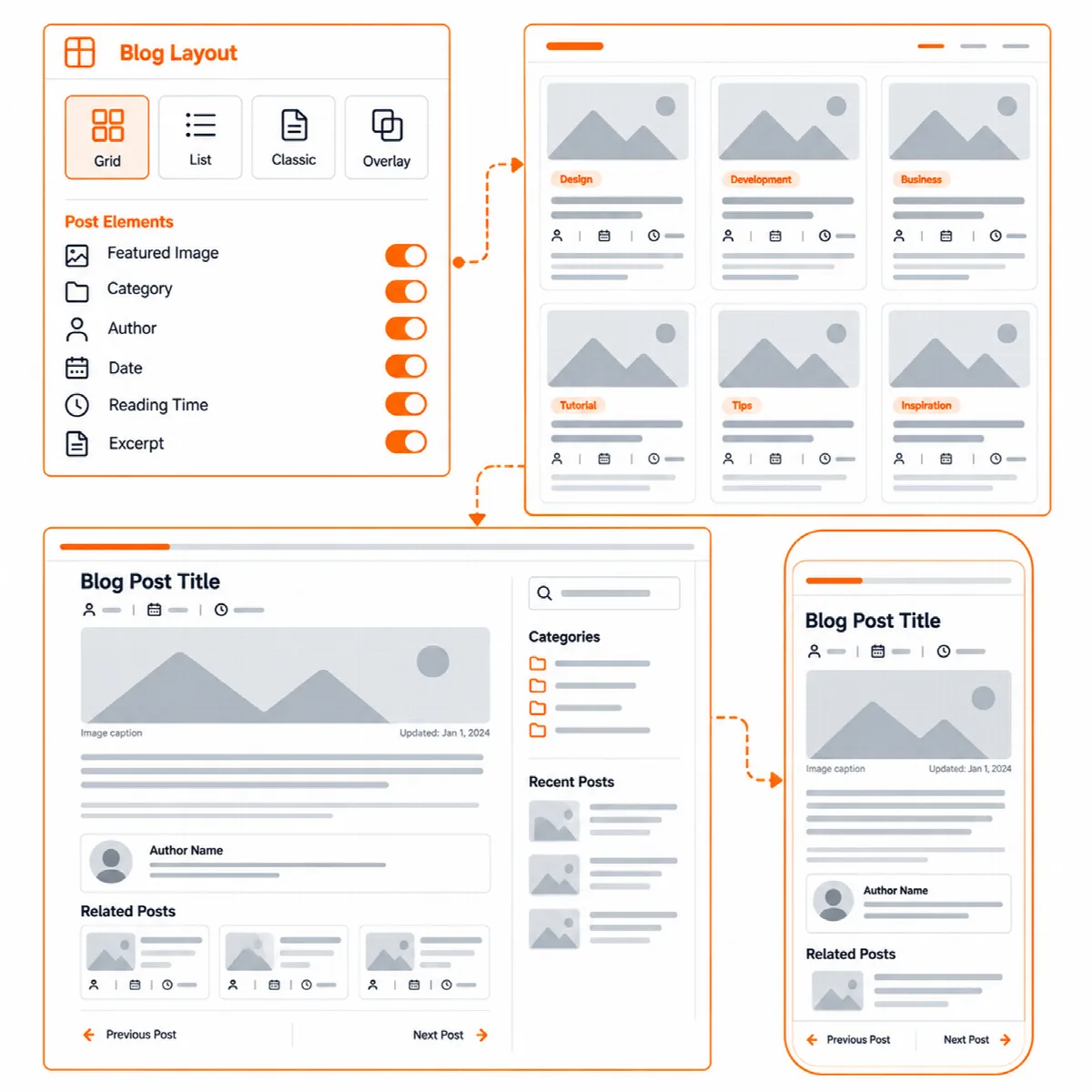
Choose the list layout
| Setting | Choices | Default |
|---|---|---|
| Post list layout | List, Grid, Classic: one large post in each row or Overlay: the title over the image | List; Grid on news sites |
| Columns | Automatic, as many as fit, 2, 3 or 4 (grid and overlay only) | Automatic |
| Show the first post large | The first post of the first page is large (list, grid and overlay) | Off; on for news sites |
| Image ratio of the post cards | 16:9, 16:10, 3:2, 4:3 or 1:1 | 16:10; 16:9 on news sites |
- In the grid and overlay layouts the posts stand in one column on phones and in two at most on tablets.
- Beside the sidebar a column is never narrower than 12rem, so there may be fewer columns than you chose.
- Search results are always a list.
Choose the card items
| Setting | Default |
|---|---|
| Show the featured image on post cards | On |
| Show the category on post cards | Off; on for news sites |
| Show the author on post cards | On; off for news sites |
| Show the date on post cards | On |
| Show the reading time on post cards | Follows Show the reading time of posts; off for news sites |
| Excerpt on post cards | On every card; on news sites On list rows, classic cards and the first large post |
| Excerpt length in words | 0, which keeps the WordPress length; otherwise 5 to 100 |
Excerpt on post cards can also be Hidden. Excerpt length in words applies to excerpts made from the text of a post, on the theme's post cards only; an excerpt you wrote for the post is shown as written.
A long link in an excerpt does not make the list wider than a phone screen, and a post without a title shows "(no title)" so its link always has text.
Author archives
Turn on Show the author's picture and biography on author archives to show the author's profile picture beside the title and the biography under it. Without a biography, the picture and the name are shown.
Place the blog sidebar
| Setting | Choices | Default |
|---|---|---|
| Sidebar position | After the content (right on left-to-right sites), Before the content (left on left-to-right sites) or No sidebar | After the content; no sidebar on Store sites |
| Keep the sidebar in view while scrolling | The sidebar stays in view on screens wide enough for it, below a sticky header | Off |
The sidebar shows the Blog Sidebar widget area (Appearance → Widgets) on posts, the posts page, archives and search results, only when it has widgets and the page is boxed. A sidebar taller than the window scrolls on its own. Each post can choose its own sidebar position in its Page Layout options.
Set up a blog step by step
- In Customizer → Vendix → Blog, choose the Post list layout and the Columns.
- Turn the card items on or off and choose the image ratio.
- Add widgets to the Blog Sidebar and choose its position.
- Click Publish and open the posts page and a category on a phone.