
Vendix Theme has three site types. Each type sets starting values for that kind of site, so you change fewer options by hand. The site type changes only starting values: options you saved keep their values, and no content or WordPress setting changes.
Where to find it: Appearance → Customize → Vendix → Site Type → Site type.
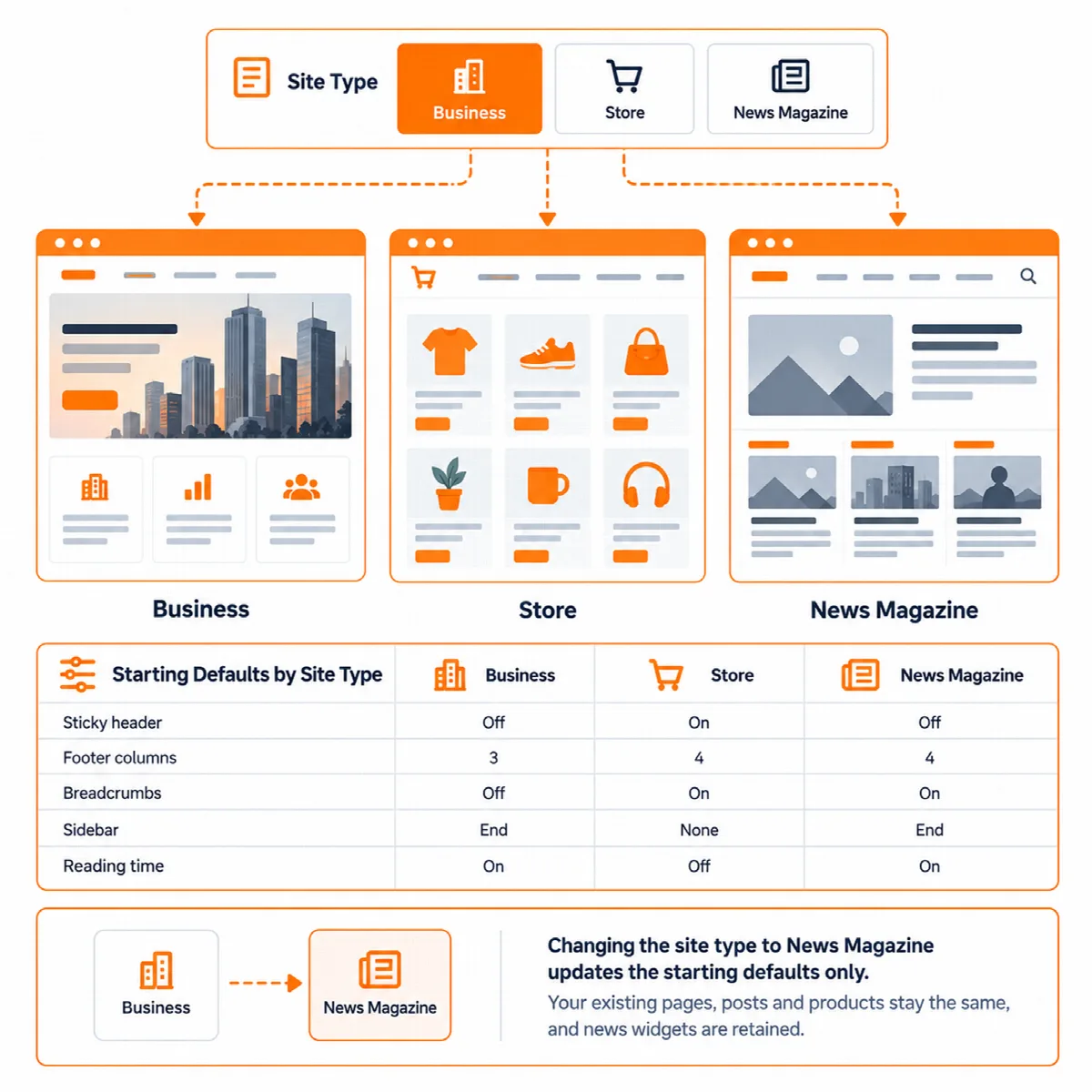
The three site types
Business / Corporate is the default. It keeps the starting values of the first theme version, so an updated site looks the same until you change the type or an option. It starts with a header that scrolls away with the page, three footer widget columns, no breadcrumbs, a blog sidebar after the content and the reading time on posts.
Store starts with a sticky header, four footer columns, breadcrumbs, no blog sidebar and no reading time. With WooCommerce active, it also turns on the header search, account and cart icons, the plain checkout and the percent sale badge.
News / Magazine starts with four footer columns, breadcrumbs, a blog sidebar and the reading time. It adds the News section to the Customizer, with a top bar, five widget areas with reserved space for banners and ads, and larger image sizes for news cards. Posts start with the standfirst, the updated date, related news and the reading progress bar.
The blog and post options work on every site type; only their starting values differ.
Starting values
| Option | Business / Corporate | Store | News / Magazine |
|---|---|---|---|
| Keep the header at the top while scrolling | Off | On | Off |
| Footer widget columns | 3 | 4 | 4 |
| Show breadcrumbs | Off | On | On |
| Blog sidebar position | After the content | No sidebar | After the content |
| Show the reading time of posts | On | Off | On |
| Header search, account and cart (WooCommerce) | Off | On | Off |
| Plain checkout header and footer (WooCommerce) | Off | On | Off |
| Sale badge (WooCommerce) | Text | Percent | Text |
| Post list layout | List | List | Grid, first post large |
| Standfirst, updated date, related posts, progress bar | Off | Off | On |
| Top bar and news widget areas | Not shown | Not shown | Shown |
Footer columns are drawn only when they have widgets, so the column value changes nothing until widgets are added. Every other default, such as the transparent header (off), is the same for all types.
Choose or change the type
- Go to Appearance → Customize → Vendix → Site Type.
- Choose the type that matches the main job of the site.
- Check the header, footer and a post in the preview, then click Publish.
- Reload the Customizer. The other sections now show the new starting values, and on news sites the News section appears.
- Change single options where the starting value does not fit.
You can switch the type later if the site changes. Saved options stay. Widgets in the news widget areas and a menu in the Top Bar location keep their places while another type is chosen, and come back when you choose News / Magazine again.
Note: The Vendix plugin's guided setup can set the site type for you. See Use the welcome page and guided setup.
For plugins and child themes
- Plugins can read the type with
vendix_theme_site_type(), which returnsbusiness,storeornews. The Vendix plugin uses it, for example, to suggest the matching setup type and Header & Footer presets. - The
bodyelement carries the classvt-type-business,vt-type-storeorvt-type-news. - The
vendix_theme/site_typefilter can change the type, andvendix_theme/defaultscan change the starting values. See Hooks and filters for developers.