
Vendix Theme shapes the head of each post, the reading experience and what comes after the text. The options work on every site type; news sites start with more of them on.
Where to find it: Appearance → Customize → Vendix → Posts.
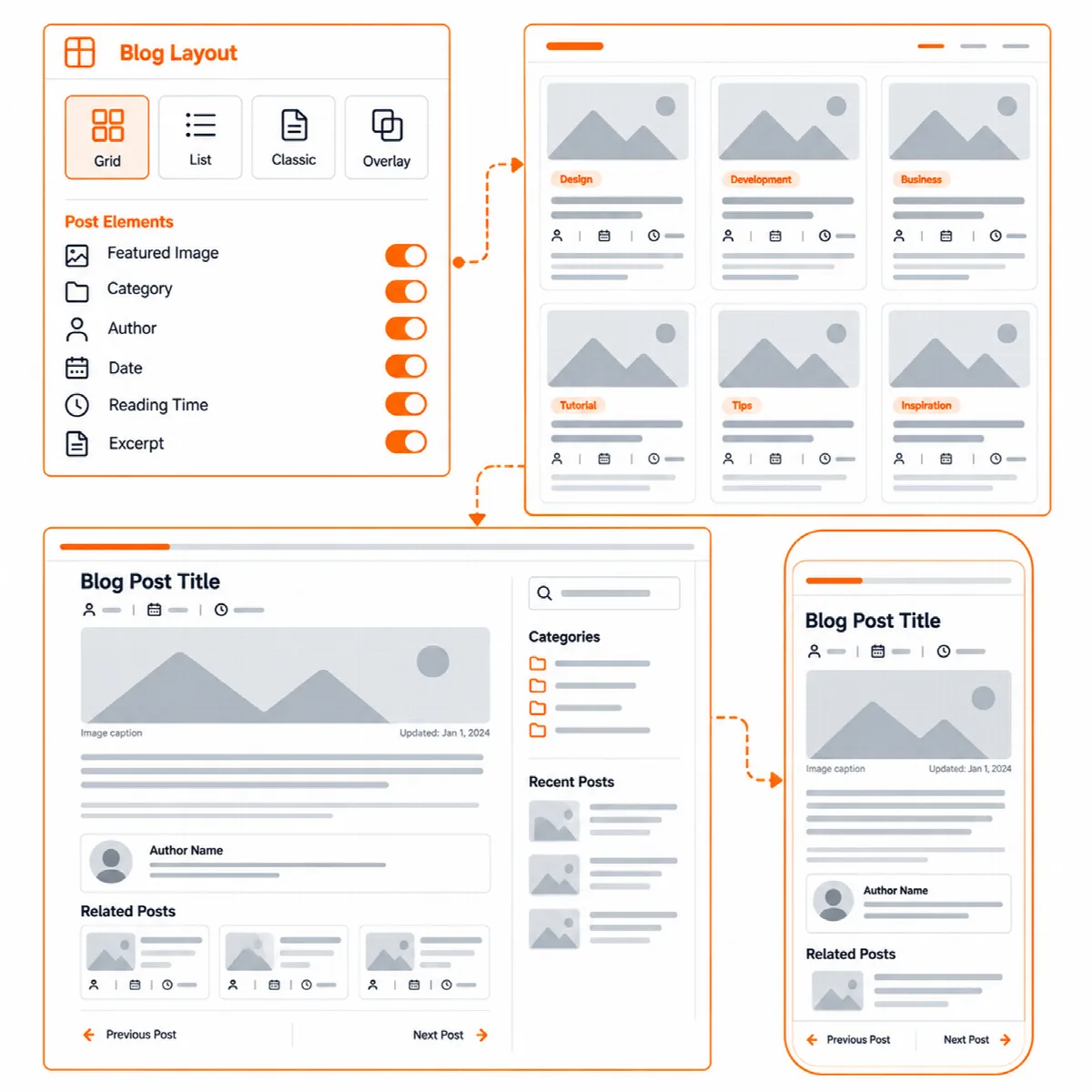
The post head
| Setting | Choices | Default |
|---|---|---|
| Post title | Above the featured image, Below the featured image or Over the featured image | Above |
| Featured image width | Content column, Container, across the sidebar too or Edge to edge | Content column |
| Title area of posts | Beside the sidebar or Above the content and the sidebar | Beside the sidebar |
| Alignment of the post head | Start (left on left-to-right sites) or Center | Start |
| Head of a post without a featured image | Plain or Band, a light background behind the title, the standfirst and the meta line | Plain |
| Show the category above the post title | On or off | Off |
| Show the excerpt of a post under its title | The standfirst: only an excerpt written for the post, not one made from its text | Off; on for news sites |
| Show when a post was updated | Shown when the post was changed more than 15 minutes after it was published | Off; on for news sites |
| Show the reading time of posts | On or off | On; off for Store sites |
| Show the caption of the featured image | On or off | Off; on for news sites |
- A container or edge to edge image sits above the content and the sidebar, with the title.
- Title area of posts applies when the title is above a content column image, or the post has no image.
- With Start, the title follows Page Title → Title alignment.
- Under a transparent header, the text of the post head starts below the header.
Each post can override Post title and Featured image, or hide its image, in its Page Layout options (Post header and Featured image). See Page Layout options and site-wide layout.
Reading options
| Setting | What it does | Default |
|---|---|---|
| Reading width without a sidebar (px) | A narrower column for posts on pages without a sidebar. 0 keeps the width of the content; otherwise 480 to 1200. | 0 |
| Start the text of posts with a large first letter | A drop cap at the start of the text. Not in Arabic, Persian and Urdu text. | Off |
| Show a reading progress bar on posts | A thin bar at the top of the window that grows as the reader scrolls | Off; on for news sites |
The reading progress bar is drawn with CSS only, without a script. It appears in browsers that support scroll-driven animations; other browsers simply do not show it.
After the post
| Setting | What it does | Default |
|---|---|---|
| Show related posts under posts | The latest posts of the same categories | Off; on for news sites |
| Number of related posts | 2 to 12 | 3 |
| Show links to the previous and next post | Links to the neighbouring posts | On |
| Show an author box under posts | Uses the author's profile picture and biographical info | Off |
A post without a title shows "(no title)" in its page title, the post lists, the previous and next post links and the breadcrumbs, so its link always has text.
Note: With Vendix Pro, posts can also get share buttons, a review box and a sponsored label through its Post Features, and on news sites related news can list the most read posts first. See Use Vendix Theme with the Vendix plugin.
Set up post pages step by step
- In Customizer → Vendix → Posts, choose where the title goes and how wide the featured image is.
- Turn on the reading options you want, such as the reading width and the progress bar.
- Choose what comes after the post: related posts, post links and the author box.
- Click Publish. Open a post with a featured image and one without, on a phone and on a computer.