
Vendix Theme is a quiet frame for pages built in Elementor. It has neutral base styles and no color or font panel of its own, supports the Elementor Theme Builder and lets Elementor or a plugin draw the parts they own.
One design source
Many themes add their own color and font panels next to Elementor's, and the two settings fight over the same page. Vendix Theme has none, so colors and fonts are set in one place:
- Elementor Site Settings. Its Theme Style (body, links, headings, buttons and form fields) applies on top of the theme's base styles.
- The Vendix Design System. While the Design System of Vendix Free or Vendix Pro is on, the theme's colors and the block editor palette follow it.
Without either, the theme keeps its own neutral palette and fonts.
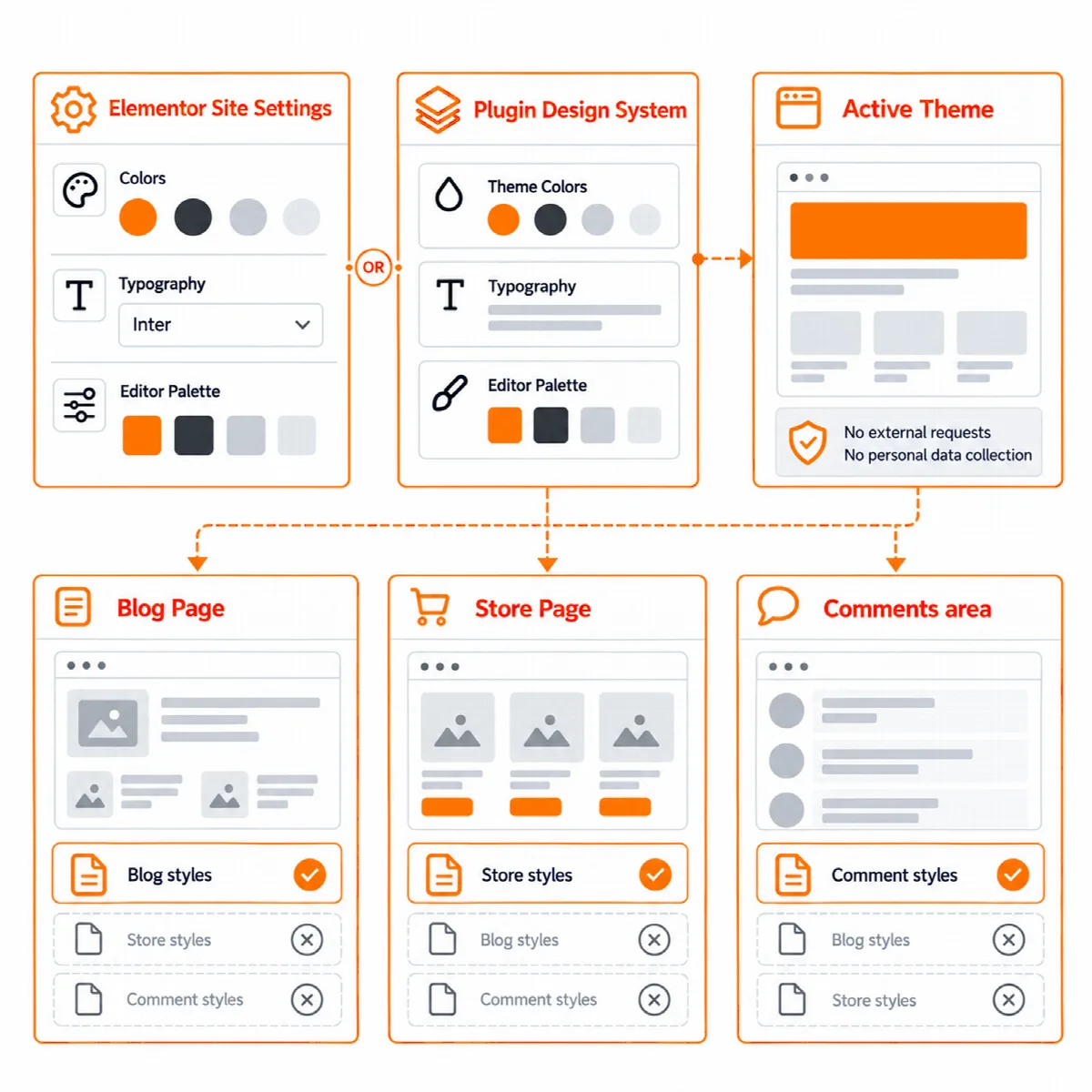
Colors from the Vendix Design System (Vendix Free and Pro)
While the Design System is on, its nine colors replace the block editor palette: Primary, Secondary, Accent, Heading, Text, Muted, Border, Light Background and Dark Background. On the site, the theme's own styles use six of them: text, heading, primary (the theme accent), muted, border and light background.
Type from the Vendix Design System (Vendix Pro)
With Vendix Pro's Element Typography, the body text, the headings H1 to H6, the theme menu and the text, title and headings of news posts follow its font, size per device, weight, line height, letter spacing and text transform. Tablet sizes apply up to 1024 pixels and phone sizes up to 767 pixels. A field left empty keeps the theme's own value.
A body font set for the whole site by the Design System or by Elementor Site Settings also replaces the theme font on right-to-left sites.
Elementor Theme Builder
With Elementor Pro, Theme Builder templates print in the theme's places:
| Location | Where it is used |
|---|---|
| Header | Every page |
| Footer | Every page |
| Single | A post, a page (the cart, checkout and account pages too), an attachment or another post type entry, a product and the 404 page |
| Archive | The posts page, post archives, search results, the shop and product categories and tags |
The theme draws its own header, footer and page title only where no layout replaces them. When a single or archive template is printed, the theme prints only its header and footer around it: no title area, sidebar, post head, post links, related posts or comments.
The Vendix plugin uses the same places for its Header & Footer layouts and, with Vendix Pro, for Vendix Templates. See Use Vendix Theme with the Vendix plugin.
Page Layout in the Elementor panel
Each page also has its Page Layout options in the Elementor page settings panel, in a section of the same name. The values are the same as in the Page Layout box on the edit screen. Pages edited with Elementor are full width by default (Content width: Automatic). See Page Layout options and site-wide layout.
When every page is built in Elementor
- If Elementor or the Vendix plugin draws the header and footer on every page, you can turn off Draw the theme header and footer in Customizer → Vendix → Header & Footer.
- If every page is designed in Elementor, you can turn off Load the theme base styles in Customizer → Vendix → Layout.
Check the integration
- Activate the theme and open Appearance → Vendix.
- Run the guided setup of the Vendix plugin, or set colors and fonts in Elementor Site Settings.
- Publish an Elementor or Vendix header and footer and check that the theme header gives way.
- Open a post, an archive and a store page to see which templates print.