
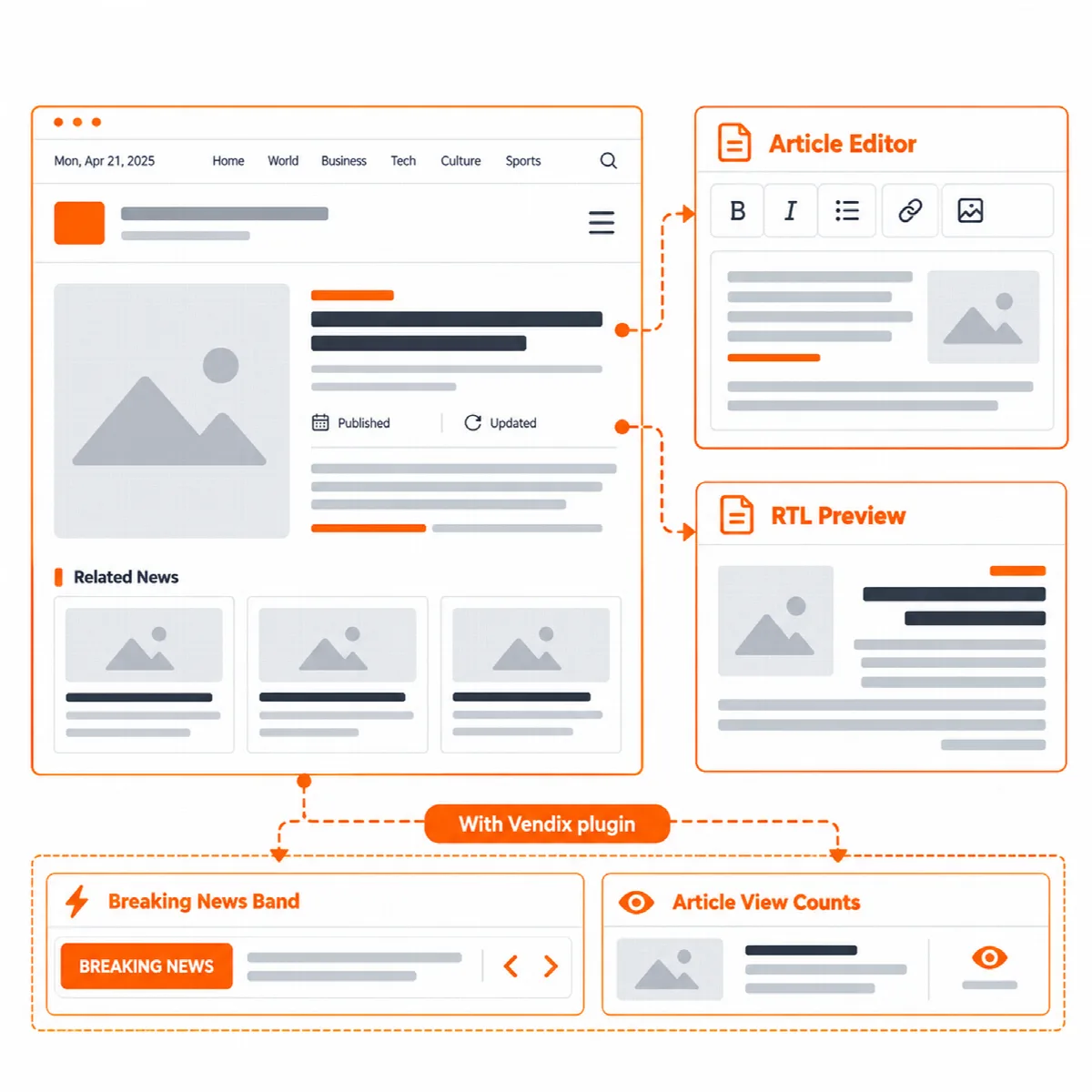
The News / Magazine site type gives a publication its reading features: a top bar above the header, published and updated date and time, a standfirst under the title, related news, a reading progress bar and widget areas with reserved space for banners and ads.
Where to find it: choose News / Magazine in Appearance → Customize → Vendix → Site Type, publish and reload the Customizer. The News section then appears in Customizer → Vendix. It is shown only while the site type is News / Magazine.
Top bar
A top bar above the header shows the date and the Top Bar menu.
- Create a menu in Appearance → Menus and assign it to the Top Bar (News / Magazine site type only) location.
- In Customizer → Vendix → News, keep Show the top bar above the header on (on by default).
- Keep Show the date in the top bar on, or turn it off to show only the menu.
The top bar appears with the theme header when it has something to show. It is not printed on pages with a transparent header, which lie over the top of the page.
News posts
On news sites, posts show the published and the updated date and time. These options start on for news sites and are in Customizer → Vendix → Posts:
| Setting | Default on news sites |
|---|---|
| Show the excerpt of a post under its title (the standfirst; only an excerpt written for the post) | On |
| Show when a post was updated (more than 15 minutes after publishing) | On |
| Show the caption of the featured image | On |
| Show related posts under posts | On, 3 posts (2 to 12) |
| Show a reading progress bar on posts | On |
Related news are the latest posts of the same categories. The post list layouts, the post head and the reading options work on news sites too. See Post lists and post cards and Post pages, reading options and related posts.
News image sizes
News sites use their own image sizes for news cards: 640 × 360 and 1280 × 720 pixels, so lists load sharp images of the right size. Images uploaded before you chose News / Magazine get the new sizes when their thumbnails are regenerated, for example with a thumbnail regeneration plugin. Until then WordPress shows the original image.
Editing posts
On news sites, posts are edited in the block editor with the larger reading text and upright quotes of the front end. On Arabic, Persian and Urdu sites, the editor uses the matching reading style as well.
Banner and ad areas
News sites get five widget areas for banners and ads, each with a reserved size so the page does not jump while an ad loads. See Banner and ad areas with reserved space.
News parts from Vendix Pro
The theme keeps places that the Newspaper module of Vendix Pro fills on news sites. Each part stays off until it is chosen in the Vendix plugin (Smart Features → Newspaper Widgets):
- Breaking news band: in the theme's top bar or under the theme header, not under a transparent header or a Vendix or Elementor Pro header.
- View counts: in the post meta and on post cards.
- Related news order: the theme's related news can put the most read posts first.

See Use Vendix Theme with the Vendix plugin. The top bar, the published and updated times, the standfirst, related news and the progress bar come from the theme and need no plugin.
Set up a newsroom step by step
- Choose News / Magazine in Customizer → Vendix → Site Type, publish and reload the Customizer.
- Create a Top Bar menu and check the top bar options in Customizer → Vendix → News.
- Set the post list layout in Customizer → Vendix → Blog.
- Add banners or ads to the news widget areas and check a post on a phone.