
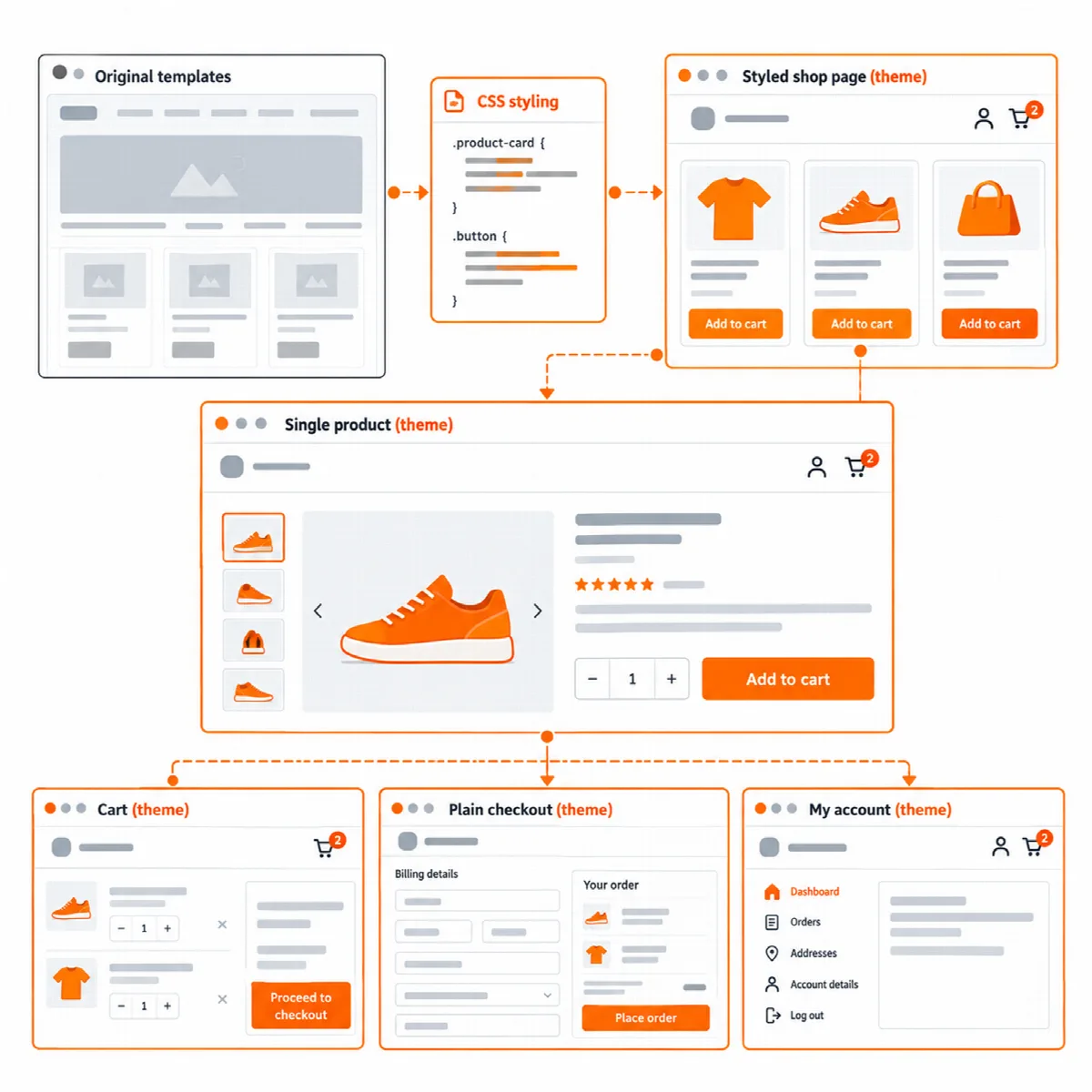
Vendix Theme styles WooCommerce stores without copying WooCommerce templates. The shop, the product page, the cart, the checkout and the account pages are styled, the WooCommerce blocks included, so WooCommerce updates do not leave outdated template copies in the theme.
Where to find it: Appearance → Customize → Vendix → Store. The section appears while WooCommerce is active.
Store icons in the header
| Setting | Default |
|---|---|
| Show a product search in the header | On for Store sites, off for the other types |
| Show a link to the account page in the header | On for Store sites, off for the other types |
| Show a cart link with the number of items in the header | On for Store sites, off for the other types |
The icons are part of the theme header, so they show where no header is made with Elementor or a compatible plugin. The cart count stays current through WooCommerce's own cart fragments. On phones and tablets the logo keeps its room, and the icons move to a row of their own when the header row is full.
Plain checkout
Turn on Keep the header and footer of the checkout page plain (on by default for Store sites). On the checkout and order received pages:
- the theme header shows only the logo, without the menu, the header button and the store icons;
- the theme footer shows only the footer text, without the footer columns and the footer menu.
Customers stay on the page that completes the order. While WooCommerce processes the order, the place order button shows a spinner, or a still lock when the visitor prefers reduced motion, in the classic checkout and in the Checkout block.
Shop sidebar and filter panel
| Setting | Choices | Default |
|---|---|---|
| Shop sidebar position | Before the products (left on left-to-right sites), After the products (right on left-to-right sites), In a panel that the Filters button opens or No sidebar | Before the products |
- Add filter widgets to the Shop Sidebar widget area in Appearance → Widgets.
- Choose the Shop sidebar position.
The sidebar shows on the shop and product category pages when the Shop Sidebar has widgets. On tablets and phones it opens from the Filters button. While the panel is open, status messages such as the number of results of a filter plugin are still read out by screen readers.
Product cards
| Setting | Choices | Default |
|---|---|---|
| Product columns on phones | 1 or 2 | 2 |
| Show the first gallery image while the pointer is over a product | On or off | On |
| Sale badge | Text, such as "Sale!" or Discount in percent, such as -20% | Percent for Store sites, text for the other types |
The columns on larger screens are set in the Customizer, in WooCommerce → Product Catalog → Products per row. The sale badge sits on the start corner of the product image: top left on left-to-right sites.
Product gallery
| Setting | Default |
|---|---|
| Zoom product images on hover | On |
| Open product images in a lightbox | On |
| Show product images as a slider with thumbnails | On |
Cart, checkout and account pages
The cart, the checkout and the account pages are styled, the WooCommerce Cart and Checkout blocks included. Block buttons such as Proceed to Checkout take the theme accent color like the other store buttons. In a wide Checkout block, the order summary stays below a sticky header.
On store pages the breadcrumbs show the WooCommerce trail. See Footer, page title and breadcrumbs.
Set up a store step by step
- Choose Store in Customizer → Vendix → Site Type, then publish and reload the Customizer.
- In Customizer → Vendix → Store, check the header icons and the plain checkout.
- Add filters to the Shop Sidebar and choose its position.
- Choose the product card and gallery options.
- Place a test order on a phone.
Note: With Vendix Pro, the product, shop, cart, checkout and account pages can also be designed as Vendix templates, quick view, wishlist and compare buttons sit in the theme's card action area over the product image, and wishlist and compare links join the header icons. See Use Vendix Theme with the Vendix plugin.