
Vendix Theme is made for the Vendix plugin. The theme keeps places in the header, the footer, around the text of posts, on product cards and on news pages, and the Vendix plugin fills them. Vendix is developed and tested with Vendix Theme.
Vendix runs on other WordPress themes too. It is developed and tested with Vendix Theme, and the full fit is there.
The theme does not need the plugin. Without it, the theme draws its own header, footer and page title, its store pages (with WooCommerce) and its news parts (with the News / Magazine site type), and keeps its own palette and type.
The plugin editions
- Vendix Free is published on WordPress.org as ARN Smart Site Utilities for Elementor. The theme's welcome page recommends it.
- Vendix Pro is the licensed edition of the plugin. It takes over the widgets of Vendix Free, so you do not need both. You install it from its ZIP package; the welcome page links to the plugin upload screen.
Vendix Theme itself is one package for both; there is no separate paid edition of the theme.
What each edition adds to the theme
| With Vendix Theme | Vendix Free | Vendix Pro |
|---|---|---|
| Design System colors in the block editor palette and on the site | Yes | Yes |
| Header & Footer layouts in the theme's header and footer places | Yes | Yes |
| Guided setup from the welcome page, with the theme's site type and main menu | Yes | Yes |
| Breadcrumbs widget in place of the theme's trail | Yes | Yes |
| Element Typography for body text, headings and the theme menu | No | Yes |
| Header & Footer presets of the theme's site type first | No | Yes |
| Vendix Templates in the theme's single and archive places | No | Yes |
| Banner zones in the theme's places, without a widget | No | Yes |
| Breaking news band, view counts and most-read related news on news sites | No | Yes |
| Post Features (share buttons, review box, sponsored label) around posts | No | Yes |
| Wishlist and compare links in the header, card buttons over the product image | No | Yes |
The settings of these features are in the Vendix plugin. For how to set them up, see the Vendix plugin documentation.
Header and footer (Vendix Free and Pro)
The Vendix Header & Footer Builder prints its layouts in the theme's header and footer places, and the theme leaves out its own header and footer there. When Vendix draws both, the theme also loads none of their styles and scripts. With Vendix Pro, the presets that match the theme's site type come first and are marked as suggested.
On the plain checkout of a store, a layout set by a broad rule gives way to the theme's plain header and footer; a layout set for the checkout page shows as it is. The wishlist and compare links and the breaking news band belong to the theme's own header; a Vendix header has its own wishlist and compare icons.
Colors and type
- Colors (Vendix Free and Pro): while the Design System is on, its nine colors replace the block editor palette, and the theme's styles use six of them on the site.
- Type (Vendix Pro): Element Typography sets the font, size per device, weight, line height, letter spacing and text transform of the body text, the headings and the theme menu, and the theme follows it.
See Colors, fonts and Elementor.
Guided setup (Vendix Free and Pro)
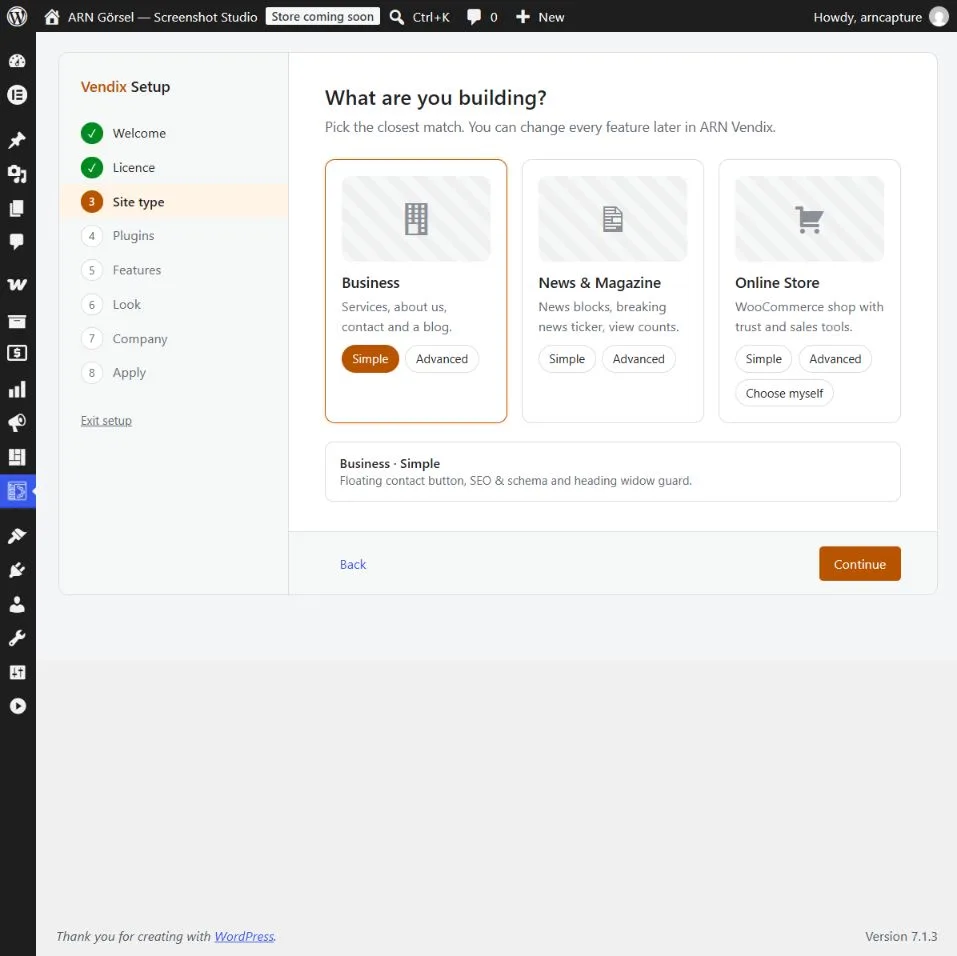
Appearance → Vendix → Start setup opens the guided setup of the active Vendix plugin; Vendix Pro's setup comes first when both are active. With Vendix Theme active, the setup suggests the theme's site type, sets it, and puts the menu it creates in the theme's Header location. "Undo setup" brings back the earlier site type and menu locations. See Use the welcome page and guided setup.
Store (Vendix Pro)
The theme brings the store frame: header icons, a plain checkout, a shop sidebar or filter panel, product cards and styled store pages. Vendix Pro's store modules fit into it:
- Header lists: wishlist and compare links with their counts join the theme header's store icons. A switch in the Vendix plugin, on by default, turns them off.
- Card buttons: quick view, wishlist and compare buttons sit in the theme's card action area over the product image.
- Store templates: Vendix product, shop, cart, checkout and account templates print in the theme's single and archive places, and a shop template leaves out the theme's shop sidebar.
- Plain checkout: banners and the Floating Contact button set by broad rules stay out of the theme's plain checkout; those set for the checkout page still show.
News (Vendix Pro)
With the News / Magazine site type, the Newspaper module of Vendix Pro also fills the theme's own news places. Each part stays off until it is chosen in Smart Features → Newspaper Widgets:
- Breaking news band: in the theme's top bar or under the theme header.
- View counts: in the theme's post meta and on its post cards.
- Related news order: the theme's related news can put the most read posts first.
- Templates around the text: saved Elementor templates can go to the theme's places above and below the post text.

Post Features add share buttons, a review box and a sponsored label in the places the theme opens around posts, on every site type.
Banner zones (Vendix Pro)
Vendix Pro's Banners module places zones by itself on other themes too: before or after the post content, after a chosen paragraph, in post lists and over the page as pop-ups, slide-ins and bars. With Vendix Theme it also uses the theme's own places without any widget: above the header, beside the logo, under the header, above the footer, and before and after the post text on news sites. Under a transparent header, zones above and under the header stay out. See Banner and ad areas with reserved space.
With another theme
| Area | With other themes | With Vendix Theme |
|---|---|---|
| News | Newspaper widgets with a news ticker, view counts and most-read lists | Also the breaking news band in the theme header, view counts in its post meta and cards, and most-read order of its related news |
| Store | Store Features, store templates and widgets | Also wishlist and compare links in the header and card buttons over the product image |
| Header & Footer | Layouts with their own HTML and CSS | Layouts in the theme's own places, presets of its site type first |
| Vendix Templates | The template replaces the content area | The template fills the theme's single and archive places |
| Banners | Automatic places in the content and over the page; shortcode and Elementor widget | Also zones above, beside and under the theme header, above its footer and in its news places |
| Guided setup | Business, news or store site | Also the theme's site type and main menu location |
A practical setup
- Activate Vendix Theme and the Vendix plugin, Free or Pro.
- Open Appearance → Vendix and click Start setup.
- Choose the site type in the setup; the theme takes the same type.
- Turn on the store or news parts the site needs, then check a product page and a post on a phone.