
Four store modules help customers before and after they pay. Cart Value shows how close the cart is to free shipping or a reward and adds gift options. Delivery & Trust estimates delivery dates from your own rules and adds payment badges and a secure payment note. Delivery Slots lets customers choose the delivery day and a time slot at checkout, and Shipping on the Product Page shows the shipping costs under "Add to cart". Their cart and checkout parts work in the classic cart and checkout and in the Cart and Checkout blocks.
Where to find it: ARN Vendix → WooCommerce → Cart Value, Delivery & Trust, Delivery Slots and Shipping on the Product Page. Cart Value, Delivery & Trust and Delivery Slots are part of Vendix Pro. Shipping on the Product Page is also in Vendix Free 3.0.0 (ARN Utilities → WooCommerce → Shipping on the Product Page). Each module is off until you turn it on.
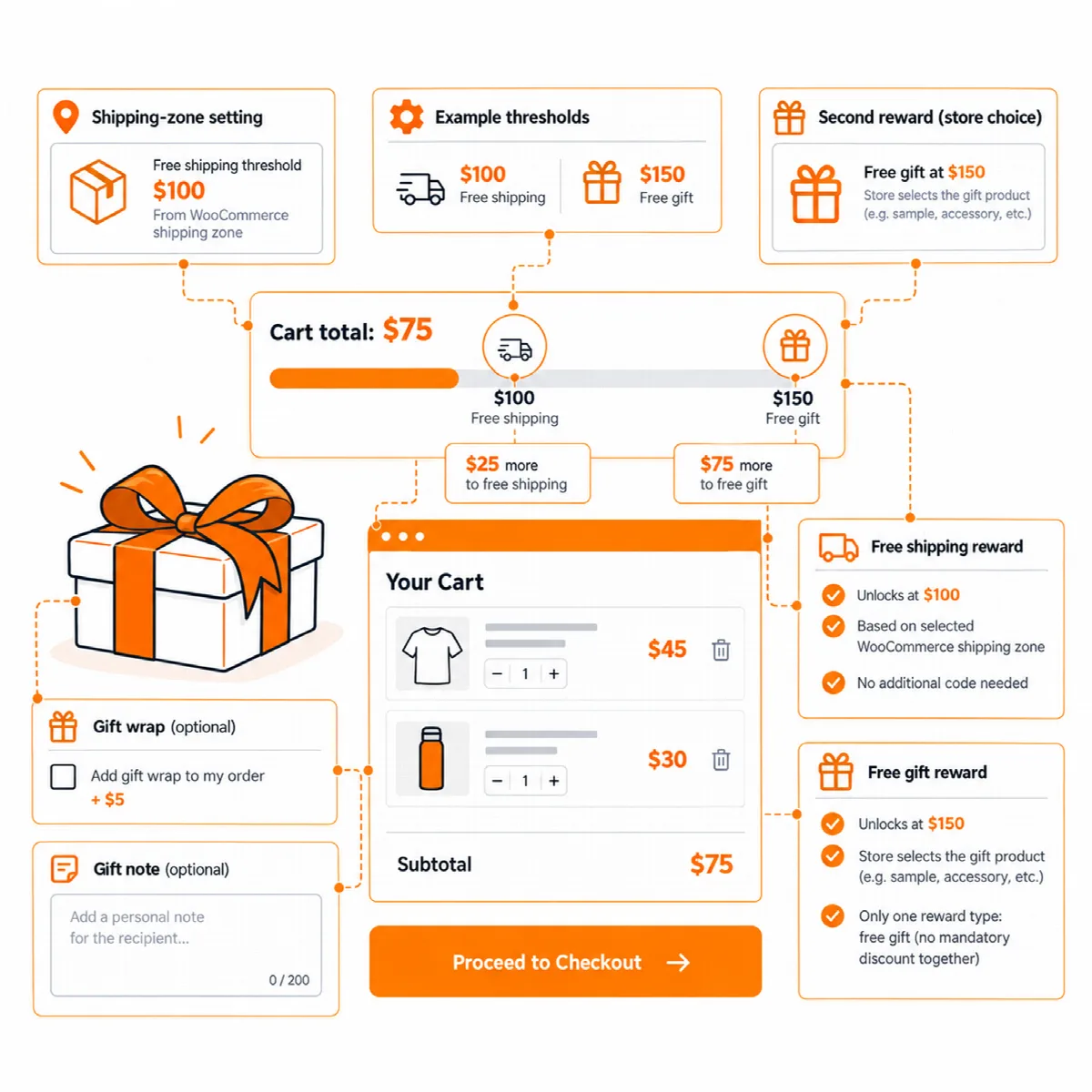
Cart Value
Each part has its own switch in the Cart Value tab:
| Switch | What it does |
|---|---|
| "Add X more to get free shipping" | A progress bar in the cart, the mini cart and the checkout |
| Also on product pages | "With this product, you are X away from free shipping" |
| A second goal | "Add X more and get a gift or a discount": a gift product that joins the cart by itself, or a percentage or fixed discount |
| Quantity buttons (− and +) in the WooCommerce mini cart | Changes quantities in the classic mini cart, within the product's limits and stock |
| Gift wrap | The customer can choose it in the cart or at checkout, with an optional fee and tax class |
| Gift note | A short message field at checkout (up to 300 characters), saved with the order and shown on the order screen, in order emails and on the order received page |
| "Your cart was saved: this price has changed" | Shows the old and the new price once, in the cart and at checkout, when a returning customer's saved cart changed price |
Set up the free shipping bar
- In WooCommerce → Settings → Shipping, add a Free shipping method to your shipping zones. The bar takes its amount from the Free shipping method of the customer's zone and counts the cart total the way that method does, before or after coupon discounts.
- In the Cart Value tab, turn on the free shipping bar, and optionally the product page line.
- For a second goal, set the second cart amount and choose the gift product or the discount. The gift leaves the cart again when the total falls below the amount.
- Save and test a cart below and above each amount.
A Free shipping method that requires a coupon shows no bar. The discount reward is a WooCommerce coupon created in code, so coupons must be enabled in WooCommerce. The Mini Cart block already has its own quantity buttons.
Delivery & Trust
Delivery & Trust shows an estimated delivery date range in the cart and at checkout, under the order total. It needs no carrier account: the dates come from your own rules.
| Rule | What it controls |
|---|---|
| Preparation time (working days) | Working days before the parcel goes to the carrier; a product can add its own extra days |
| Cut-off time | Orders placed after this time, in the store time zone, count from the next working day |
| Dispatch and delivery days | The weekdays you hand over parcels and the carrier delivers |
| Holidays | Single dates, yearly dates or date ranges with no preparation, dispatch or delivery |
| Delivery time after dispatch | A from–to range of carrier days for each WooCommerce shipping zone, or no estimate for a zone |
- Open the Delivery & Trust tab and turn on Show the estimated delivery dates in the cart and at checkout, under the order total.
- Set the rules above.
- Check the preview on the settings screen: it shows what an order placed now would show.
- Optionally turn on Save the estimated delivery dates with each order: the thank-you page shows them as a small calendar, and the same dates appear in order emails and on the order screen.
- Save.
No estimate shows for virtual products, local pickup or an address that no shipping method reaches. Product pages can show the estimate too, with a countdown to the cut-off time, and the ARN Delivery Estimate widget places it in Vendix store templates. The dates are an estimate from your own rules, not a carrier promise.
Payment badges and secure payment note
- Payment method badges under the place order button: choose the methods to name, such as Visa, PayPal, bank transfer or cash on delivery. The badges use plain text, not copies of brand logos.
- Secure payment note under the place order button: a short note, "Secure payment with SSL encryption" by default. It appears only while the checkout page is served over HTTPS.
Where you deliver at all is set separately with Delivery Area Rules; see WooCommerce store tools.
Delivery Slots (Pro)
Delivery Slots (Vendix 3.0.0 and later) adds a delivery day and a time slot to the classic checkout and the Checkout block. The first day that can be chosen follows the Delivery & Trust rules above: the cut-off time, the preparation time, the delivery weekdays, the holidays and the delivery time of the shipping zone.
- Open ARN Vendix → WooCommerce → Delivery Slots and turn on Customers choose the delivery day and time at checkout.
- Optionally turn on The choice is required: no order without a day and a time.
- Set Days to choose from.
- Tick the Shipping methods that offer the choice and, if needed, the Shipping zones that offer the choice (none ticked: every zone).
- Under Time slots, set each slot: For (Delivery or Pickup), Start, End and Orders per slot (0: no limit). The two empty rows add a delivery and a pickup slot; clear the times of a row to remove it.
- Save and place a test order with each shipping method that offers the choice.
| Setting | Default | Options |
|---|---|---|
| Customers choose the delivery day and time at checkout | Off | On |
| The choice is required | Off | On |
| Days to choose from | 7 | 1 to 60, counted from the first possible day |
| Shipping methods that offer the choice | Flat rate, Free shipping, Local pickup | The shipping methods of your store |
| Shipping zones that offer the choice | None ticked (every zone) | Your shipping zones |
| Time slots | Delivery 09:00–12:00, 12:00–15:00, 15:00–18:00 and 18:00–21:00, no limit | Up to 24 slots, up to 9999 orders each |
- Pickup: local pickup uses the pickup slots; the other methods use the delivery slots.
- Capacity: a full slot is not offered. A place is freed when the order is cancelled, fails or is refunded in full.
- On the order: the chosen day and time show on the thank-you page, in the order emails, in the PDF documents and on the order screen. On the order screen you can change the Delivery day and the Delivery time (a change takes a place even in a full slot, and the order note records it), and the orders list has Filter by delivery day.
- No choice is offered for an address that the Delivery Area Rules refuse. Times are in the site's time zone.
Shipping on the Product Page
Shipping on the Product Page (Vendix 3.0.0 and later) puts a Shipping box under "Add to cart". The customer clicks Enter your address to see the options, chooses the country or region, the state and the postcode, and clicks Calculate shipping.
- Open ARN Vendix → WooCommerce → Shipping on the Product Page (Free: ARN Utilities → WooCommerce → Shipping on the Product Page).
- Turn on Show the shipping costs on the product page (off by default) and save.
- Open a product page and test an address in each of your shipping zones.
- The answer: the product's shipping methods and costs for the chosen option and quantity, from your WooCommerce shipping zones and methods, and the free shipping threshold ("Free shipping on orders over …"). The cart may still change the costs.
- Delivery estimate (Pro): while Delivery & Trust shows the estimate in the cart, the box shows it too.
- Rules: the Delivery Area Rules apply; a refused address gets "We do not ship to this address."
- Caching: the page stays cacheable; the costs are asked for with a small request. The address is kept in the customer's own WooCommerce session, as WooCommerce's shipping calculator keeps it, and the cart uses it too.
- Which products: only products that are shipped; not virtual, downloadable, grouped or external products, and not while WooCommerce's shipping is off.