
Six store modules use your own store data: Smart Recommendations, Photo & Video Reviews, Review Summary, Product Questions, Loyalty Points and Multi-Currency. Nothing is sent to an outside recommendation or rate service; Review Summary and the answer drafts of Product Questions use the AI connection you set up in Settings → ARN Center.
Where to find it: ARN Vendix → WooCommerce, in the Sales, Customers and Pricing groups. All six are part of Vendix Pro and off until you turn them on. Product Questions is also in Vendix Free 3.0.0 (ARN Utilities → WooCommerce → Product Questions).
Smart Recommendations
| Block | Where the suggestions come from | Default place on product pages |
|---|---|---|
| Frequently bought together | Completed and processing orders of a period you choose, 180 days by default | Below the product summary |
| Similar products | Shared attribute terms, tags and categories | Instead of WooCommerce's related products |
| Recently viewed | The last products the visitor opened, kept in the visitor's browser | After the related products |
- Open Smart Recommendations and turn on the blocks you want.
- For Frequently bought together, set Count the orders of the last (days), the minimum number of orders in which products were bought together (2 by default) and how many products are shown. Orders are counted in the background; the settings screen shows how many are counted.
- Optionally, without enough orders, show the product's cross-sells instead, under the title "You may also like".
- Optionally turn on the "Who is it for" field. Short lines such as "Beginners" or "Small kitchens" are added in the product editor's Linked Products tab, and can show on product pages and as a row of the product comparison.
- Save.
Customers tick the products they want, see the total price and use Add selected to cart. Cancelled, refunded and failed orders, and orders with more than 50 different products, are not counted. Recently viewed products live in the browser's local storage: the site stores nothing about the visitor and sets no cookie.
The ARN Frequently Bought Together, ARN Similar Products and ARN Recently Viewed widgets place the blocks in product templates.
Photo & Video Reviews
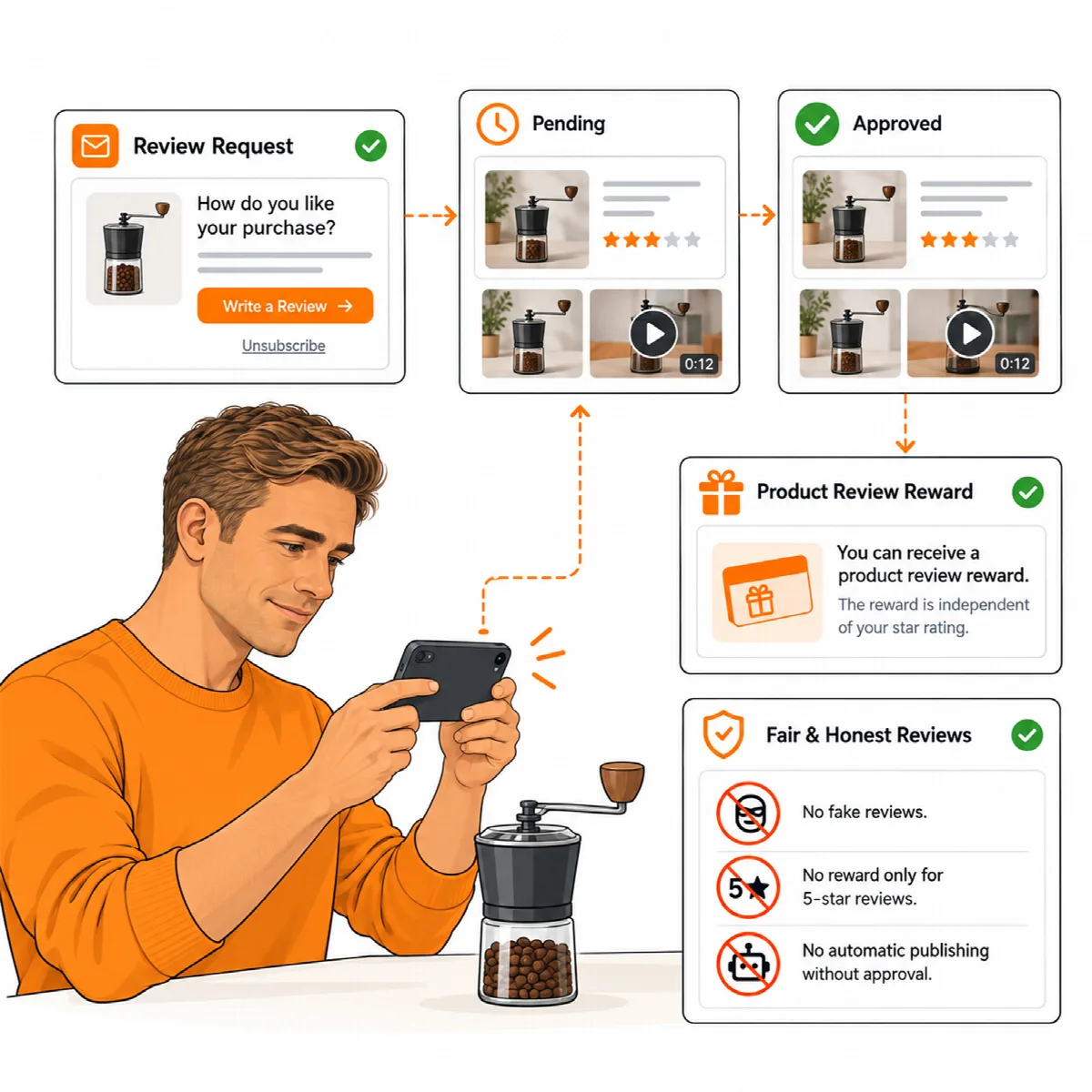
- Open Photo & Video Reviews and turn on Let customers add photos and videos to their product reviews.
- Choose who may add files: verified buyers of the product (the default), logged-in customers, or anyone who may review.
- Set the file types (JPG, PNG, WebP, MP4, WebM), the files per review, the maximum sizes and the hourly limit.
- Keep Hold every review with files for moderation on (the default) unless you approve reviews another way.
- Choose the display: small pictures under each approved review, and a "Customer photos" strip on product pages.
- Save.
Files appear only after the review is approved. They are checked by their content, not only by their names, and SVG or HTML files are refused. Location, camera details and comments are removed from photos, and location tags are emptied in MP4 videos. Files of reviews that are not approved yet wait in a protected folder; a daily job deletes the files of reviews marked as spam or left unapproved for 30 days, while the reviews stay. The comment edit screen shows a review's files in a Photos and videos box.
The [arn_review_photos] shortcode places the photo strip elsewhere, and the ARN Review Gallery widget shows the pictures as a grid or carousel. Vendix's automatic alt text and the media AI of ARN WebPix leave these files out.
With ARN WebPix (Vendix 3.0.0 and later). With ARN WebPix 3.0.1 or later, the files of a review that is not approved are on hold: no WebP or AVIF copy, no watermark and no cloud storage upload. Approval ends the hold. Setting the review back to pending, spam or trash brings the hold back, and WebPix removes its WebP, AVIF and cloud storage copies; a watermark stays.
Review requests and coupons
- Review request email: customers get one email some days after their order is completed (7 by default), listing the products they have not reviewed yet. By default it goes only to customers who tick Email me once after my order is completed to ask for a review at checkout (the default text of the box), which is never ticked in advance.
- Coupon for reviews with photos: optionally, an approved review with a photo or video earns a one-time WooCommerce coupon. Only buyers of the product take part, one coupon per order, regardless of the rating, and rewarded reviews show a visible note.
Both are WooCommerce emails, so their subject and text are edited in WooCommerce → Settings → Emails. Every email has an unsubscribe link.
Review Summary
Review Summary (Vendix 3.0.0 and later) adds a What customers say box at the top of the Reviews tab: a short summary with what buyers like (+) and dislike (−), written with the shared ARN Smart AI from the approved reviews and checked by you.
- Set up the AI connection in Settings → ARN Center. The tab warns you while it is not ready.
- Open Review Summary and turn on Write a summary of the reviews and show it at the top of the Reviews tab.
- Set Write a summary from this many approved reviews.
- Decide whether to turn on Show new summaries before I check them and the "What customers say" link below the price.
- Save. Saving approves the AI settings of Settings → ARN Center for this background work; when you change them there, save this tab again.
| Setting | Default | Options |
|---|---|---|
| Write a summary of the reviews | Off | On |
| Write a summary from this many approved reviews | 5 | 2 to 100 |
| Show new summaries before I check them | Off | On |
| "What customers say" link below the price | Off | On |
- In the background: a summary is written an hour after a new approved review and once a week for products that have none. A product page never calls the AI.
- What the AI reads: only the text and the rating of approved reviews, never the reviewers' names or email addresses. It writes in the site's language.
- Your check: in the Review summary box of the product, Update checks the summary (its last line then says "Summary written with AI and checked by the store"). You can also edit it, regenerate it or hide it. A summary you checked or changed is never written over; the box tells you when new reviews came.
- Display: at the top of WooCommerce's Reviews tab, also in Elementor templates with the ARN Product Tabs widget. The summary is not added to the structured data.
Product Questions
Product Questions (Vendix 3.0.0 and later) adds a Questions (N) tab to product pages with the answered questions and an Ask a question form.
- Open Product Questions (Free: ARN Utilities → WooCommerce → Product Questions) and turn on Show the "Questions" tab on product pages and take questions. It is off by default.
- Save.
- Answer in Products → Questions (All, Waiting, Answered, Spam, Trash). Type the answer and click Publish answer.
- Publishing: a question shows on the page only after you answer it, and the asker's email address is never published.
- Emails: the store gets New product question for each question that waits for an answer, and the asker gets Question answered once, with the first published answer. Both are WooCommerce emails.
- Spam: a hidden field for bots, a short wait before the form can be sent and a limit per visitor keep unwanted questions out; questions with a link or a word of Settings → Discussion → Disallowed Comment Keys go to Spam.
- Draft with AI (Pro): writes a draft answer from the product's description and attributes with the AI of Settings → ARN Center. Nothing is published until you click Publish answer.
- Structured data (Pro): answered questions are added to the product's structured data.
- Not comments: questions live in a table of their own, so the review count, the rating and the Comments screen do not change. The tab also shows in Elementor product templates with the ARN Product Tabs widget.
- Privacy: questions are included in Tools → Export Personal Data; Erase Personal Data removes the asker's name and address from answered questions and deletes the others.
Vendix Free has Product Questions without Draft with AI and the structured data. The questions are kept in the same table, so they stay when you move on to Vendix Pro.
Loyalty Points
Customers with an account earn points on their orders and spend them as a discount in the cart and at checkout.
| Setting | Default and options |
|---|---|
| Earning rate | 1 point for each 1 of the store currency, rounded down |
| Order status that gives the points | Completed, or Processing for points as soon as the order is paid |
| Point value | 100 points worth 1 of the store currency |
| Spending limits | Fewest points to use at once, a points step and the largest share of the cart paid with points |
| Expiry | Never, or after a number of months |
- Open Loyalty Points and turn on Customers with an account earn points on their orders.
- Decide the point value and the expiry before customers start earning points.
- Choose whether shipping and tax count, and turn on the messages: "Earn X points with this product" on product pages and "You earn X points with this order" in the cart and checkout.
- Turn on "Use your points" in the cart and at checkout, and the "Points" page in My Account.
- Save.
Points are counted from the product lines after discounts; fees never count and guest orders earn nothing. A cancelled order takes back its points, and a refund takes back the refunded share. Points spent on a failed, cancelled or fully refunded order return to the balance. Store managers correct a balance on the user profile with a required note. The discount is a WooCommerce coupon created in code, so coupons must be enabled.
Multi-Currency
Multi-Currency makes Vendix store amounts follow the currency the customer sees with WooPayments multi-currency, WPML WooCommerce Multilingual & Multicurrency or CURCY. Amounts stay saved in the store currency and are converted with that plugin's own rates; no setting is needed. This covers the free shipping and reward amounts and the gift wrap fee, bundle discounts, the lowest price line, the price filter and loyalty point values, and from Vendix 3.0.0 the discounted prices of Discount Rules and the amount limits of Order Limits.
Approximate price. Optionally show "≈ 25 $" next to prices in up to three other currencies, on product pages, on product cards and under the cart and checkout total. You enter the rates and their date by hand, and the line says "Approximate, rates of" with that date. The approximate price is hidden while a multi-currency plugin shows another currency.
Payment note. Optionally add "Payment is taken in …" with the store currency on product pages and at the order total.
Pricing Zones. The same tab sets prices per group of countries in the store currency, with a percentage per zone and, for a product, its own zone prices (Vendix 3.0.0 and later). In a zone, the approximate price shows only the zone's own currency. See WooCommerce pricing zones and the zone selector.
Customers still pay in the store currency. Paying in the customer's chosen currency needs a multi-currency plugin; this module does not add it.