
Three store modules give shoppers honest signals before they buy. Stock & Demand shows low-stock badges and collects back-in-stock and price drop requests, Lowest Price shows the lowest earlier price next to a discount, and Size Charts opens a size guide on the product page. All three work only with real data from your store.
Where to find it: ARN Vendix → WooCommerce → Stock & Demand, Lowest Price and Size Charts. All three are part of Vendix Pro and off until you turn them on.
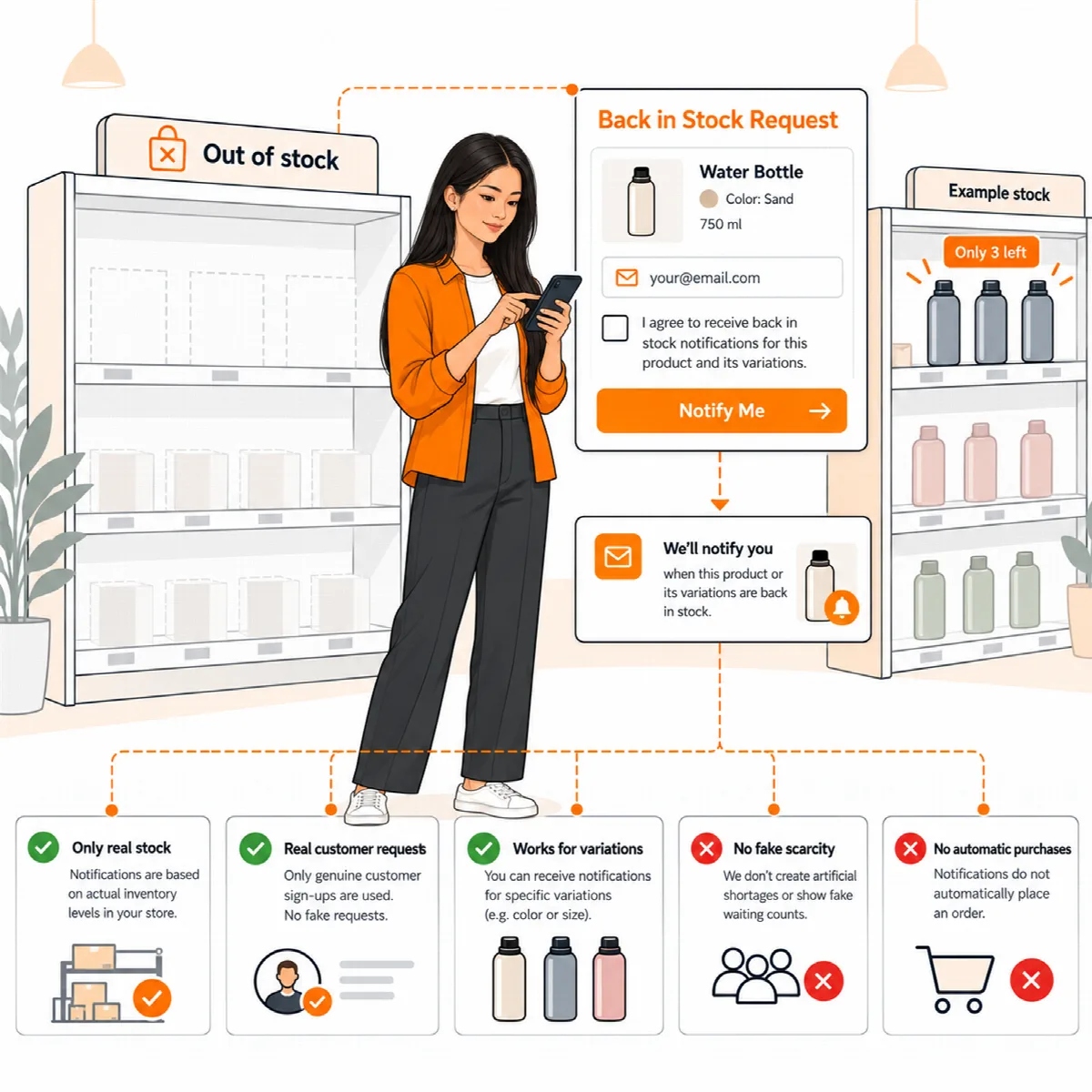
Stock & Demand
| Switch | What it does |
|---|---|
| "Only 3 left in stock" on product pages | Shows when WooCommerce manages the stock and the stock is at or below the low stock threshold |
| The same badge on product cards | Adds the badge to product lists |
| "Email me when it is back in stock" form | Appears on out-of-stock products and variations |
| Show how many customers are waiting | "5 people are waiting for this product", from a minimum number of real requests you set (3 by default) |
| "Notify me when the price drops" below the price of product pages | A price drop alert for products and variations that can be bought now (Vendix 3.0.0 and later) |
Set up back-in-stock alerts
- Publish your privacy policy page first. The form needs a required consent box with your own text and a link to that page.
- Turn on the form and set the consent text.
- Set how long waiting and answered requests are kept; after that, they are removed.
- Save.
Each customer receives one WooCommerce "Back in stock" email when the product or the chosen variation returns. Every email has an unsubscribe link that opens a page with an Unsubscribe button, so email scanners cannot unsubscribe anyone; the one-click unsubscribe of mail apps works too. The form works without JavaScript. In Elementor product templates without the add to cart area, place it with the [arn_stock_alert] shortcode. From Vendix 3.0.0, the form refuses a request sent faster than two seconds after the page opened, like the price drop form.
Set up price drop alerts
- Turn on "Notify me when the price drops" below the price of product pages.
- Set Smallest price drop that sends the email (%): 0 (the default) sends it for any drop, up to 90.
- Save. The consent box and the privacy page are the same as for the back-in-stock form; the price drop form has its own consent text, "I agree to receive one email about this product's price".
The link opens the same form as the back-in-stock alert. Each customer gets one "Price drop" email when the price of the product or the chosen variation falls below the price they saw, by at least the share you set; then the request closes. A smaller drop sends nothing and the request keeps waiting. Price changes are seen when a product is saved: in the product editor, quick and bulk edit, imports, the REST API and when a scheduled sale starts. Prices are kept and emailed in the store currency, also while a multi-currency plugin shows another one. In Elementor product templates, the link shows with the ARN Product Hooks widget. Edit the email in WooCommerce → Settings → Emails.
The waiting list
Products → Stock Alerts lists the products customers wait for, with stock, the waiting count and the latest request, and exports the list as CSV. A Price alerts tab lists the price drop requests per product and variation with their current price, with its own CSV export. An export with email addresses is available to the main administrator only. Requests are included in the WordPress Export Personal Data and Erase Personal Data tools.
Note: Deleting Vendix always removes the waiting list, also without the full uninstall option. Export it first in Products → Stock Alerts if you want to keep it.
Lowest Price
Lowest Price records the price history of products and variations and shows "Lowest price in the 30 days before the discount" with the amount below discounted prices.
- Open the Lowest Price tab and turn on Record the price history of products and variations. The current prices of published products are added in the background.
- Turn on Show the lowest price below discounted prices on product pages, and optionally Show it on product cards too.
- Set the Period before the discount (days): from 7 to 365, 30 by default. Choose the period that fits the market you sell in.
- Choose what shows until the history covers the whole period: nothing, or the lowest price since recording began.
- Optionally turn on Progressive discounts: a deeper discount during a running sale is then compared with the prices before the sale began.
- Set how long the price history is kept and save.
A record is written only when a price changes: in the product editor, quick and bulk edit, imports, the REST API, and when a scheduled sale starts or ends. Start recording well before a planned sale, so the line has a full history. Vendix never changes a price by itself; regular and sale prices stay under your control in WooCommerce.
Size Charts
- Open the Size Charts tab and turn on the size guide link on product pages.
- Go to Products → Size Charts and create a chart: a size table (you can paste it from a spreadsheet), a "How to measure" text and a measuring picture.
- In the chart's Product categories box, choose the categories it belongs to. Sub-categories use the chart of the nearest category above them.
- On a single product, the Size chart box can choose another chart or hide the chart.
The Size guide link opens the chart in an accessible window: a side panel on wide screens and the full screen on phones, with an optional cm and inch switch. The ARN Size Chart Elementor widget places the link or the table exactly where you want it. With WPML or Polylang, a translated chart is used in other languages.
Fit feedback. Turn on Ask reviewers how the product fits: reviewers can answer runs small, true to size or runs large. After the number of approved answers you set, the product shows a summary such as "Most customers say: true to size". Fit feedback appears only on products that have a size chart.