
Store Features shortens the way from the product list to the cart. Each feature has its own switch and stays off until you turn it on. The features use WooCommerce's own hooks and templates, so WooCommerce, your theme and other plugins keep handling the purchase as usual.
Where to find it: ARN Vendix → WooCommerce → Store Features. Store Features is part of Vendix Pro and needs WooCommerce.
Turn on the features
Open the Store Features tab and tick the features you want:
| Switch | What it adds |
|---|---|
| Quantity buttons (− and +) on product pages, the cart and quick view | − and + around WooCommerce's quantity field, within the product's minimum, maximum and step |
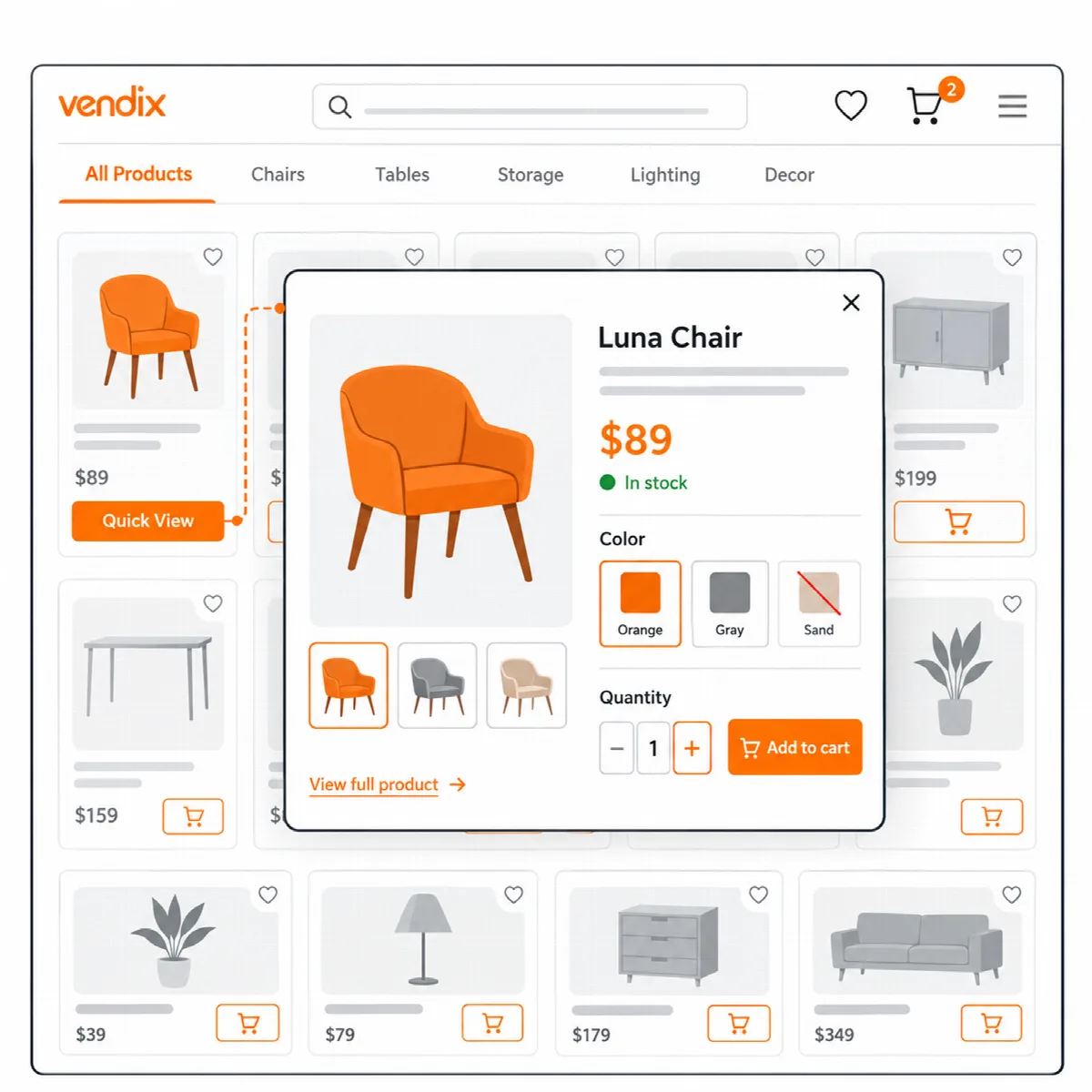
| Quick view | An eye button on product cards that opens the product in a window |
| Variation swatches | Colour, image and label buttons instead of drop-down lists |
| Sticky add to cart bar on product pages | A bar at the bottom of the window once the add to cart button scrolls out of view |
| Wishlist buttons on product cards and product pages | A wishlist of up to 100 products |
| Compare buttons on product cards and product pages | A comparison table of up to 4 products |
| Wishlist and compare links with their counts in the Vendix theme header | Links in Vendix Theme's header; on by default |
| AJAX product filter | Category, attribute and price filters without reloading the page |
Save, then test a simple product, a variable product and the cart on a phone and on a desktop.
The quantity buttons follow the product's minimum, maximum and step. With Order Limits on, a product's Minimum quantity, Maximum quantity and Sold in multiples of set them; see WooCommerce discount rules, quantity discounts and order limits.
Quick view
Quick view opens the product in a window with its images (the product image and up to five gallery images), price, short description, variation choice and add to cart form. The price, short description and form are WooCommerce's own, so variation forms, swatches and quantity buttons work as on the product page, and the header cart updates without leaving the page. A View full details link opens the product page.
Only products visitors may see open in the window: published, visible in the catalogue and not password protected. A simple product whose options come from a product option plugin, such as PPOM for WooCommerce or ThemeHigh Extra Product Options, sends the customer to its product page to choose them (Vendix 3.0.0 and later).
Variation swatches
- Go to Products → Attributes and click Configure terms for an attribute.
- Give each term a colour or an image. An image wins over the colour; terms with neither show as labelled buttons.
- Turn on Variation swatches in the Store Features tab.
Combinations that are out of stock cannot be chosen. WooCommerce's own drop-down stays in the form and receives the choice, so the price, stock and image change as usual. Custom attributes added on a single product show as labelled buttons.
Sticky add to cart bar
Once the add to cart button scrolls out of view, a bar shows the product image, name, price, quantity and an add to cart button. The bar presses the product's own form. On a variable product without a chosen variation, it scrolls back to the options instead. The bar appears on simple and variable products that can be bought and are in stock.
Wishlist and comparison
- Create two pages: one with the
[arn_wishlist]shortcode and one with the[arn_compare]shortcode. - In the Store Features tab, turn on the wishlist and compare buttons and choose the two pages.
- Save.
- The wishlist shows each product with its image, price, availability, an add to cart button and a remove button.
- The comparison table shows price, availability and the products' visible attributes. With Smart Recommendations on, it can add a "Who is it for" row.
- Visitors who are not logged in keep their lists in their own browser, so nothing is stored for them on the site. Customers keep their lists in their account, and a browser list joins the account at the next login.
- The wishlist and compare icons of the Header & Footer Builder and the ARN Header Tools links show the item counts.
AJAX product filter
- Turn on AJAX product filter.
- Place the
[arn_product_filter]shortcode in the shop sidebar or on the shop page.attributes="color,size"limits the attributes, andcategories="no"orprice="no"leaves those parts out. - Choose how more products load in the shop and categories: Page numbers, a Load more button, or Infinite scroll (with the Load more button kept as a fallback).
Results, sorting and pages load in the background from WooCommerce's own product query. The address bar follows the filters, so a filtered list can be shared and the back button works; the form also works without JavaScript. The filter works on the main product list of the shop and product categories, not on product lists placed by shortcodes.
With your theme
Store Features runs on other WordPress themes too: card buttons form a row inside the card, under the add to cart button. With Vendix Theme's store styles on, the buttons sit in the theme's card action area over the product image, and the theme header shows the wishlist and compare links.