
The Experiments screen runs a visitor-level A/B test on one post. You test one element, Contix counts views and conversions per visitor, and the winner is applied to the content. A snapshot is kept, so the change can be rolled back.
Where to find it: ARN Contix → Growth → Experiments. Choose the project and topic and click Open experiment workspace.
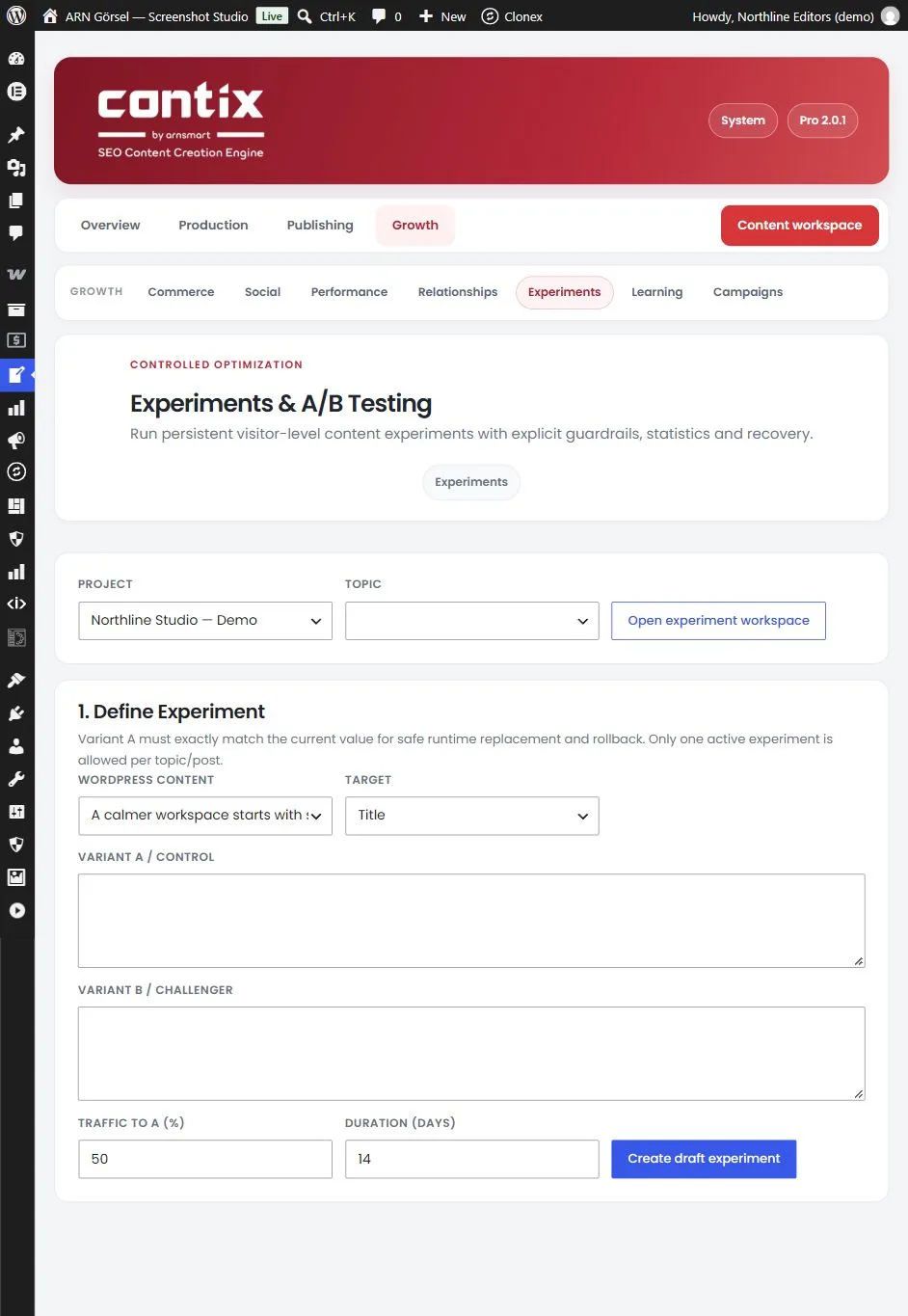
1. Define the experiment
Under 1. Define Experiment:
| Setting | What to enter |
|---|---|
| WordPress content | The post to test |
| Target | Title, Meta Title, Meta Description, Cta (a call to action), Introduction or Section |
| Variant A / control | The current value, exactly as it is on the post |
| Variant B / challenger | The new value you want to test |
| Traffic to A (%) | The share of visitors who see A, from 10 to 90 (50 by default); the rest see B |
| Duration (days) | How long the experiment runs, from 1 to 90 days (14 by default) |
Click Create draft experiment.
Variant A must exactly match the current value, so the test can replace it safely and roll it back. Only one active experiment is allowed per topic or post.
2. Start the experiment
Under 2. Start, tick "I verified the control value, challenger, traffic split, metric and duration." and click Start experiment.
While the experiment runs:
- Each visitor sees the same variant for the whole experiment. Contix remembers the visitor with a first-party cookie (
contix_exp_followed by the experiment ID; one ending in_cis added after a conversion). - Views and conversions are counted once per visitor for the whole experiment.
- Only the post of a running experiment is excluded from page caching. Other pages are cached as usual.
Visitor cookie and consent
The experiment cookie needs the visitor's consent:
- A visitor whose browser sends a Global Privacy Control signal (
Sec-GPC: 1) never gets the cookie. - If your site uses a consent tool that works with the WP Consent API, the cookie is set only after the visitor agrees to statistics cookies.
- Without such a consent tool, Contix sets the cookie. Your site can make its own decision with the
contix_experiment_visitor_consentfilter. - A visitor without consent sees the original post, gets no cookie and is not counted.
- The cookie expires when the experiment ends, at the latest after 90 days.
Contix adds suggested text about this cookie to Settings → Privacy → Policy Guide. Add it to your privacy policy and check your cookie notice before you start.
Count conversions
For a Cta experiment, mark the conversion link with the shortcode [contix_conversion url="https://example.com/offer/"]. It shows the call-to-action text of the variant the visitor sees as a link, and counts a click as a conversion. You can add a CSS class with the class attribute.
3. Read the statistics
Under 3. Observations & Statistics, Contix shows the conversion rate of A and B and the confidence.
If you measure the experiment with an external analytics tool, enter its figures and click Reconcile observations. Your manual observations then replace the counters.
4. Conclude and apply the winner
There are two conclusion modes:
- Automatic (requires significance) picks the winner only with at least 100 views per variant and 95% confidence.
- Manual decision lets you pick A, B or No winner as the Manual winner.
Under 4. Conclude:
- Choose the Conclusion mode and, for a manual decision, the Manual winner.
- Tick "I reviewed sample size, confidence, guardrails and deployment impact."
- Click Conclude and apply winner.
The winning value is applied to the content.
Roll back
Under Recovery, click Rollback experiment. Contix restores the WordPress title, content and Contix metadata snapshot taken before the experiment.