
The analysis checks the assembled article as one complete text, for search engines and for AI answer systems. Targeted optimization then fixes only the passages the analysis found, with your approval for every change.
Where to find it: ARN Contix → Production → Analysis.
GEO (generative engine optimization) and AEO (answer engine optimization) describe how well passages can be reused in AI-generated answers. AIO covers readiness for AI assistants and overviews more broadly.
Before you start
The analyser accepts only the current validated article revision. If it shows Analyzer Locked, finish the draft first: see Edit the draft and compare revisions.
Run the analysis
- Open Production → Analysis for the project and topic.
- Check the Validated Analyzer Input: the topic, the revision and the verified package.
- Click Run Complete Content Analysis. The analysis is one AI request and runs in the background.
If the article changes after the analysis, the result is marked Outdated and you run the analysis again. If a previous attempt did not complete, the screen shows the reason.
Read the result
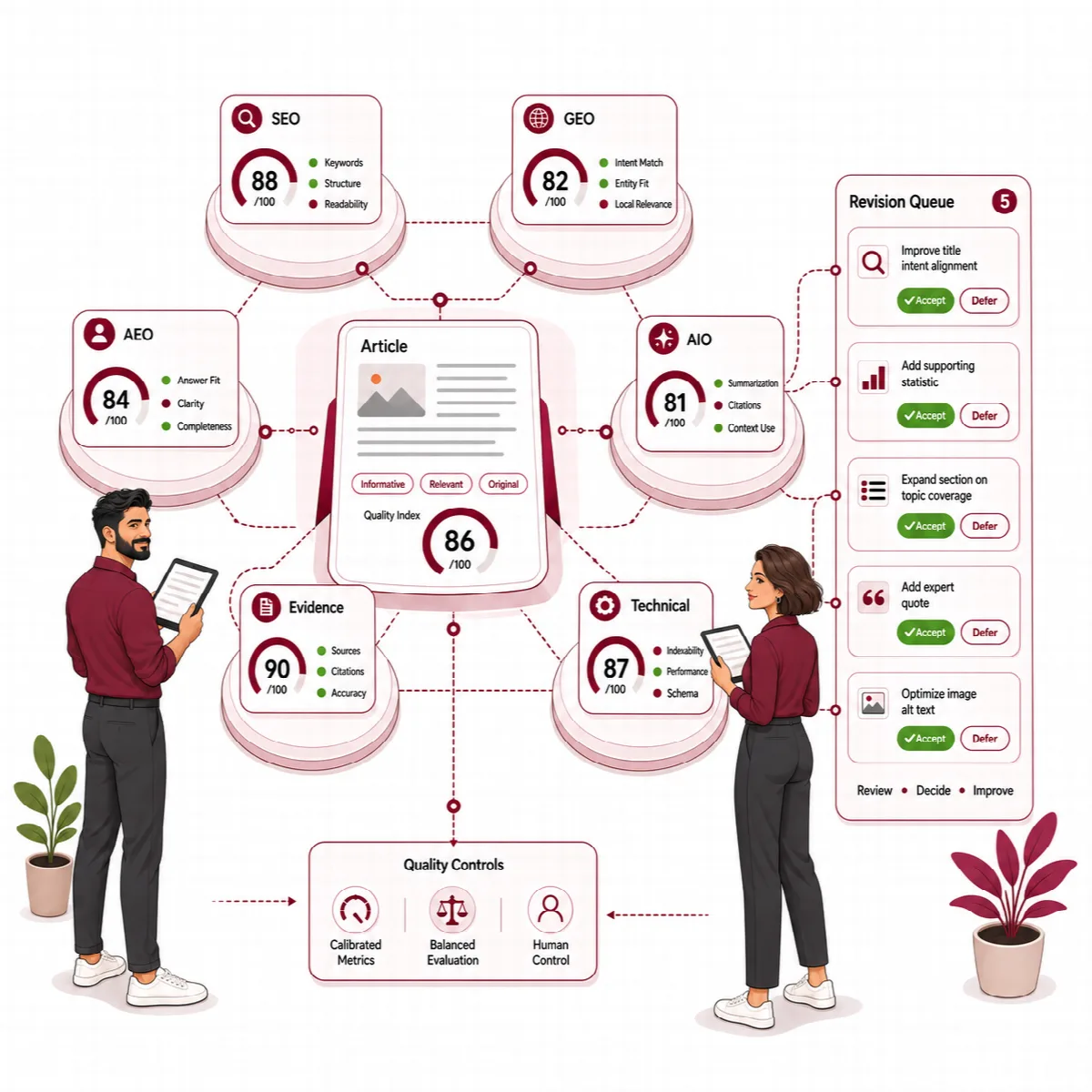
The analysis gives six scores:
| Score | What it covers | When it completes |
|---|---|---|
| SEO, GEO, AEO, AIO | Content quality for search and answer systems | At 90% or higher |
| Evidence & Trust | Claims, sources and citations | Continues into publishing as a diagnostic |
| Technical Readiness | Publishing configuration | Continues into publishing as a diagnostic |
It also measures what is only visible after assembly: repetition across sections, answer gaps, claim–source integrity, citations, how well the text splits into reusable passages, and publishing signals.
Every finding is sorted into blocking gates, actions and an advisory backlog, so style advice cannot block publication. The Findings tab shows each finding with its evidence and location.
The draft-stage scores in Drafts and the full-article scores here measure different scopes. Why are these scores different? on the result explains it.
Readiness checks report findings for review. They do not promise rankings, AI citations or traffic.
Continue to publishing
When SEO, GEO, AEO and AIO all pass the 90% threshold, the result shows Content Ready. Click Continue to Publishing.
Use targeted optimization
When the result shows Optimization Required, open the Optimization tab.
- Click Optimize Identified Issues. Contix proposes local fixes for the affected passage, claim, citation or technical input. There is no blind rewrite of the whole article.
- Review every proposal. Each one shows Before, After and Why this change, and covers language-specific clichés, AI writing patterns, tone and readability in the article's language.
- Click Accept or Reject for each proposal. Items that need a source or a publishing action are recorded as such instead of being turned into invented text; Why this cannot be accepted yet explains them.
- Tick "I reviewed every proposal, evidence/source action and publishing dependency." and click Create Revision & Validate Delta.
- Click Run Controlled Delta Revalidation. Only the accepted changes are checked again; advice that is not critical cannot start another loop.
The accepted changes become one new revision. Then continue to publishing.
If optimization stops because of a provider error, it does not retry with another paid request on its own. Read the reason and click Run Targeted Optimization Again.
Provider errors
Temporary provider errors, such as a timeout or a rate limit, are retried by the background queue. An answer that was not valid, or that stopped at the output limit, is not requested again automatically, so you are not charged twice. Read the reason and run the step again.
A high diagnostic score is an internal quality signal. It does not guarantee rankings, traffic, conversions or factual accuracy.