
System Health checks the setup that content production depends on. Backup & Restore keeps a copy of your Contix data, controls what exports may contain and decides what happens to the data when the plugin is deleted.
Where to find it: ARN Contix → System → System Health and ARN Contix → System → Backup & Restore.
Check System Health
System Health shows how many checks Passed, how many show Warnings and how many show Problems, with the details of each check. A warning needs a look at the server or a setting; a problem should be fixed before production work.
| Check | What it looks at |
|---|---|
| PHP 7.4+ and WordPress minimum compatibility | The PHP and WordPress versions |
| WordPress 7.1 target runtime | Whether WordPress is at the version Contix is developed for |
| Database schema current and Required runtime tables | Whether the Contix tables are installed and up to date |
| Transactional database tables | Whether the Contix tables use InnoDB |
| Authenticated credential encryption | Whether keys can be stored encrypted (AES-GCM or Sodium) |
| ARN Contix Pro license | Whether the licence allows Contix to run |
| WordPress cron available and Worker loopback | Whether background jobs can run |
| Global runtime active | Whether background work is paused in Operations |
| PHP memory limit 128 MB+ | The PHP memory limit |
| Backup restore upload limit | Whether a backup of up to 50 MB can be uploaded |
| Production debug display disabled | Whether PHP errors are shown to visitors |
| Retention policy configured | The retention days in Operations |
| Restorable backup created | Whether a Contix backup was downloaded |
| Backup working-set below 50 MB | Whether the Contix data still fits into one backup |
Click Open Backup & Restore to create a backup from here.
Download a backup
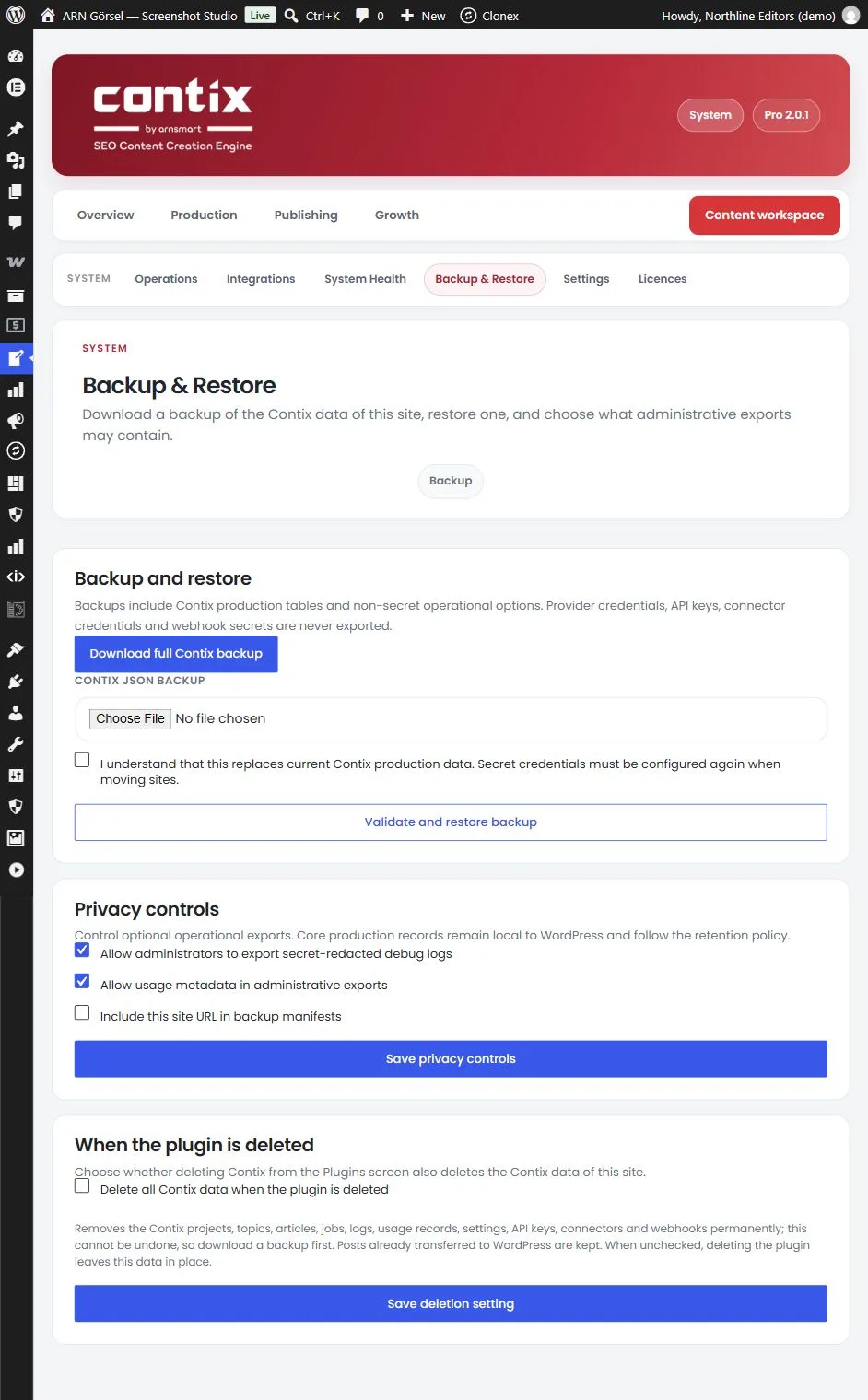
On Backup & Restore, click Download full Contix backup. The backup is a JSON file with the Contix production tables and the non-secret settings of this site.
Provider credentials, API keys, connector credentials and webhook secrets are never exported. Enter them again after you move or restore a site.
Download a backup before you update Contix, move the site or change the deletion setting below.
Restore a backup
- Under Contix JSON backup, choose a Contix backup file (up to 50 MB).
- Tick the confirmation that the restore replaces the current Contix production data.
- Click Validate and restore backup.
The restore replaces the current Contix production tables of this site. If it stops, Backup & Restore shows why. After a successful restore, secret credentials are unchanged.
If the upload fails, the PHP upload limit of your server may be too low. System Health shows it under Backup restore upload limit.
Privacy controls
Choose what administrative exports, such as the debug bundle in Operations, may contain:
- Allow administrators to export secret-redacted debug logs
- Allow usage metadata in administrative exports
- Include this site URL in backup manifests
Click Save privacy controls.
When the plugin is deleted
By default, deleting Contix Pro on the Plugins screen keeps all Contix data in the database and the licence of this site in ARN Center, so you can install it again on the same site later without a new activation code. The licence stays bound to the site address on the licence server. To use the licence on another site, ARN Smart support moves it; see Activate your Contix Pro licence.
To remove the data with the plugin, tick Delete all Contix data when the plugin is deleted and click Save deletion setting. When it is on, deleting the plugin permanently removes the Contix projects, topics, articles, jobs, logs, usage records, settings, API keys, connectors and webhooks of the site, and the licence record of this site in ARN Center. To install Contix again on the same site after that, request a new activation code through the link in your licence email. Posts already transferred to WordPress are kept.
On a multisite network, only network administrators see and change this setting, and it applies to every site of the network.
Warning: Data deletion cannot be undone. Download a backup before you turn the setting on or delete the plugin.
In Contix Pro 2.0.0, this setting is not on the screen, and deleting the plugin keeps the Contix data. In Contix Pro 2.0.1 and earlier, deleting the plugin always removes the licence record of this site, even when the data is kept.