
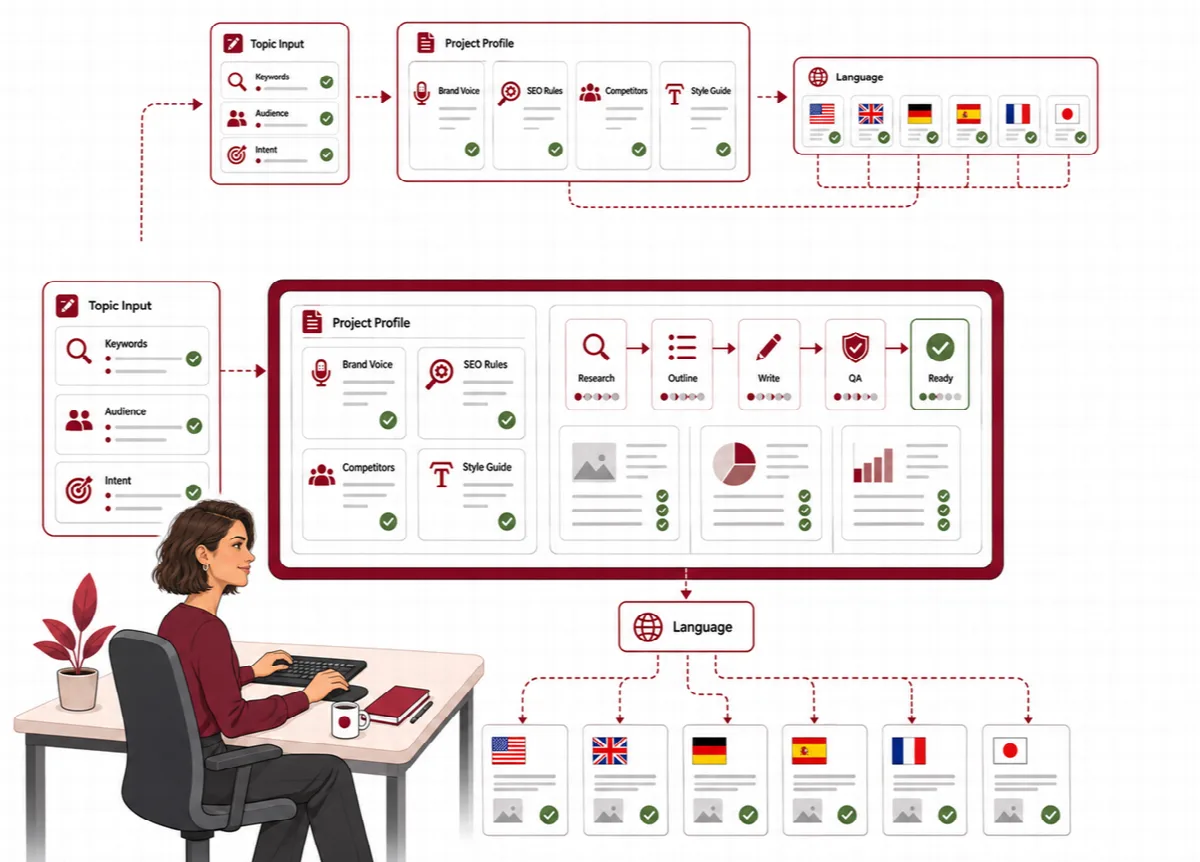
In Contix Pro, every topic belongs to a project. A project stores the context of one website or brand, so one WordPress installation can serve more than one brand or client. Every later stage reads this context.
Where to find it: ARN Contix → Overview → Projects. The first project is created on the Dashboard.
Create a project
- Open Overview → Projects (or the Dashboard for the first project).
- Enter the Project name, the Language, the Region (for example
USorTR), a short Brand summary and the Content goal. - Click Create Project (on the first-run screen: Create Project and Unlock Workspace).
The project appears in the Project List. Each topic you create later inherits the project's language, region and context. To change the project details, open the project, go to Project Details and click Update Project.
Save the context blocks
Open the project and go to Context & Inventory. The Manual Context Blocks are the site memory that Contix reads before any research or writing.
| Context block | What it records |
|---|---|
| Brand voice | How the brand sounds |
| Audience profile | Who the content serves |
| SEO rules | Requirements a draft must meet |
| CTA style | How calls to action should sound |
| Competitor notes | Competitors and how to differ from them |
| Language profile | Language and wording preferences |
| Writing style guide | Tone, wording and formatting rules |
Click Save Context. Section writing, section repair, article optimization and social posts use the saved context from the next run.
Revisit the context after a major business or website change, and keep the project language and region aligned with where the content is published.
Collect the site inventory
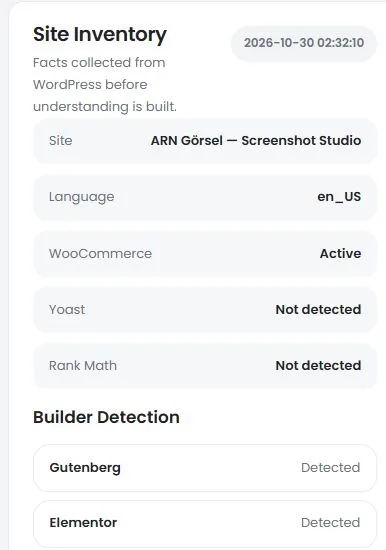
Click Collect Site Inventory. Contix records facts about the site from WordPress:
- the site and its language,
- whether WooCommerce is active and whether Yoast SEO or Rank Math is detected,
- the page builder it detects,
- the post types and how much content each one holds.
Build the site understanding
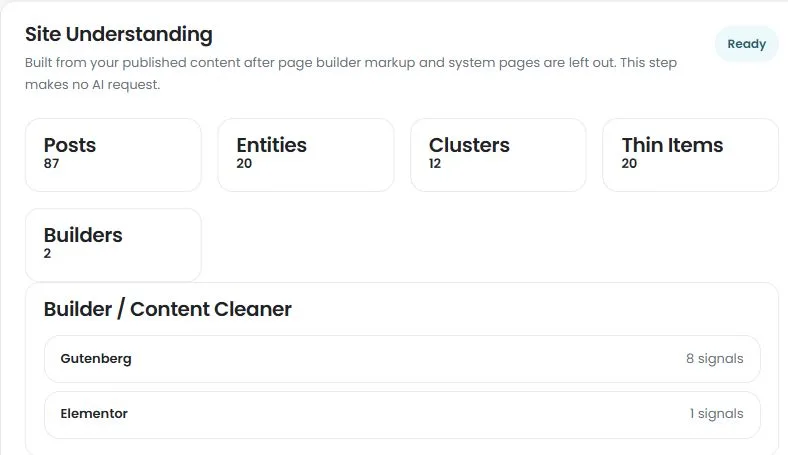
After the inventory, click Build Understanding. Contix reads your published content after page builder markup and system pages are left out, and builds:
- an Entity Map of the named things your site covers,
- Content Clusters of related content,
- internal link candidates for later articles,
- a list of Thin Content.
Building the site understanding makes no AI request; it works from the site's own content. The map tells later stages which subjects the site already covers and where a new article can link. Search & Evidence Intelligence uses it to spot existing pages on the same topic.
Build the understanding again after you publish a lot of new content.
Delete a project
In the Project List, click Delete next to the project and confirm. Deleting a project also deletes its context, topics, queue and site map. Posts already transferred to WordPress are not affected. Download a Contix backup first if you may need the data again.