
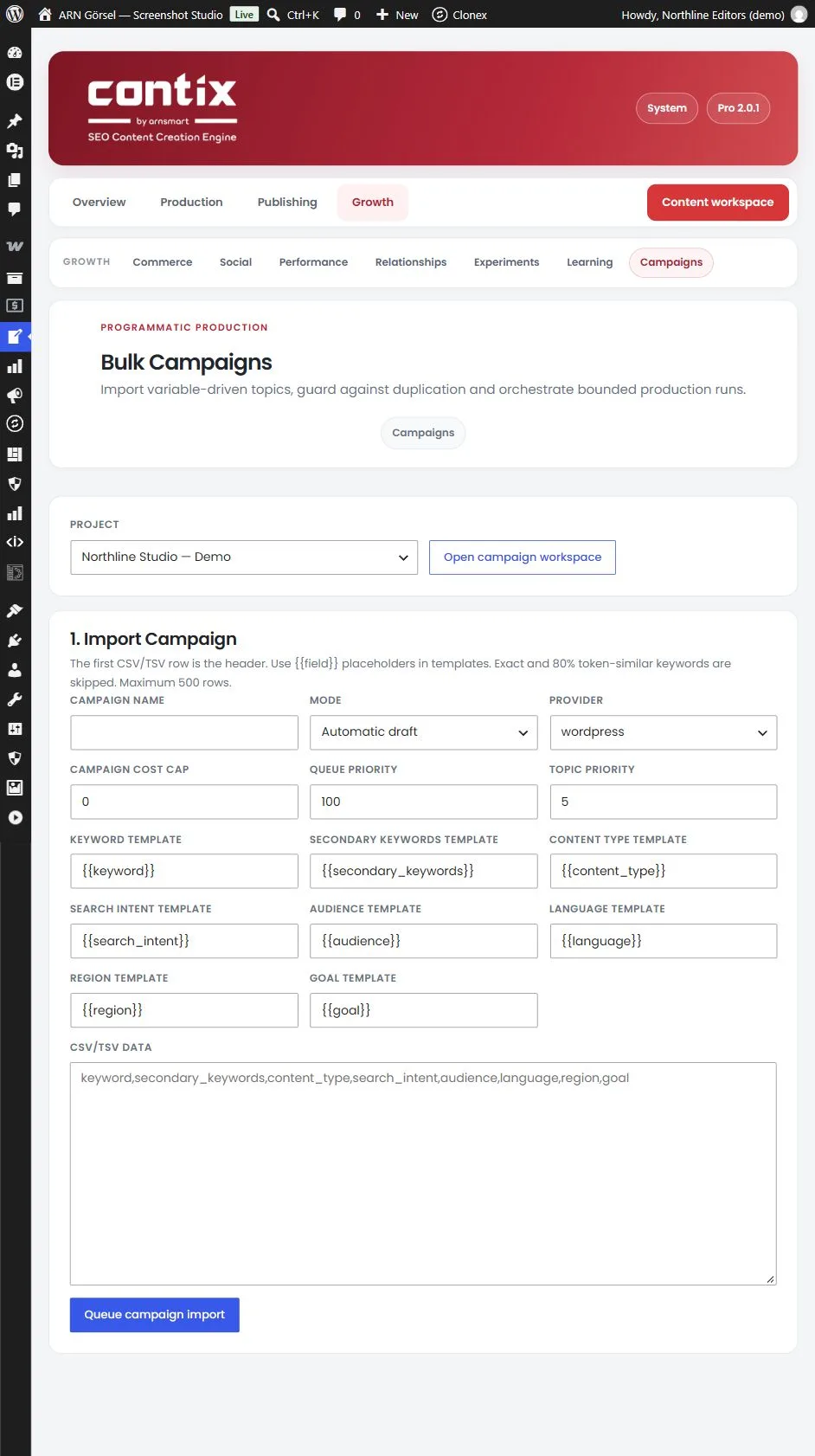
The Campaigns screen produces many related topics from one file. Each row of a CSV or TSV file becomes a topic, built from templates with {{field}} placeholders. Duplicate keywords are skipped, and the whole campaign runs under one cost cap.
Where to find it: ARN Contix → Growth → Campaigns. Choose the project and click Open campaign workspace.
Prepare the file
- The first row is the header. Its column names are the fields you can use in the templates.
- A campaign takes up to 500 rows.
- The default templates expect these columns:
keyword,secondary_keywords,content_type,search_intent,audience,language,regionandgoal.
1. Import the campaign
Under 1. Import Campaign, fill in:
| Field | What to enter |
|---|---|
| Campaign name | A name for the campaign |
| Mode | Automatic draft or Guided |
| Provider | The AI provider for the campaign's runs |
| Campaign cost cap | The maximum recorded cost of the campaign; 0 means unlimited |
| Queue priority | 1 to 1,000 (100 by default) |
| Topic priority | 1 to 10 (5 by default) |
| Templates | One template per topic field, such as Keyword template; each one is {{field}} by default and can mix fixed text with placeholders |
| CSV/TSV data | Paste the rows, with the header first |
Click Queue campaign import. Contix reads the rows in the background and creates the campaign.
Duplicate guard: a keyword that matches an existing keyword exactly, or is 80% token-similar to one, is skipped. The campaign shows how many rows were imported and how many were duplicates.
The campaign cost cap counts only requests to models with a price. While a cap is set, the screen warns when the selected AI model has no price. See Queue, costs and logs.
2. Start or schedule
Each campaign shows its Rows, Duplicates, Started topics and Cost / cap.
- To start later, enter a time under Start at. Leave it empty to start now.
- Tick "I reviewed templates, duplicates, provider, cost cap and priority."
- Click Start or schedule.
Up to five topics start at once. The next ones start on each hourly run, so a large campaign is spread over time.
3. Control the campaign
Choose a bulk control and click Apply bulk control:
| Control | What it does |
|---|---|
| Pause all | Pauses the campaign's runs |
| Resume all | Resumes the paused runs |
| Cancel all | Cancels the campaign's runs |
| Retry failed | Retries the runs that failed |
The Run status table counts the campaign's runs by status. Each run is a normal pipeline run that you can also follow in Production and Publishing → Queue.