Three Growth screens in Contix Pro work from evidence you already have: the project's own records, the backlink and competitor data you import, and your product catalogue. None of them changes your content or contacts anyone on its own.
Where to find it: ARN Contix → Growth → Learning, Growth → Relationships and Growth → Commerce. Each screen follows its background job and reloads with a notice when the job finishes.
Project learning
Learning analyses the records of one project and turns them into advice that you review.
- Open Growth → Learning, choose the project and, optionally, a context topic, and click Open learning workspace.
- Under 1. Analyze Project Evidence, click Queue guarded learning analysis.
- Read the counts of evidence records and proposals. If data from another project is detected, it is reported under Cross-project data.
- Read 2. Provider & Quality Evidence: requests, success rate, latency and cost per provider and model. These figures describe the observed requests, not the cause of content results.
- Under 3. Guarded Proposals, choose Approve as advisory or Reject for each proposal and give a Reason. Tick "I understand no system rule will be changed." and click Save decision.
Only the records of the selected project are read, and raw article text is not copied into the learning package. Approving a proposal never changes a prompt, contract, blueprint, provider setting or global rule; you decide what to change yourself.
Relationships and competitors
Relationships compares backlink, mention and competitor snapshots that you import. Contix does not invent off-site signals and does not contact anyone automatically.
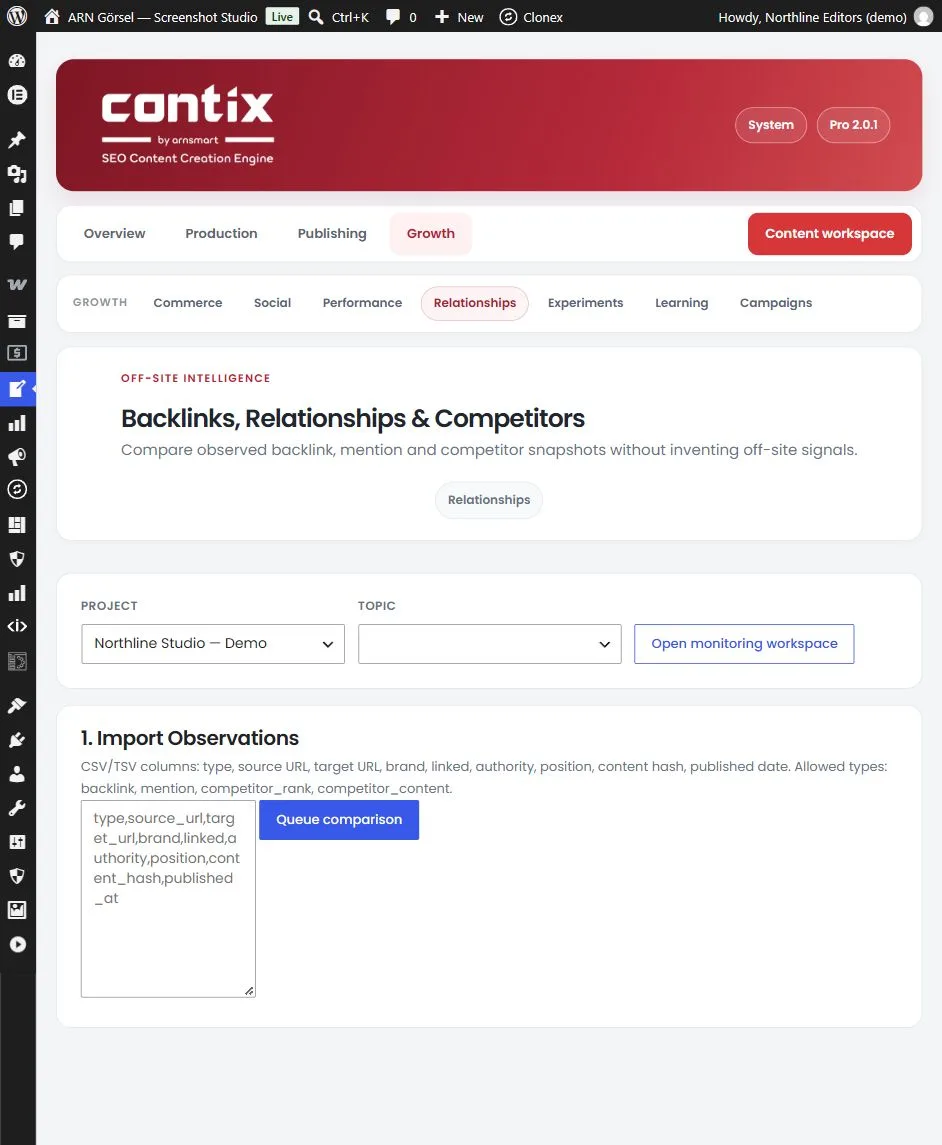
- Open Growth → Relationships, choose the project and topic, and click Open monitoring workspace.
- Under 1. Import Observations, paste CSV or TSV rows with these columns in this order: type, source URL, target URL, brand, linked, authority, position, content hash, published date. A header row such as
type,source_url,target_url,brand,linked,authority,position,content_hash,published_atis optional. - Use one of the allowed types:
backlink,mention,competitor_rankorcompetitor_content. In the linked column,1,yes,trueorlinkedmean that the mention links to you. - Click Queue comparison.
An import without a usable row is refused with a notice that explains the columns.
After the comparison you see:
- New backlinks, Lost backlinks, New mentions and Unlinked mentions compared with the previous import, and the number of snapshots,
- 2. Relationship Opportunities: evidence-backed candidates for your review, such as a brand mention without a link or a high-authority source that already links to your content,
- 3. Share of Voice & Competitor Movement: calculated from your imported rank observations, not as a market-wide estimate.
Commerce intelligence
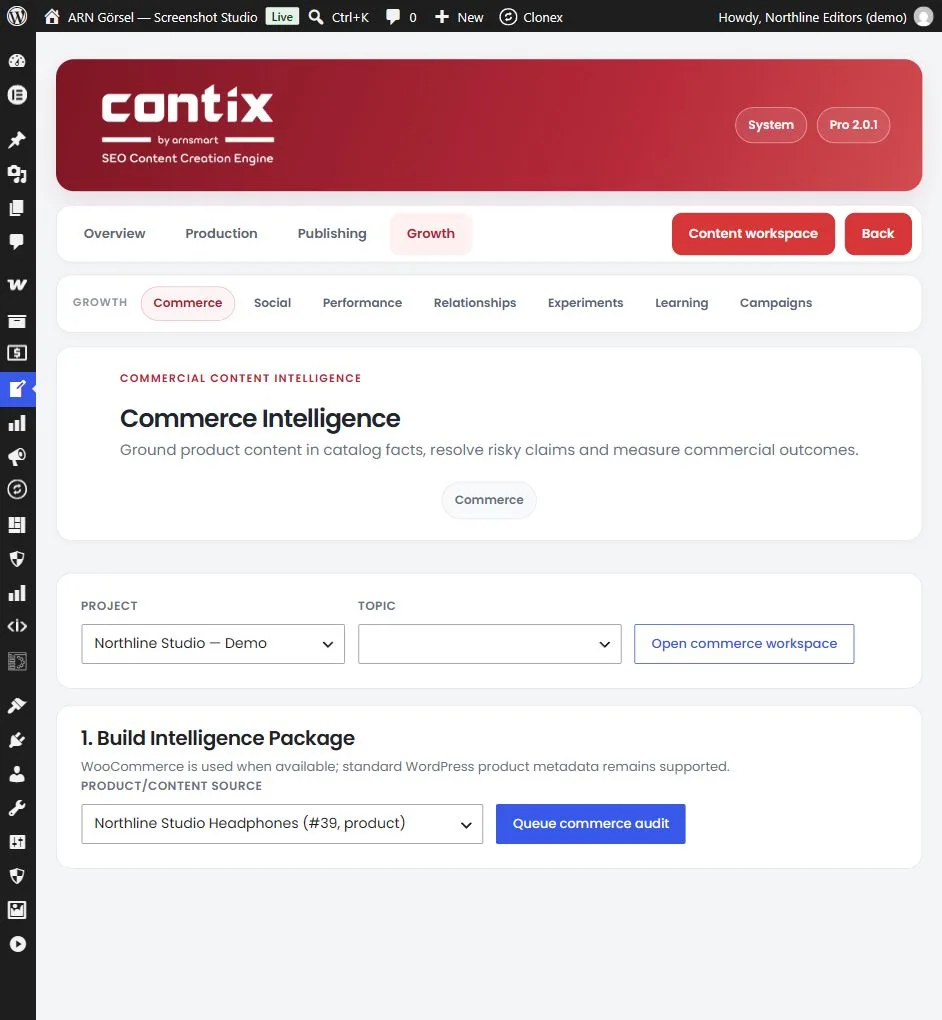
Commerce builds a package that grounds product content in catalogue facts. WooCommerce is used when it is available; standard WordPress product metadata is also supported.
- Open Growth → Commerce, choose the project and topic, and click Open commerce workspace.
- Under 1. Build Intelligence Package, choose the Product/content source, or Use linked refresh content or topic only, and click Queue commerce audit.
- Read the package: the content type, the catalog, the claim gate, the cannibalization status of the topic and its status.
- Read 2. Product Truth. Live catalog facts are kept separate from persuasive benefit copy.
- Under 3. Claims & Human Decisions, decide on every unsupported commercial claim: Verified, with the evidence, or Remove before publishing. Click Save decision for each one.
- Tick "I reviewed catalog freshness, intent, cannibalization and every claim decision." and click Approve package.
The package can be approved only after every unsupported claim has a decision. When no risky claim is found, the screen says "No risky commercial claims were detected."
Under 4. Commercial Outcome, record comparable product-content outcomes with Save outcome. Contix does not invent analytics data.