
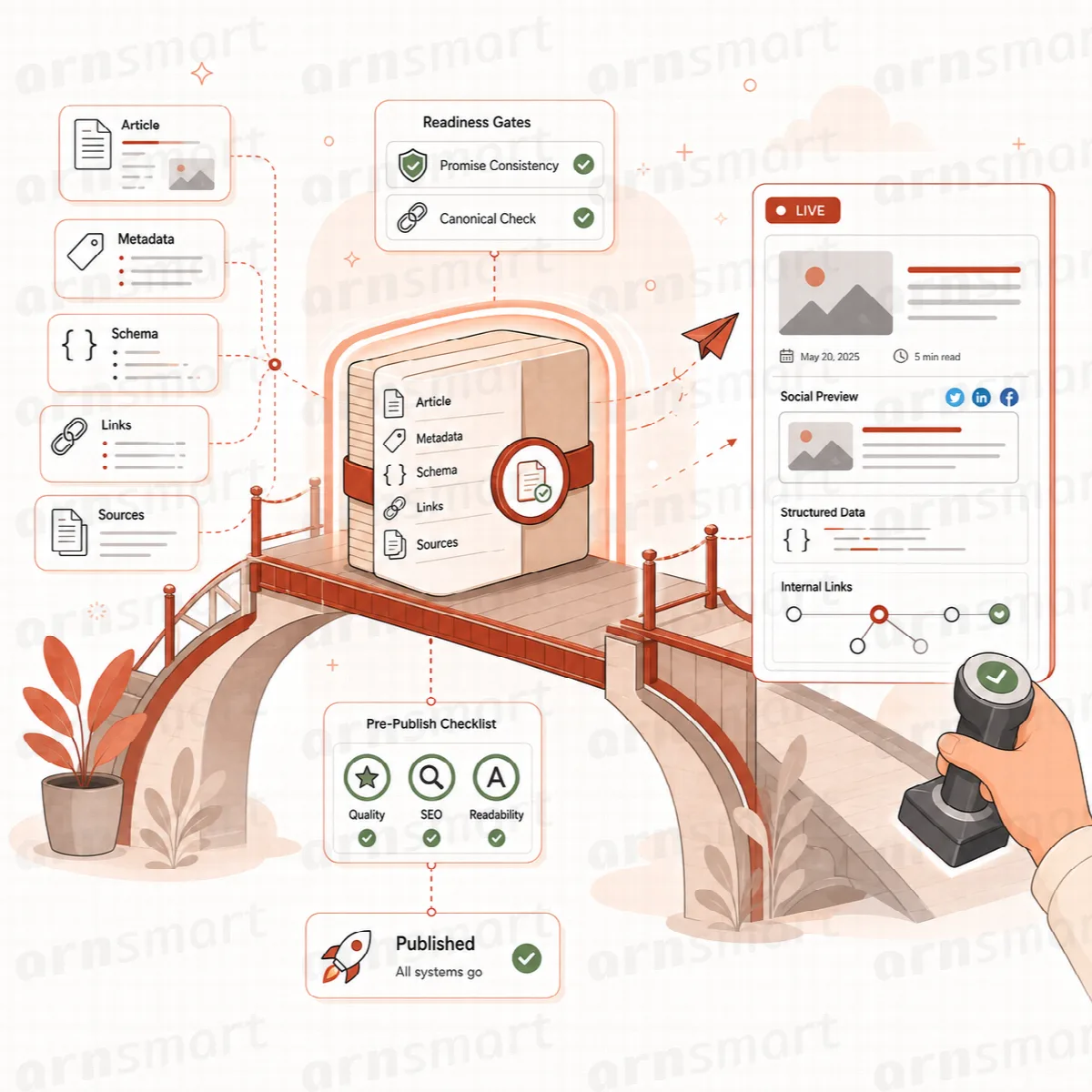
Before an article moves to WordPress, Contix Pro builds a publishing package in three steps: Metadata & Schema, Links & Sources and WordPress. This article covers the first two. The package is locked to the current article revision and its analysis, so the metadata and checks always describe the text that is transferred.
Where to find it: ARN Contix → Publishing → Publishing.
Before you start
The Publishing screen needs a finalized article with a current analysis. If it shows No finalized article, finish the analysis first: see Analyse and optimize the article. Publishing dependencies that the analysis found are listed at the top of the screen.
Step 1: Metadata & Schema
- Click Generate Metadata & Eligible Schema. Contix creates three search and social metadata variations from the current article revision.
- Compare the variations. Each one is checked for promise consistency, so the title and description do not claim more than the article delivers. The Open Graph / Social Preview shows the share card text.
- Choose one variation and click Confirm Metadata Selection. Use Regenerate All Three if none fits.
- Click Continue to Links & Sources.
When Contix prints the tags itself, the post's featured image becomes the share image.
Schema validation
Contix emits only the JSON-LD schema types that pass current eligibility and technical validation. JSON-LD is the structured-data format search engines read to understand what a page is.
- FAQ and HowTo markup that Google no longer shows as rich results is reported explicitly instead of being emitted silently.
- The schema graph must pass with zero errors before the publishing step continues. The screen shows Schema validation: zero errors or Schema validation blocked.
- Contix prints the validated schema graph on the posts it transfers. On those posts, Yoast SEO and Rank Math schema output is turned off, and ARN Vendix leaves its own schema out, so the page carries one schema.
Rich results in search remain the search engine's decision.
Step 2: Links & Sources
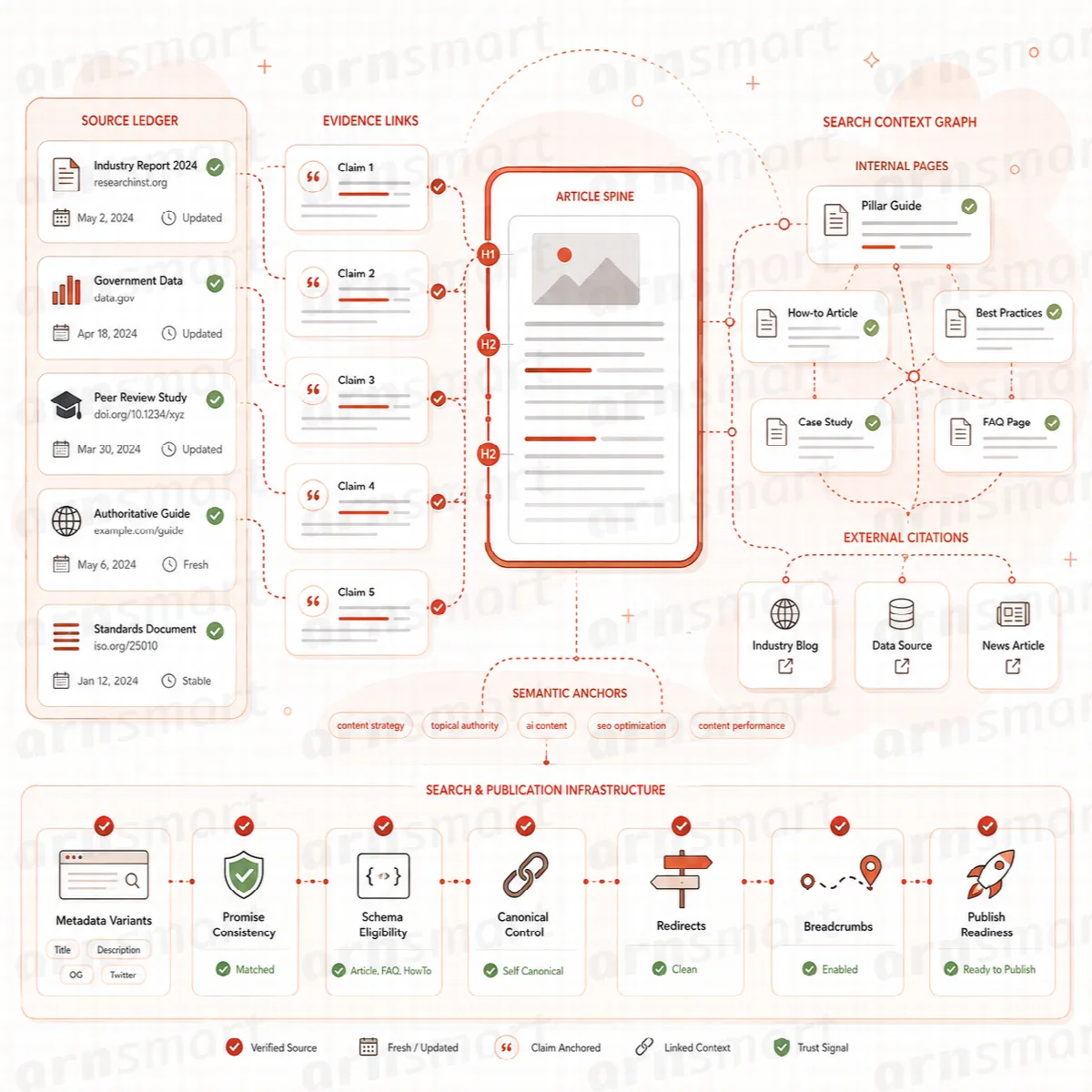
Click Run Link & Source Audit. The audit checks the links in the article, the citations and the internal link candidates.
Link health
Each internal and external URL in the article is reported as:
| Status | Meaning |
|---|---|
| Healthy | The address loads |
| Redirected | The address redirects; the chain is shown |
| Broken | The address returns 404 or 410 or needs more than five redirects, or an internal post is removed or not published |
| Unverified | The address could not be checked, for example because of a network failure |
| Canonical mismatch | The final page declares a different canonical address, shown as Declared canonical |
Redirects are followed up to five hops. A network failure is never counted as a broken link. These checks cover the links in the article; they are not a full site audit. After you change links, click Recheck All URLs.
Citations and the Source Ledger
Contix checks every external citation in the article against the Source Ledger. A citation URL that cannot be matched to the ledger is reported, and a URL that appears without enough visible claim context is flagged for clearer placement.
- Citation placement review: each external citation is located by line and checked for the claim it supports.
- Source authority / freshness review: weak or outdated sources are shown for review.
Sources are weighed by primary or secondary status, official status, relevance, authority, freshness, independence and citation suitability, without collapsing them into one score. The Source Ledger checks which citations exist, where they sit and whether they match the ledger; judging the quality of a source remains an editorial decision.
Internal link candidates
Contix looks for internal link candidates among the 100 most recently updated published posts, pages and other public content of your site, comparing their titles and excerpts with the article's keywords, title and headings. Up to twelve candidates are shown.
A post becomes a candidate only when it shares at least two meaningful terms with the article, or every meaningful term of the focus keyword or of one secondary keyword:
- A meaningful term has four or more letters, is not only digits and is not a common word of English or the project language.
- When ten or more posts are scanned, a term found in at least half of them, such as "coffee" on a coffee blog, is the site's own subject and does not count.
For each candidate, choose Include in Handoff or Exclude. Candidates are suggestions; only the ones you include go into the handoff. When no target fits, Contix shows No eligible internal link found instead of inventing one. This is a valid result and does not block publishing.
Confirm the review
Click Confirm Link & Source Review, then Continue to WordPress. See Transfer the article to WordPress.
If an earlier step changes, rebuild the later steps of the package in order.