
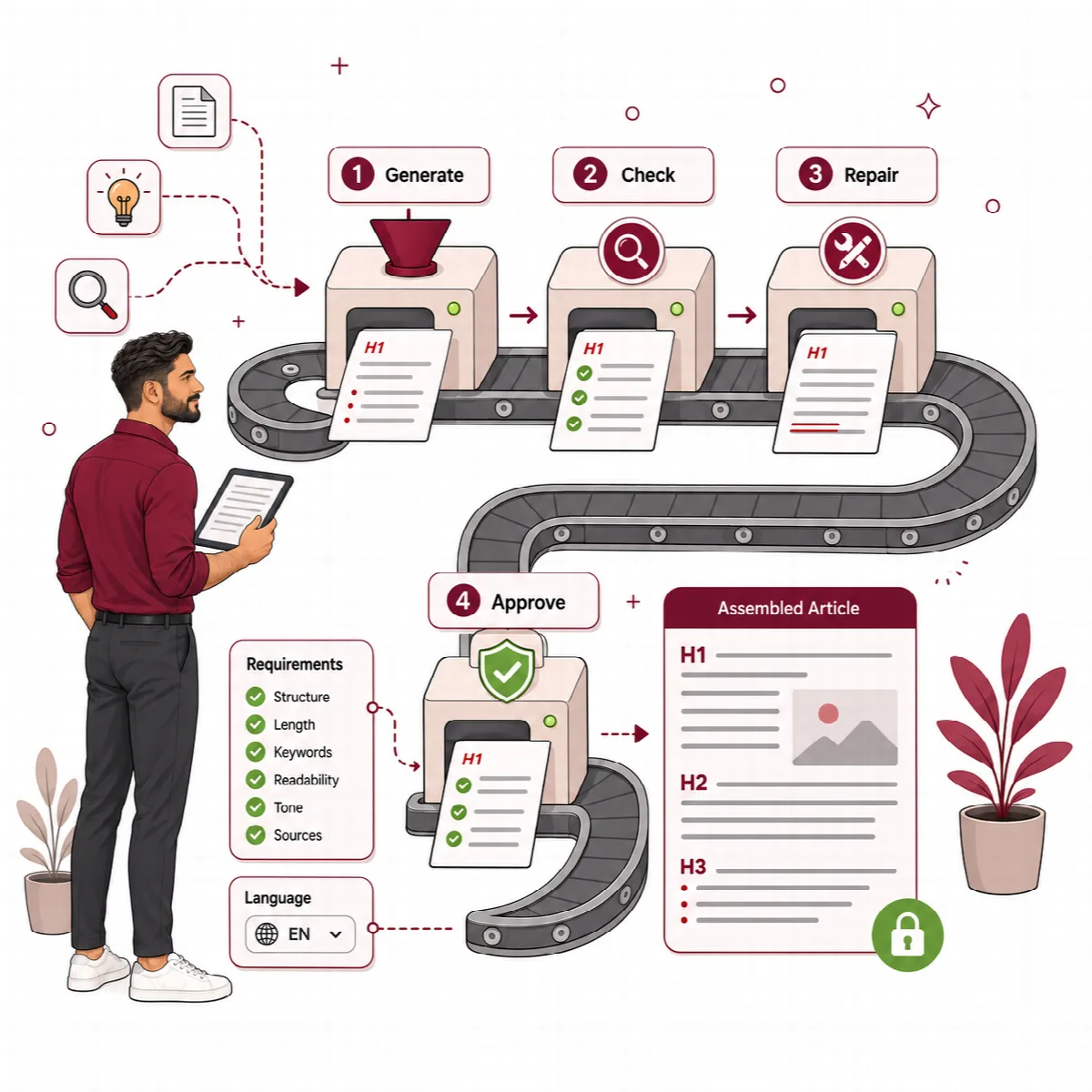
Contix Pro produces an article in one pipeline run per topic. The run passes twelve stages, saves each result as a checkpoint and continues in the background. You choose whether it runs straight through or stops at every checkpoint for your review.
Where to find it: ARN Contix → Production → Production. You can also start a run from Overview → Topics with Create Automatic Draft or Start Guided Workflow.
Before you start
- Create a project and a topic request. See Create a topic request and research it.
- Make sure your AI connection is ready. The Production screen shows the Default provider and Runtime ready or Not ready. If it is not ready, use Open AI Settings.
- WordPress scheduled tasks (WP-Cron) must work on your site. See Contix requirements.
Choose the workflow mode
| Mode | What it does | Use it when |
|---|---|---|
| Automatic Draft | Runs from the topic through the Language Pack and Research to a validated draft. It stops only for a real blocker. | You trust the project setup and want a draft to review at the end |
| Guided Workflow | Pauses after every checkpoint. Review Current Checkpoint opens the review screen; Approve & Continue resumes the run. | You are new to Contix, or you want to review and change each stage |
Both modes use the same background pipeline and the same saved checkpoints.
Start a run
- Open Production → Production.
- Choose the Project and the Topic.
- Select Automatic Draft or Guided Workflow.
- Click Start Pipeline.
Warning: Start Pipeline starts the topic from zero. Previous generated results, outdated sections, validations and usage records of that topic are cleared. To keep the work of an existing run, use the controls of that run instead.
Follow the run in the Production Monitor
The Production Monitor shows:
- how many of the twelve checkpoints are complete,
- the recorded provider usage of the run: Requests, Input Tokens, Output Tokens and Recorded Cost, with a breakdown for Language Pack, Research, Generation, Validation and Repair,
- the status of every stage.
Lifecycle Events lists the events the run recorded. Contix shows only real recorded events, with no simulated percentages.
Control the run
| Control | What it does |
|---|---|
| Pause | Pauses the run |
| Resume | Continues a paused run |
| Approve & Continue | Approves the current checkpoint in Guided Workflow and continues |
| Retry Current Stage | Runs the current stage again, for example after you fixed the cause of a failure |
| Cancel Run | Stops the run |
| Review Current Checkpoint | Opens the review screen of the current stage |
| Open Validated Draft | Opens the finished draft in Production → Drafts |
The review screens show a Guided Checkpoint Review bar with the stage position (for example 4/12) and Return to Production.
The twelve stages
| Stage | What to review |
|---|---|
| Language Pack | The topic, keywords, intent, audience and goal in the output language, research questions and protected terms |
| Research | The research brief: entities, subtopics, FAQ candidates, angles, search journeys and trend signals |
| Content Blueprint | The content goal, required sections, GEO and passage requirements and schema signals |
| Search & Evidence Intelligence | The content action, cannibalization, risk, evidence policy and the Claim Ledger |
| Strategy Contract | The content model, angle, messages, CTA direction, evidence, boundaries and success criteria |
| Content Architecture | The outline, section map, entity placement, GEO blocks, schema plan, internal link map and Writing Blueprint |
| Section Contracts | What each section must deliver |
| Prompt Packages | The instructions sent to the AI for each section |
| Section Generation | The written sections |
| Section Validation | Each section checked against its contract |
| Local Repair | Repairs of the sections that failed validation |
| Draft Assembly | The validated sections joined into the article draft |
Changes to an earlier input can make later results outdated. Regenerate or review the affected stages when Contix asks for it. An old result is not current just because its text is still visible.
How the background queue runs your work
- The queue wakes when work is added, so a run starts without waiting for the next scheduled check.
- Temporary provider failures, such as timeouts and rate limits, are retried.
- Each job runs as the user who started it.
- The run continues after you leave the page. Leaving the page does not create a new run.
If a run seems stuck, check the current checkpoint in the Production Monitor and the job in Publishing → Queue. Guided Workflow may simply be waiting for your approval. See Queue, costs and logs.