
A topic request tells Contix Pro what to write, for whom and why. Research then collects what the article must cover before any text is generated. Both run inside a project, so the project's brand context and site map travel with every topic.
Where to find it: ARN Contix → Overview → Topics for topic requests, System → Settings → Search data for search data.
Create a topic request
Open Overview → Topics, select the project and fill in the fields under Create Topic Request:
| Field | What to enter |
|---|---|
| Primary keyword | The main subject of the article (required) |
| Secondary keywords | Related keywords, one per line or comma separated |
| Content type | Blog Article, Landing Page, Product Content, Service Page, Comparison, Local SEO or Refresh Existing |
| Search intent | Informational, Commercial, Transactional, Navigational, Local, Comparison or Problem Solving |
| Audience | Who the article is for |
| Priority | 1 to 10 (5 by default) |
| Language | The output language; the project's language is filled in |
| Region | For example US or TR; the project's region is filled in |
| Goal | What the content should achieve |
Then choose how to continue:
- Create Topic Only saves the request without starting production.
- Create Automatic Draft saves it and runs the pipeline through to a validated draft.
- Start Guided Workflow saves it and pauses after every checkpoint for your review.
Put required facts and exclusions into the goal and the keywords rather than relying on a single keyword.
Existing requests offer Resume, View, Edit and Delete. A topic stays in its project, so its data cannot mix with another project. Deleting a topic removes its research, drafts and results.
Language Pack
The Language Pack is the first stage of every Contix Pro run. The AI connection prepares the topic in its output language, so research, strategy, architecture, writing, validation and repair all follow the same localized brief.
- Localized topic: the topic, secondary keywords, search intent, audience and goal restated naturally in the output language.
- Research questions: seven questions that cover what, why, how, when, who, comparison and decision intents.
- Protected terms: brand, entity and technical terms that must not be translated, with heading concepts and short writing instructions for each stage.
A Language Pack needs an output language on the topic and a working AI connection. It is reused while the topic stays the same.
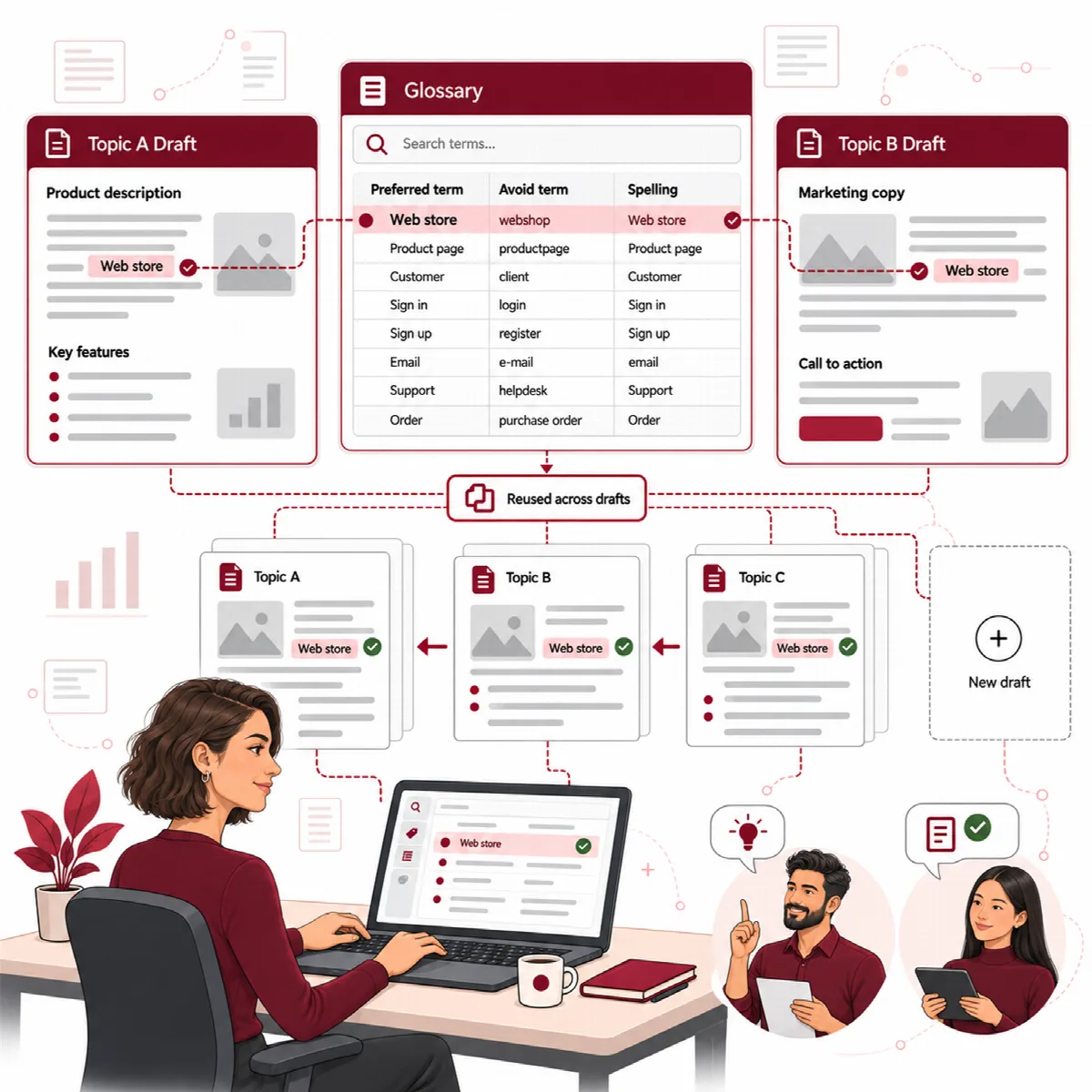
The research brief
The Research stage writes a research brief for the topic: entities, subtopics, FAQ candidates, angles, search journeys, trend signals and research scores. It shows the questions the article should answer and the evidence gaps it found. The research brief is the input for the Content Blueprint and the section plan that follow.
If the AI research fails, the stage stops with the reason instead of completing with empty data. Research that you start by hand runs in the background queue and shows its progress and any failure reason on screen.
AI output can contain mistakes. A person should check the sources and the facts.
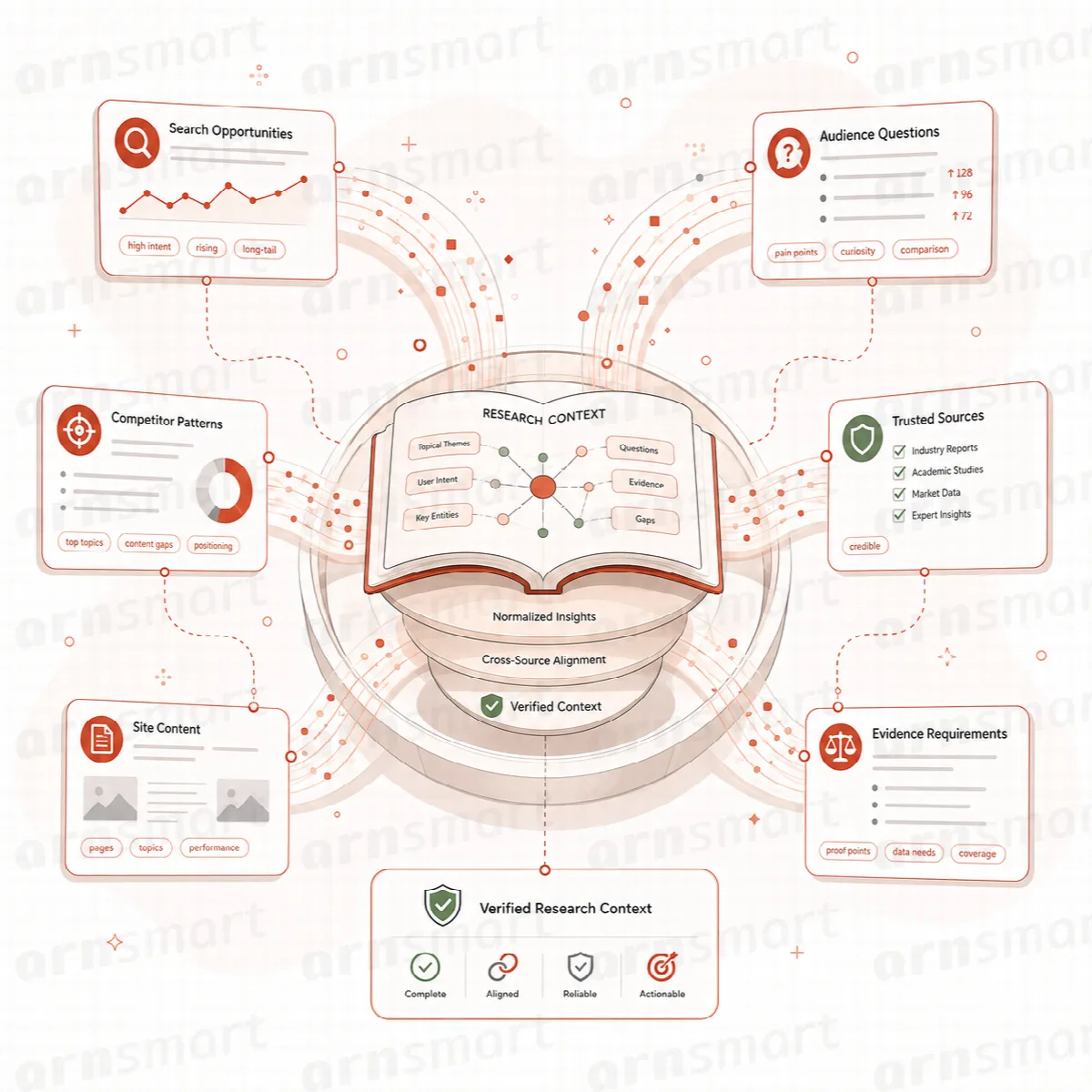
Add real search data
Contix Pro can read real Google results for the topic before the AI research runs, with your own SerpApi or DataForSEO account. The research brief is then grounded in the search results, People Also Ask questions and related searches.
- Open System → Settings and go to Search data.
- Choose the Provider: None: AI knowledge only, SerpApi or DataForSEO.
- Enter the SerpApi API key, or the DataForSEO API login and DataForSEO API password.
- Optionally, tick Add Google Trends search interest to Research (SerpApi only).
- Click Save search data settings, then Test connection.
How search data is used:
| Research input | Source | Where the result is used |
|---|---|---|
| Search results and People Also Ask | SerpApi or DataForSEO | Research brief, questions, blueprint |
| Search interest | Google Trends through SerpApi | Trend signals |
| Search intent | Topic request and research | Strategy Contract |
- Each research run makes one search request. Google Trends adds two more searches per run. Without Google Trends, trend signals are AI monitoring suggestions and are labelled as such.
- The search country comes from the topic region (a two-letter code such as
USorTR) or from the topic language (such astr_TR). DataForSEO needs a country; SerpApi searches without one when none is set. - Credentials are stored encrypted and are never included in backups or diagnostics. The chosen provider's own terms and pricing apply.
Search data is optional. Without it, research works from the AI model's knowledge and your project context.
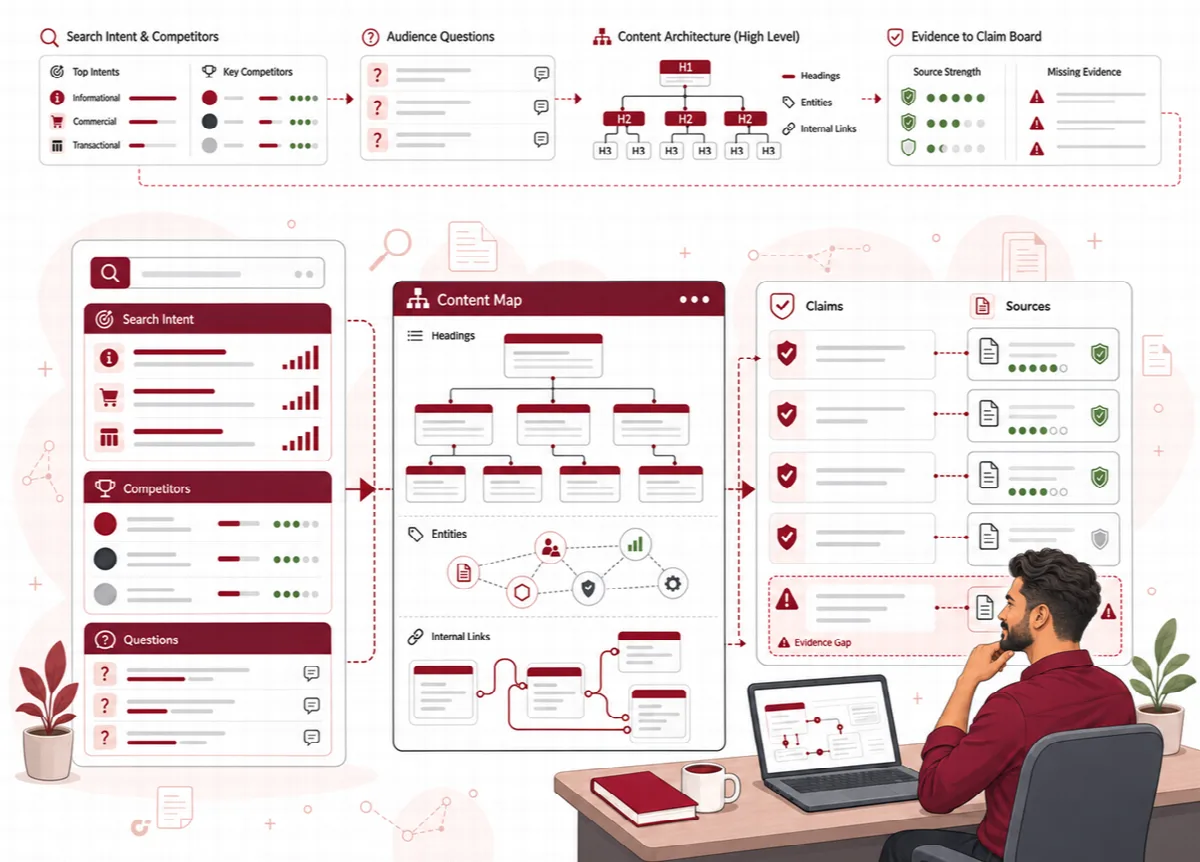
Entities, questions and clusters
Research also maps what a complete article on the topic has to cover:
- Entity Intelligence: the named things the article should mention clearly, such as a product, a standard or an organization.
- Question Intelligence: FAQ candidates, GEO and AIO questions, decision questions and comparison questions, so that answer blocks can be planned for them.
- Clusters and internal matches: the content clusters the topic belongs to and the existing pages of your site that already match it.
These results flow into the Content Blueprint and the Content Architecture.
Review the research
In Guided Workflow, Review Current Checkpoint opens the Research Workspace for the topic. There you can read the research brief, the opportunities, the entities and questions, and regenerate a part when the input changed. Return to Production takes you back to the run.