
The AI assistant helps you read and write mail. It runs on your company's own AI account, so it is available once your company has connected one. See Connect the company AI account.
Choose your AI features
Open Settings → AI assistant → Your AI features and turn each feature on or off:
| Feature | What it does | Where you use it |
|---|---|---|
| Writing help | Drafts, rewrites and fixes messages | Compose window → Write with AI |
| Suggested replies | Short reply ideas for a message | Reading → Suggest replies |
| Summaries | The key points of long messages | Reading → Summarize |
| Translation | Reading and writing in 37 languages | Reading → Translate: …; compose → Translate draft… |
| Tasks and dates | To-dos, meetings and deadlines in a message | Reading → Find tasks & dates |
| AI search | Search in your own words | The sparkle in the search box |
| Phishing warnings | Explains why a suspicious message may be dangerous | The phishing warning |
| Priority inbox | Marks important unread messages | Important label in the Inbox |
You only see the features your server administrator allows. Here you also find Show suggested replies automatically, Preferred translation language and, when there is a limit, your usage this month.
While reading
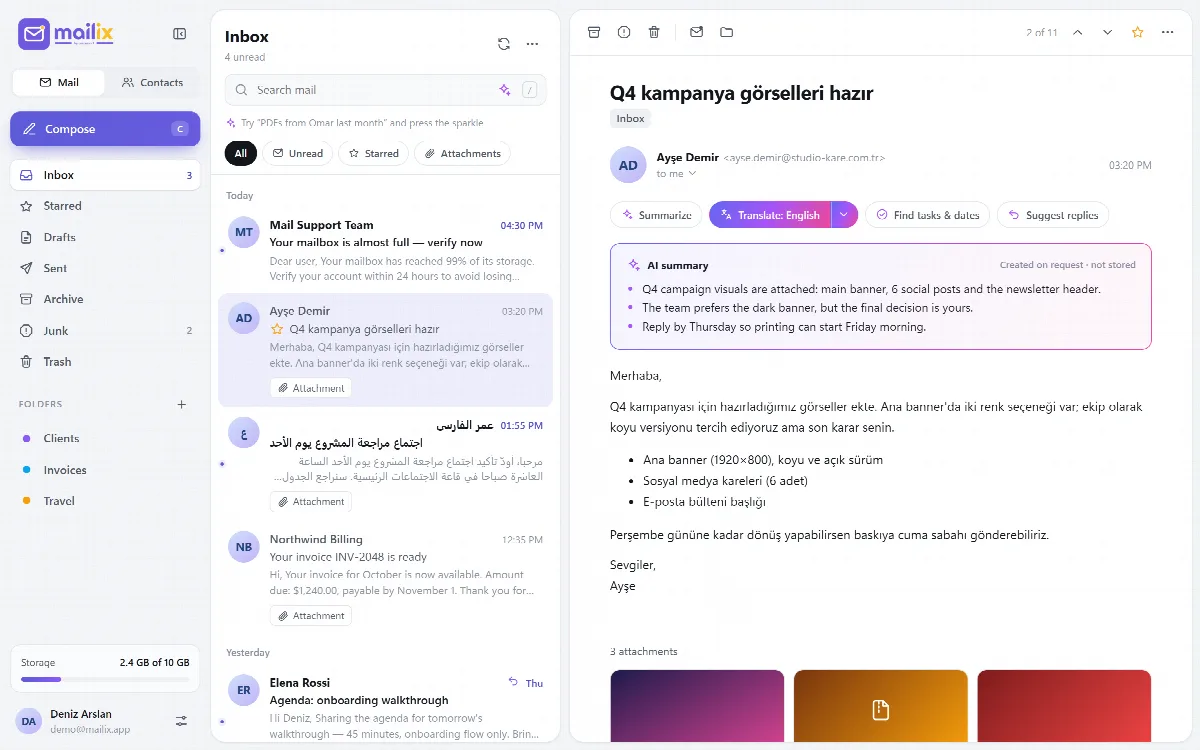
When a message is open, the AI bar offers:
- Summarize: two to five key points in your interface language.
- Translate: … (for example Translate: English): the message in another language, with its paragraphs, lists and links kept. The arrow next to the button opens a searchable language menu with your last three languages first. A translation shows Show original and Change language.
- Find tasks & dates: up to 10 to-dos, meetings and deadlines with their dates.
- Suggest replies: three short replies in the message's language. Click one to open a reply with that text.
Every result card says Created on request · not stored.
While writing
In the compose window, click Write with AI.
- Describe what you want to say and click Generate. In a reply, the original message is used as context.
- Choose the tone: Friendly or Formal.
- Choose the writing language: automatic, which follows the recipient's language, or any language from the list.
To polish your own text, use Shorter or Fix grammar on the selected text, or on everything above the signature and the quote. Translate draft… translates your own text and sets the writing direction for the new language; Undo brings the text back until you edit it again.
Your signature and the quoted message are never sent to the AI or changed by it.
Translation languages
Translation covers 37 languages, independent of the interface language: English, Turkish, Arabic, French, German, Spanish, Italian, Portuguese, Dutch, Russian, Ukrainian, Polish, Romanian, Czech, Hungarian, Greek, Bulgarian, Swedish, Norwegian, Danish, Finnish, Hebrew, Persian, Urdu, Hindi, Bengali, Chinese (Simplified and Traditional), Japanese, Korean, Indonesian, Malay, Thai, Vietnamese, Azerbaijani, Kazakh and Kurdish. Translations into Arabic, Hebrew, Persian and Urdu are shown right to left.
Search in your own words
Type a sentence such as "PDFs from Omar last month" in Search mail and press the sparkle. The AI turns it into search words and, where it fits, a filter for unread mail or attachments. A time period in the sentence, such as "last month", is not applied to the search.
Priority inbox
The priority inbox marks important unread messages in the Inbox with an Important label. Because it sends new mail to the AI by itself, your server administrator must allow it, and you turn it on yourself. It then sends the sender, subject and preview line of up to 30 unread Inbox messages.
What is sent to the AI
Mail content goes to your company's AI provider only when:
- you run an AI action;
- you turned on Show suggested replies automatically or the priority inbox;
- a suspicious message is explained while Phishing warnings is on;
- your mailbox uses AI automatic replies.
Results are not stored; Mailix keeps only monthly request counters. When your mailbox reaches its monthly limit, AI actions stop until the next month.
Note: AI results can be wrong. Check summaries, translations and replies before you rely on them or send them. Settings → Mailix → AI notice says the same.