
Mailix can import mail that was exported from another program, or a whole Mailix archive. The file is read on your computer and the messages are sent in small batches, so even files of several gigabytes do not hit upload limits.
Where to find it: Settings → Archive, part Import, then From a file.
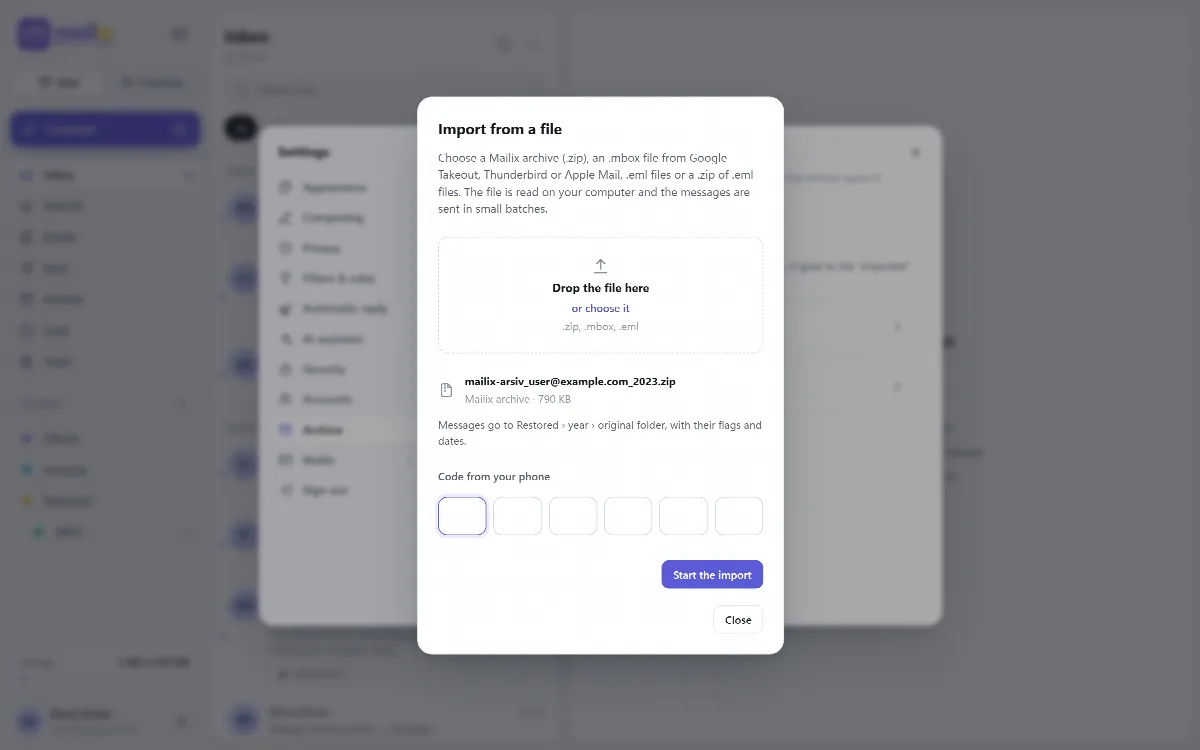
Before you start
- Turn on two-step verification in Mailix. Import is locked without it.
- Have your phone ready: Mailix asks for the current code when the import starts.
- Plan to keep the Mailix page open until the import is done.
Import a file
- Choose From a file.
- Drop the file into the window, or choose it. You can choose several
.emlfiles at once. - Mailix recognizes the file type by itself and shows it, for example Mailix archive or Mailbox file (.mbox).
- For files other than a Mailix archive, enter the Folder name under Imported. The file name is suggested.
- Enter the code from your phone and click Start the import.
The window shows the progress. When it is done, open the folder and check a few messages.
Where the mail goes
| File | Where the mail goes |
|---|---|
| Mailix archive (.zip) | Restored › year › original folder, with read, starred and answered marks and original dates |
| Google Takeout .mbox | Imported › chosen name, with one folder per Gmail label |
| Thunderbird or Apple Mail .mbox | Imported › chosen name › mailbox file name, with read, answered and starred marks |
| .eml files | Imported › chosen name, marked as read |
| A .zip of .eml files | Imported › chosen name, with the folders inside the ZIP, marked as read |
Google Takeout: a message with several labels goes into each label's folder, and a message without a label goes to an Archived folder. Messages labelled Spam, Trash or Chat are skipped. The "Unread" label makes a message unread and "Starred" stars it; all others arrive read.
Limits
- One message may be at most 30 MB, and at most 80% of the server's upload limit (20 MB with the default 25 MB limit). Larger messages are skipped and counted as too large.
- A message that is already in the target folder is skipped.
- If the page closes, a file import stops halfway and cannot be continued. Choose the file again: messages that were already imported are not added twice.
- Outlook
.pstfiles cannot be imported.
Related articles
Still stuck?
Ask the community