
Where to find it: Settings → Automatic reply. The top of the screen shows whether replies are going out right now and when that changes, with the time zone.
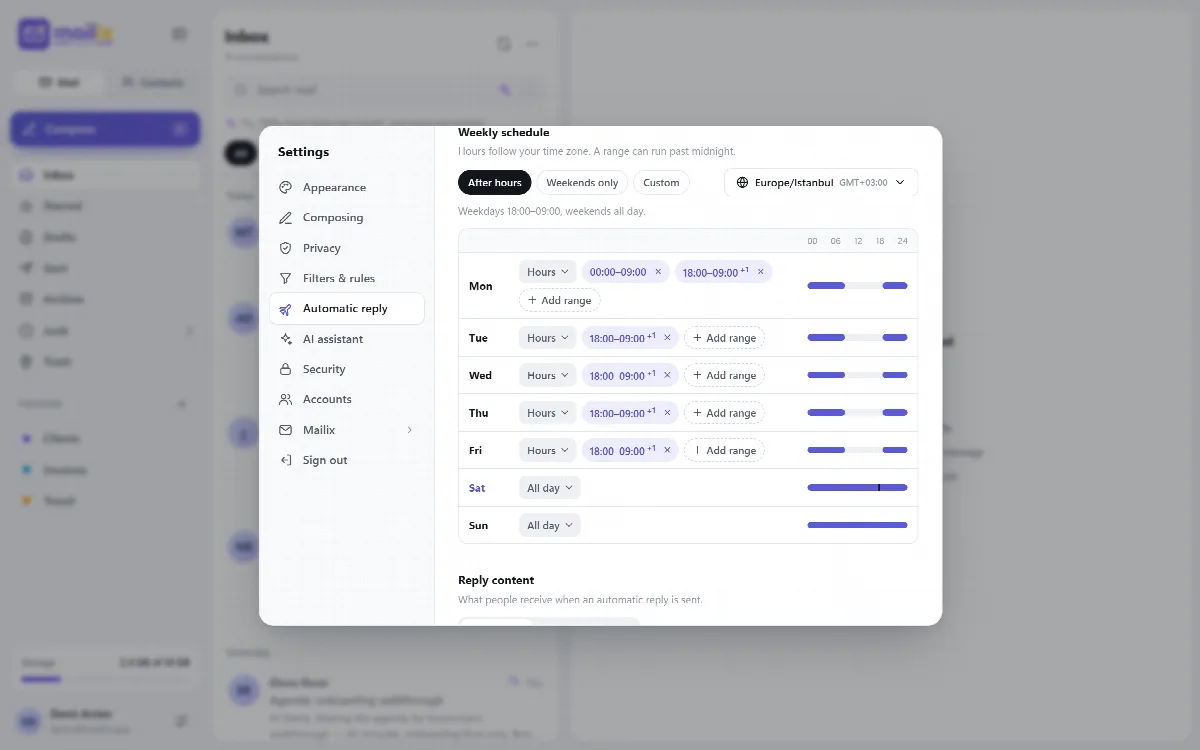
Choose when to reply
| Mode | Use it for |
|---|---|
| Off | No automatic replies |
| Date range | A holiday or any single period, with a start and end date and time, or No end date |
| Weekly schedule | Set hours every week, such as weekdays 18:00–09:00 and all weekend |
Set up a date range
- Choose Date range.
- Set the start and end date and time, or turn on No end date to reply until you turn it off.
- Write the reply (see "Write the reply" below) and save.
With fixed text, the date range uses cPanel's own automatic reply.
Set up a weekly schedule
The weekly schedule needs cPanel Webmail.
- Choose Weekly schedule.
- Pick a template: After hours (weekdays 18:00–09:00 and all weekend), Weekends only or Custom.
- For each day, choose Don't reply, All day or Hours, with up to six hour ranges a day. A range can run past midnight.
- Choose the Time zone. The hours follow it, so a team abroad answers on local hours.
- Under Validity, set the start and end dates, or No end date.
- Write the reply and save.
Mailix adds one scheduled task to your hosting account that checks new mail every five minutes, so replies leave within a few minutes, whether or not anyone has Mailix open. The task never uses or stores your mailbox password. You can see it on cPanel's Cron Jobs page as the line ending with # Mailix weekly automatic reply. When no mailbox of the account has a running schedule, the line is removed.
Write the reply
- Fixed text: a subject and a plain-text message.
- Reply with AI: the company's AI writes each reply from the incoming message and your company information. See Let the AI answer automatic replies.
Protection against loops and spam
- No replies to bulk mail, mailing lists, no-reply addresses, automatic messages or spam.
- Reply to the same sender at most once every 4 days is on by default. Turn it off to answer every message.
- With the weekly schedule, each message gets at most one reply (Mailix 1.2.9 and later): Mailix records a message as answered before it replies, and does not reply when it cannot record it.
With the weekly schedule and AI replies, Mailix also:
- does not answer senders that look forged, based on the server's SPF, DKIM and DMARC results;
- does not answer mail delivered before the schedule was turned on, or older than one day;
- does not answer messages a filter moved out of the Inbox or that were filed as spam;
- answers at most 50 different people a day per mailbox.
Recently sent replies lists the last five replies of the weekly schedule, with recipient, subject and time.
A practical after-hours setup
- In Settings → Automatic reply, choose Weekly schedule and the After hours template.
- Check the time zone and the validity dates.
- Write the fixed subject and message.
- Save, then review the first replies under Recently sent replies.