
Mailix Archive downloads a year or a date range of your mailbox as a ZIP file. Every archive contains its own reader, so you can open it on your computer without internet or extra software.
Where to find it: Settings → Archive, part Archive.
Before you start
- Turn on two-step verification. Without it, the archive part is locked and shows Turn on security. See Turn on two-step verification.
- Have your phone ready: Mailix asks for the current code when the archive starts.
- Plan to keep the Mailix page open while the archive is prepared.
1. Choose the period
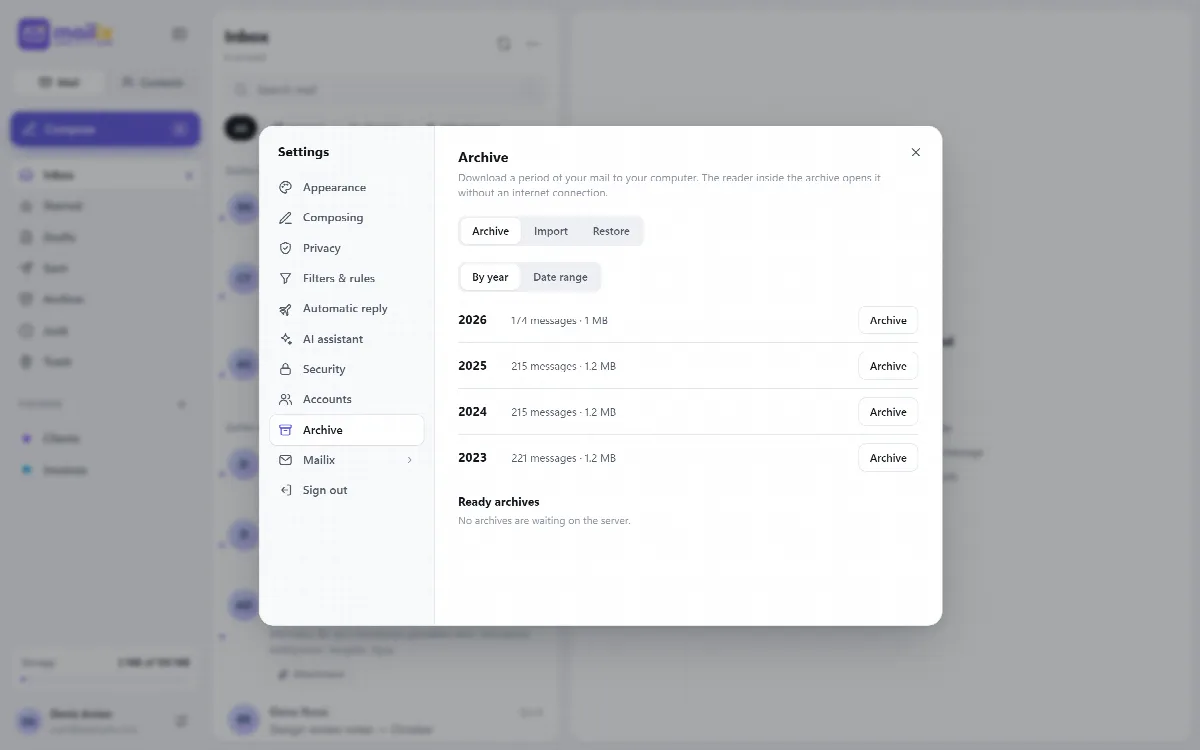
| Choice | What it covers |
|---|---|
| By year | All mail of one calendar year. Each year shows its message count, size and the estimated number of parts, with an Archive button. |
| Date range | Any period between a From and a To date, up to 20 years |
A message belongs to the date in its Date header, or to the day it reached the server when that header is missing.
2. Prepare the archive
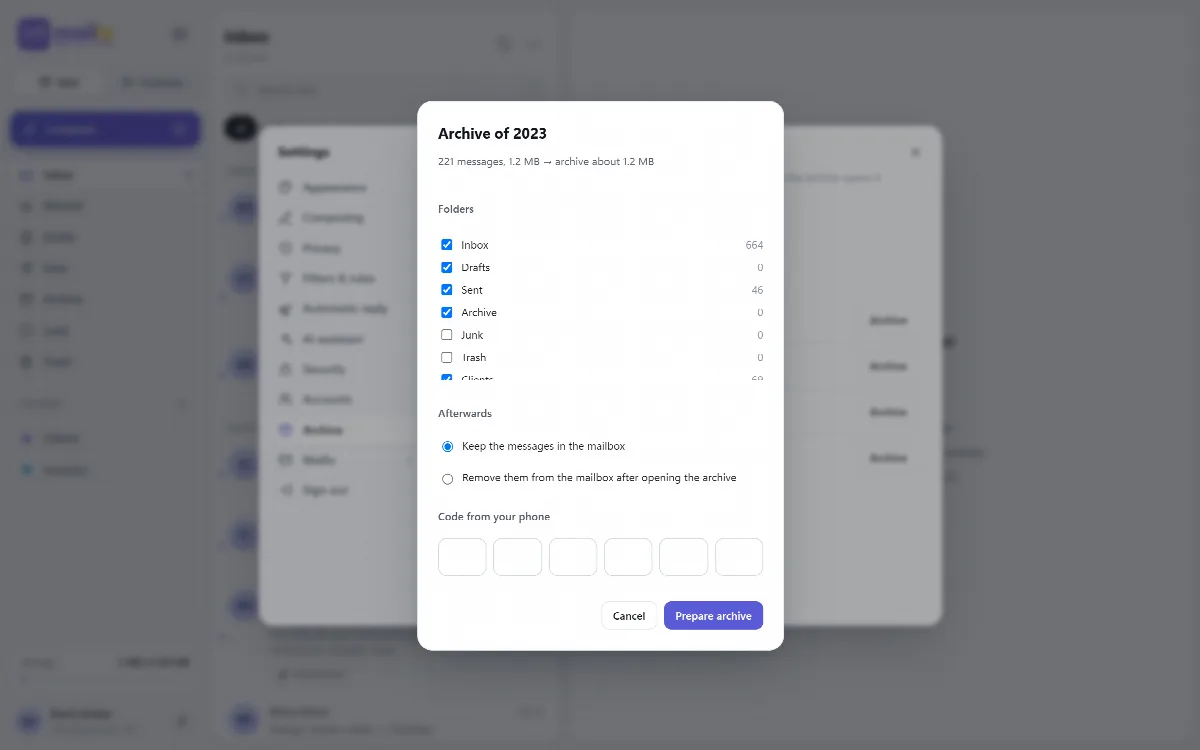
- Folders: every folder can be included. Trash, Junk and Restored are not selected by default; imported mail counts as normal mail and is selected.
- Summary: check the number of messages, their size and the estimated archive size. If the server does not have enough space, Mailix says so before anything is written.
- Afterwards: keep Keep the messages in the mailbox (the default), or choose Remove them from the mailbox after opening the archive. The second option deletes nothing by itself; it only reminds you to remove the messages once you have opened the archive.
- Code from your phone: enter the current code.
- Click Prepare archive.
Mailix shows "Preparing" with a progress bar. You can keep using Mailix meanwhile. If the page closes, preparation pauses and continues when Mailix opens again. One mailbox prepares one archive at a time.
3. Download every part
When the archive is ready, it appears under Ready archives. Each part has its own Download button.
- Large archives are split at month boundaries into parts of about 1 GB and at most 20,000 messages. A month that is still too large is split by day.
- Every part opens on its own, with its own reader and its own archive code.
- The ZIP files use standard compression and no ZIP64, so the built-in ZIP support of Windows and common tools can extract them.
- On cPanel Webmail an interrupted download starts again from the beginning. Standalone installations can resume a download.
Then extract the ZIP file on your computer and open the reader. See Read an archive offline and put messages back.
How long the archive stays on the server
- An archive stays on the server for 72 hours from the moment its preparation started, then it is deleted automatically. Ready archives shows "On the server until" with the time.
- Remove it earlier with Remove from server. The messages stay in your mailbox.
- Only the session of the mailbox that prepared the archive can download it.
- The archive counts toward the hosting account's disk quota while it waits on the server. On server-wide installations it is left out of cPanel's account backups.
Important: An archive without a password is not encrypted, so it opens in a normal browser. Keep the ZIP file and the extracted folder in a safe place, such as an encrypted disk, or choose Protect with a password.
More archive options
Your server administrator can turn each of these off; an option that is off does not show.
- Prepare it on the server; I may close this page: on server-wide cPanel installations with background jobs, the server writes the archive without your mailbox password. The list shows On the server and the progress, and when the archive is ready Mailix tells you once and your inbox gets a short message.
- Parts one after the other: when the server has room for only one part at a time, Mailix prepares the next part after you download the previous one and remove it from the server.
- EML files: instead of the archive with its reader, standard
.emlfiles in their folders, with a note on importing them into Outlook, Thunderbird (ImportExportTools NG) and Apple Mail. No reader and no password. - Protect with a password: at least 8 characters. Without this password nobody can open the archive, and it can't be reset or recovered: the password never leaves your browser, and once the archive is prepared the server keeps nothing that opens it.
- Automatic archive: off by default. Mailix archives your old mail by itself every month or once a year, for mail older than the number of years you choose, and tells you when an archive is ready. It never removes mail from your mailbox.
- Stop preparing: removes what was prepared so far from the server; nothing is removed from your mailbox.
Your server administrator can also change the part size and retention time, or turn archives off.
A practical archive routine
- Turn on two-step verification in Settings → Security.
- In Settings → Archive, choose the oldest year you no longer need on the server.
- Prepare the archive, keep the page open and download every part.
- Extract the ZIP file and open the reader to check a few messages.
- If you want to free up space, remove the archived messages with the archive code. See Free up mailbox space with the archive code.
- Keep the ZIP file and the extracted folder on a backup disk.