
AI features in Mailix are optional. Each company on the server, meaning each cPanel account, connects its own AI provider account once. All of the company's mailboxes then use it. Requests are billed to the company by its provider; the server owner does not pay for them.
Where to find it: Settings → AI assistant → Company AI account. Only managers see this section.
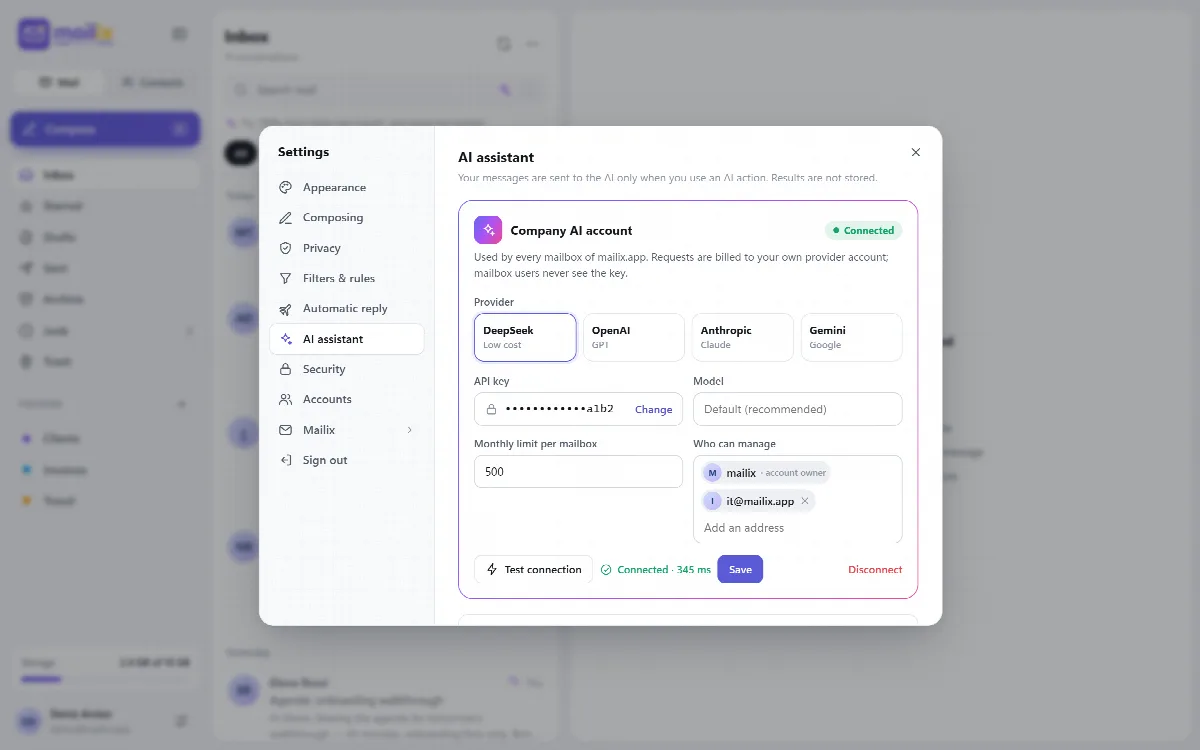
Who can manage the company AI account
- Server-wide installation: the cPanel account owner, who signs in to Webmail with the cPanel user name, and the manager addresses added there.
- Standalone installation: the addresses in
ai.managersin the configuration file, and the managers they add.
Before you start
Create an API key in the account of your AI provider: OpenAI, Anthropic, Google Gemini or DeepSeek. Keep it private.
Connect the account
- Open Settings → AI assistant.
- Under Company AI account, choose the provider.
- Paste the API key. After saving, only its last 4 characters are shown; use Change to enter a new one. The saved key belongs to the provider it was entered for: when you choose another provider, the key field is empty and you enter that provider's key. Mailix never sends a key to another provider (Mailix 1.2.9 and later).
- Model: leave it empty for Default (recommended), or enter a model of your choice.
- Monthly limit per mailbox: a number of requests, or empty for no limit.
- Who can manage: the account owner is fixed; add up to 20 more addresses.
- Click Test connection. Mailix sends one small request with the key you entered, or with the saved key if you kept the same provider, and shows Connected with the time in milliseconds, or the reason it failed. The test does not count toward any limit.
- Click Save.
The AI buttons in the reading and compose screens update without reloading the page. With an empty model field, Mailix uses the default model it chooses for the selected provider.
How the key is protected
- The key is stored encrypted in the company's Mailix storage, readable only by that cPanel account.
- Mail users never see the key. They see which provider the company connected and their own usage this month.
- Requests go only over HTTPS to the provider's own API address.
While connected, managers see Company usage this month. Disconnect deletes the key from the server; the managers list stays.
What users see
- Until the company connects an account, users see that AI is not connected yet and that they should ask the cPanel account owner.
- After connecting, each user turns the AI features they want on or off in Your AI features. See Use the AI assistant.
- When a mailbox reaches its monthly limit, AI actions stop until the next month.
Server-wide key (standalone only)
On a standalone installation, the server administrator can set an optional fallback key in config.php (ai.provider, ai.api_key). It is used only when the company has not connected its own account, and then the server owner pays. In cPanel Webmail this key is ignored, because every cPanel account can read config.php.