
Once an archive is downloaded and opens on your computer, you can remove the archived messages from your mailbox to free up quota. Mailix asks for two codes, so this only happens when you really have the archive.
Before you start
- Download every part of the archive and extract it on your computer. See Download an archive of your mail.
- Open the reader and check a few messages. The Archive code is shown at the top of the reader, for example
K7M-4QX. - Have your phone ready for the two-step code.
Remove the archived messages
- In Settings → Archive, find the archive under Ready archives.
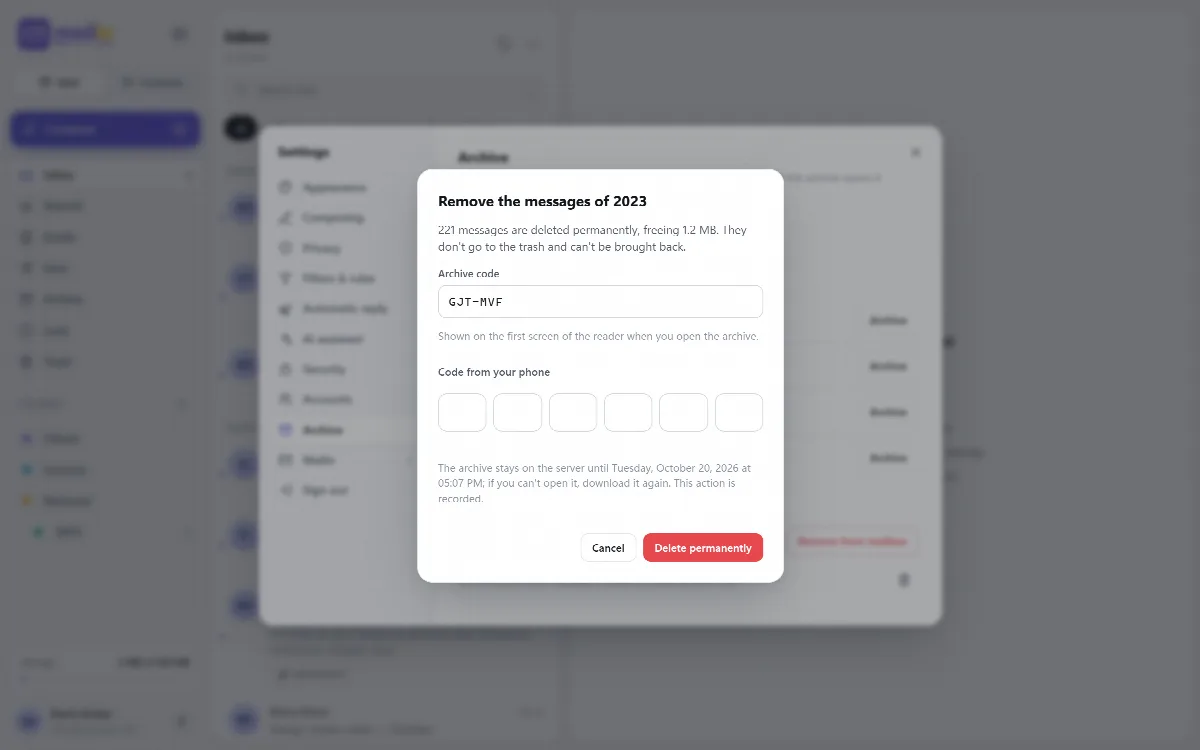
- Click Remove from mailbox on the part you want to remove. The window says how many messages are deleted and how much space is freed.
- Enter the Archive code from the reader. Upper or lower case, spaces and dashes do not matter.
- Enter the current code from your phone.
- Click Delete permanently.
Mailix shows how many messages were deleted and how much space was freed. The part's row keeps a note of the removal.
Every part of a split archive has its own archive code, so remove each part with the code shown in its own reader.
Why two codes
- The archive code proves that the whole archive was downloaded and opens on your computer. The code is the last file written into the ZIP, so it is missing from a half-downloaded file. The server keeps only a hash of it.
- The two-step code proves that the mailbox owner is present.
What is deleted, and what is not
- Only the messages that went into the archive are deleted. Mail that arrived in the period, or was moved into it, after archiving is not touched.
- A folder that was rebuilt on the server after archiving is skipped, and the screen names it.
- Removed messages do not go to Trash and cannot be brought back from the server.
- The archive itself stays downloadable until it expires.
- Five wrong archive codes for the same part stop removal for 15 minutes.
- Every attempt is recorded in the mailbox's archive history, without message content, subjects, addresses or codes.
Warning: Removing archived messages is permanent. Do it only after you have opened and checked the archive, and keep the ZIP file in a safe place.
An archive that was prepared straight from another account during an import has no Remove from mailbox, because its messages never entered your mailbox.
Bring a message back later
Use Put back in Inbox in the reader. See Read an archive offline and put messages back.