
Every Mailix archive contains a reader: a single HTML file that opens your archived mail like a mailbox, without internet or extra software.

Open the archive
- Extract the ZIP file on your computer. In Windows, right-click it and choose Extract All….
- In the extracted folder, open
Open-archive.html(Arsivi-ac.htmlin Turkish archives) in a desktop browser.
If you open the reader from inside the ZIP file without extracting it, it shows Extract the archive first and explains what to do. The reader was tested in Chrome, Edge and Firefox on desktop computers. It is not made for phones.
What the reader shows
- The mailbox address and the period at the top, with Archive info for details such as the number of messages, the size and the Mailix version.
- The Archive code bar, always visible. You need this code to remove the archived messages from your mailbox.
- Folders, a message list and a reading pane. Nested folders are shown as a tree; hover over a folder to see its full path.
- Filters: All, With attachments and Starred.
- Messages with their inline images and attachments, which open or download from the archive.
- Print for a single message, with its header lines.
- English, Turkish and Arabic with a full right-to-left layout, and a light or dark look that follows your computer.
When several parts of a year, or several year archives, are extracted into the same folder, the period picker at the top lets you switch between them.
Search the archive
Search the archive searches all folders in the subject, sender and recipient names and addresses, and attachment names. Every word must match. Turn on Search inside messages to search the message text too.
Privacy in the reader
The reader makes no network connections. Images from the internet are not loaded, and a link opens only after the reader shows you its real address and you choose Open link.
Put messages back into your mailbox
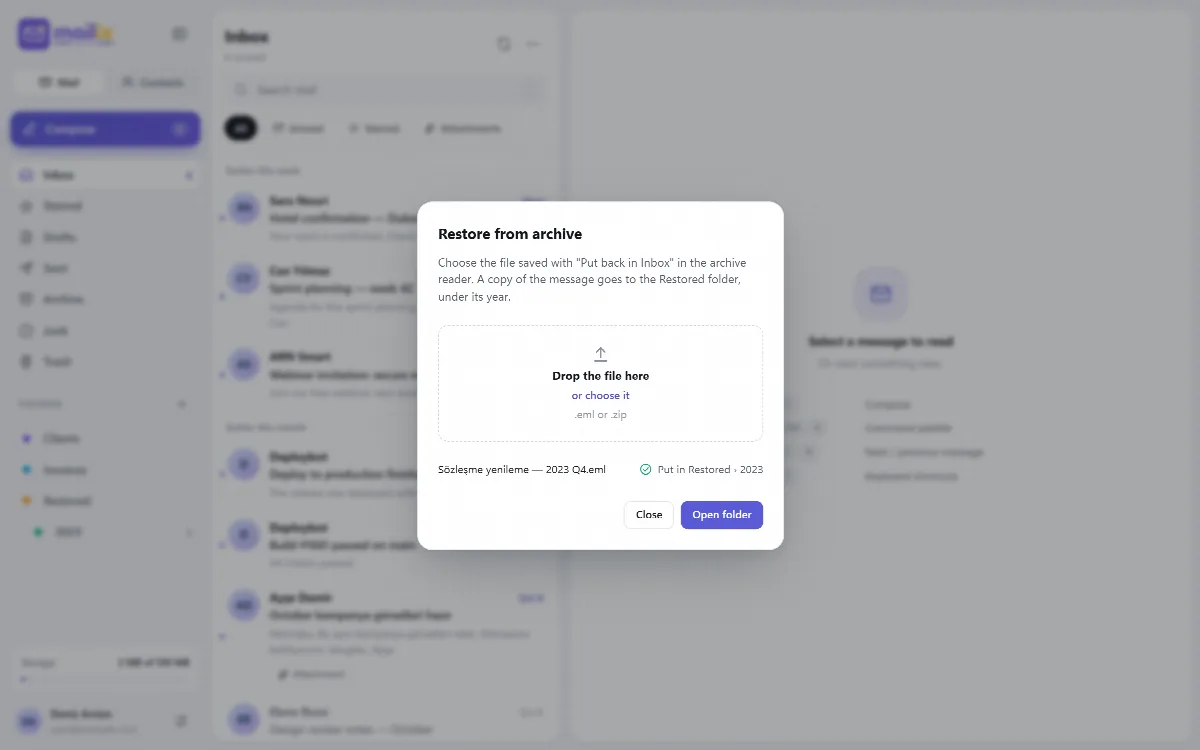
- In the reader, select one or more messages and choose Put back in Inbox. You can put back up to 500 messages and 1 GB at a time.
- The reader checks each message against its checksum and saves one
.emlfile, or a.zipfile for several messages, to your Downloads folder. - Mailix opens in a new tab with the Restore from archive window. If the browser blocks the new tab, click Open Mailix in the reader.
- Drop the saved file into the window, or anywhere in Mailix, or choose it. You can also open the window in Settings → Archive, part Restore.
The copy is placed in Restored, under the year of the message.
- The copy keeps its original date and content and arrives unread, so it is easy to notice.
- A message that is already in that Restored folder is skipped ("Already restored, skipped").
- Restoring only adds a copy to the mailbox, so it needs no code and works without two-step verification.
To import a whole Mailix archive back into a mailbox, use Import → From a file instead. See Import mail from files.