
All server options of Mailix are in one file, config/config.php. The sample file config/config.sample.php explains every option. Mail users change their own settings inside Mailix; this file is for the server administrator.
Where the file is
| Installation | Configuration file |
|---|---|
| Server-wide (WHM) | /usr/local/cpanel/base/3rdparty/mailix/config/config.php |
| Standalone | config/config.php in the folder where you uploaded Mailix |
Any option missing from config.php takes its value from the sample file, so you only need to keep the options you change. Changes apply to the next request; there is nothing to restart.
Warning: On a cPanel server every cPanel account can read
config.php. Do not put API keys or passwords in it there.
Sending and receiving mail
Mailix reads mail over IMAP and sends it over authenticated SMTP, signing in with each mailbox's own address and password. On a cPanel server both services run on the same machine, and the defaults already point to them:
'imap' => ['host' => 'localhost', 'port' => 993, 'security' => 'ssl', 'verify_peer' => false],
'smtp' => ['host' => 'localhost', 'port' => 465, 'security' => 'ssl', 'verify_peer' => false],securityisssl(IMAP 993, SMTP 465),starttls(IMAP 143, SMTP 587) ornone.nonemakes the connection unencrypted.verify_peerchecks the server certificate. It is off by default because the certificate oflocalhostusually does not match its name on cPanel servers. Turn it on when you connect with the server's real host name.timeoutis the IMAP and SMTP connection timeout in seconds (20 by default).
Mailix has no sending domains or domain verification of its own. Messages leave through your server's SMTP service, so SPF, DKIM and DMARC for your domains are set up on the mail server, for example in cPanel.
Sign-in and sessions
| Option | Default | What it does |
|---|---|---|
allowed_domains | Empty (every domain) | Only addresses of these domains can sign in |
idle_minutes | 120 | Idle time before sign-out when Keep me signed in is not ticked |
remember_days | 14 | How long Keep me signed in lasts |
login_attempts | 8 | Failed sign-ins allowed per IP address |
lockout_minutes | 15 | Period for counting failed sign-ins, and the wait after too many |
cpanel_autologin | true | Automatic sign-in from cPanel Webmail |
qr_sign_in | true | Signing in new devices with a QR code (standalone only) |
Interface and limits
| Option | Default | What it does |
|---|---|---|
app_name | Mailix | Name in the browser title, on the sign-in screen and in the installed app |
default_language | en | Language for new users: en, tr, ar or auto (follows the browser) |
default_theme | auto | Theme for new users: auto, light or dark |
upload_max_mb | 25 | Limit for one attachment and for all attachments of a message, in MB |
feedback_address | support@arnsmart.com | Where Send feedback messages go; empty hides the button |
After you change app_name on a server-wide installation, run the installation script again so that the installed app shows the new name. Run it from the package folder of the installed version, for example bash /root/mailix-releases/1.2.9/cpanel/install.sh after an update with mailix-update, never from the installed copy. A folder of an older version would install that older version again.
Send feedback messages go to ARN Smart by default. If you prefer that your users' notes reach your own support team, set feedback_address to your own address, or leave it empty to hide the button.
Server services
| Option | Default | What it does |
|---|---|---|
cpanel_api | On, localhost, port 2096 | cPanel API for server filters and automatic replies; set enabled to false on servers without cPanel |
carddav | On, https://localhost:2080/ | Address book server; the address book is found automatically |
storage_dir | storage/ | Sessions, settings, uploads and caches; cPanel Webmail uses each account's ~/.mailix instead |
Archive
'archive' => ['enabled' => true, 'part_mb' => 1024, 'keep_hours' => 72],enabledturns the Archive tab (Archive, Import and Restore) on or off.part_mbis the size limit of one archive part, about 1 GB by default.keep_hoursis how long a prepared archive stays on the server, 72 hours by default.
AI assistant
AI features are optional. Each company connects its own AI provider account inside Mailix; see Connect the company AI account. In the configuration file you decide what is possible:
| Option | Default | What it does |
|---|---|---|
ai.account_keys | true | Lets companies connect their own AI account |
ai.managers | Empty | Standalone only: addresses that may manage the company AI account |
ai.features | All on except priority | The AI features users may turn on: writing, replies, summary, translate, tasks, search, phishing, priority |
ai.timeout | 45 | AI request timeout in seconds |
ai.provider, ai.api_key, ai.model | Empty | Standalone only: an optional server-wide fallback key, paid by the server owner |
ai.monthly_limit, ai.user_monthly_limit | 0 (no limit), 500 | Limits for the server-wide key only |
The priority inbox sends new mail to the AI by itself, so it stays off until you allow it with 'priority' => true. Even then, each user turns it on separately.
Demo mode
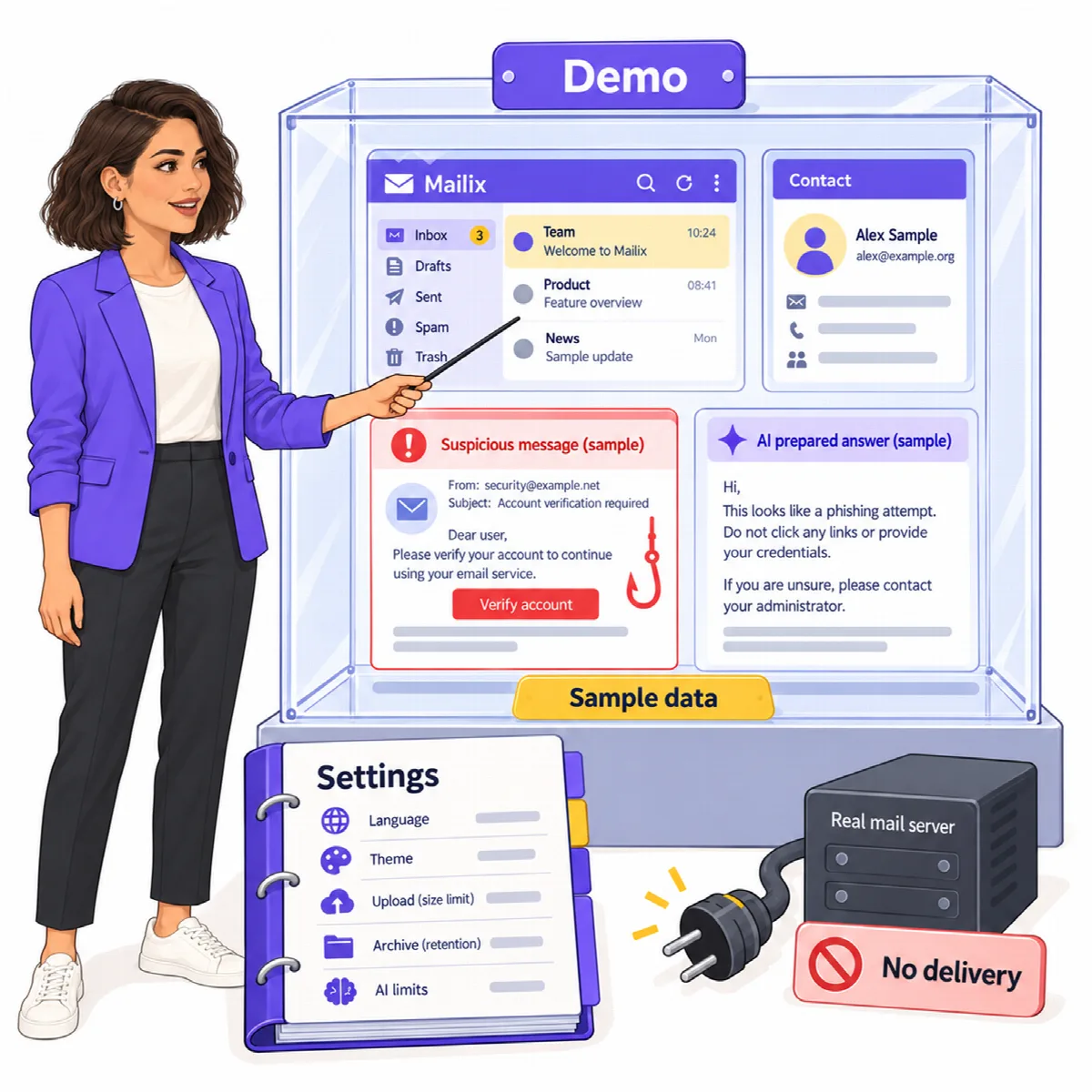
Set 'demo_enabled' => true to show Explore the demo on the sign-in screen. The demo connects to no mail server and uses built-in sample data:
- sample messages in English, Turkish and Arabic, including conversations, attachments, a newsletter and a phishing example;
- contacts, folders, filters, signed-in devices and a storage meter;
- a sample company AI account with prepared answers, without a real AI provider;
- two-step verification that can be tried with the demo code shown on the screen.
Sent mail stays in the demo and nobody receives it. Demo data is removed after a day. Adding accounts, the Archive tab and Send feedback are not available in the demo.