
Where to find it: Settings → Security → Signed-in devices.
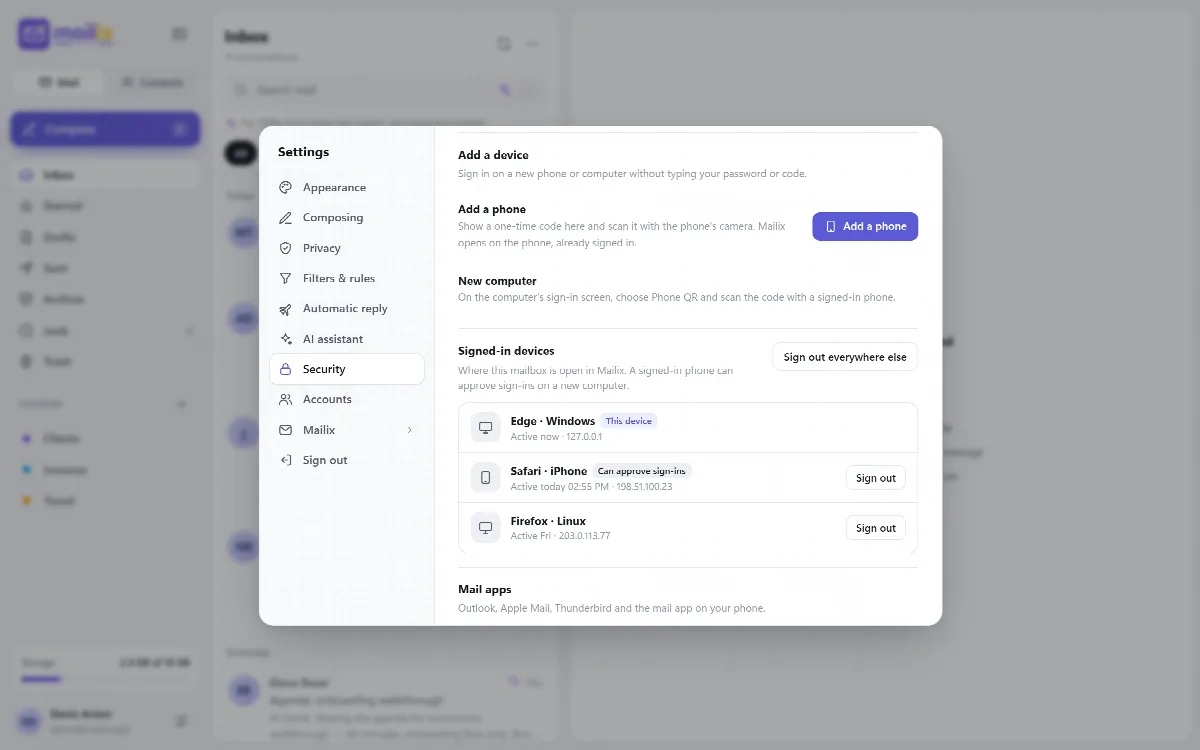
Review signed-in devices
The list shows every browser where your mailbox is open in Mailix, with the browser and system, phone or computer, the IP address and the last activity. The device you are using carries the This device tag.
- Sign out next to a device signs it out on its next request.
- Sign out everywhere else signs out every other device at once.
Check the list after using a shared computer, and sign out anything you do not recognize.
Sign in a new device with a QR code (standalone only)
On standalone installations, a new phone or computer can sign in without typing the password or code, approved by a device that is already signed in.
A new computer:
- On the computer's sign-in screen, open the Phone QR tab. A code appears.
- On your signed-in phone, scan it with the camera, or in Mailix with Settings → Security → Scan a code.
- The phone shows the request's browser, IP address and whether it is on the same network. The computer shows a two-digit number.
- On the phone, choose the same number from three numbers and tap Approve. The computer is signed in.
A new phone:
- On your signed-in computer, open Settings → Security → Add a phone. A code appears.
- Scan it with the phone's camera.
- The phone shows a two-digit number. On the computer, choose the same number from three numbers.
- Mailix opens on the phone, already signed in.
Rules:
- A code is valid for 2 minutes and works once.
- Choosing the wrong number cancels the request. The phone can also Decline a request.
- Only scan codes on your own computer. Never scan a code someone sent you.
- Signing in with the password, and the two-step code, always works too.
The server administrator can turn QR sign-in off with the qr_sign_in option.
Note: QR sign-in is not available in cPanel Webmail. Every Webmail address belongs to one Webmail session, so another device cannot open it. There, sign in to cPanel Webmail on the new device with your password.