
Standard folders
Mailix shows the standard folders in a fixed order and in your interface language: Inbox (with Starred under it), Drafts, Sent, Archive, Junk and Trash. If Sent, Drafts or Trash is missing on the server, Mailix creates it.
Two folders are created by Mailix features: Restored for messages put back from an archive, and Imported for mail brought over from other accounts and files.
Your own folders
Your own folders are listed under Folders. Subfolders are indented, and unread counts are shown next to the folders.
- Create: click + next to Folders (New folder) and enter a name of up to 100 characters.
- Rename or delete: right-click a folder and choose Rename or Delete folder. Deleting a folder deletes it and every message in it permanently, after you confirm.
The Inbox cannot be renamed or deleted.
Move and delete messages
- Move to lists every folder.
- Archive moves the message to the server's Archive folder.
- Junk moves it to Junk; inside Junk the button becomes Not junk.
- Delete moves a message to Trash. Deleting inside Trash removes it permanently.
Keyboard shortcuts
Shortcuts work when you are not typing in a text field. Press ? in Mailix for the full list.
| Key | Action |
|---|---|
| C | Compose |
| / | Search mail |
| Ctrl+K (Cmd+K on a Mac) | Command palette |
| J / K | Next or previous message |
| R, A, F | Reply, Reply all, Forward |
| E | Archive |
| # or Delete | Delete |
| S | Star or remove star |
| U | Mark as unread |
| G then I, S, D, A or T | Go to Inbox, Sent, Drafts, Archive or Trash |
| G then C | Go to Contacts |
| Shift+D | Switch theme |
| , | Settings |
| Ctrl+Enter | Send, in the compose window |
| Esc | Close the open window, menu or drawer |
| ? | Keyboard shortcuts |
When messages are selected, E, #, S and U apply to all of them; otherwise to the open message.
The command palette
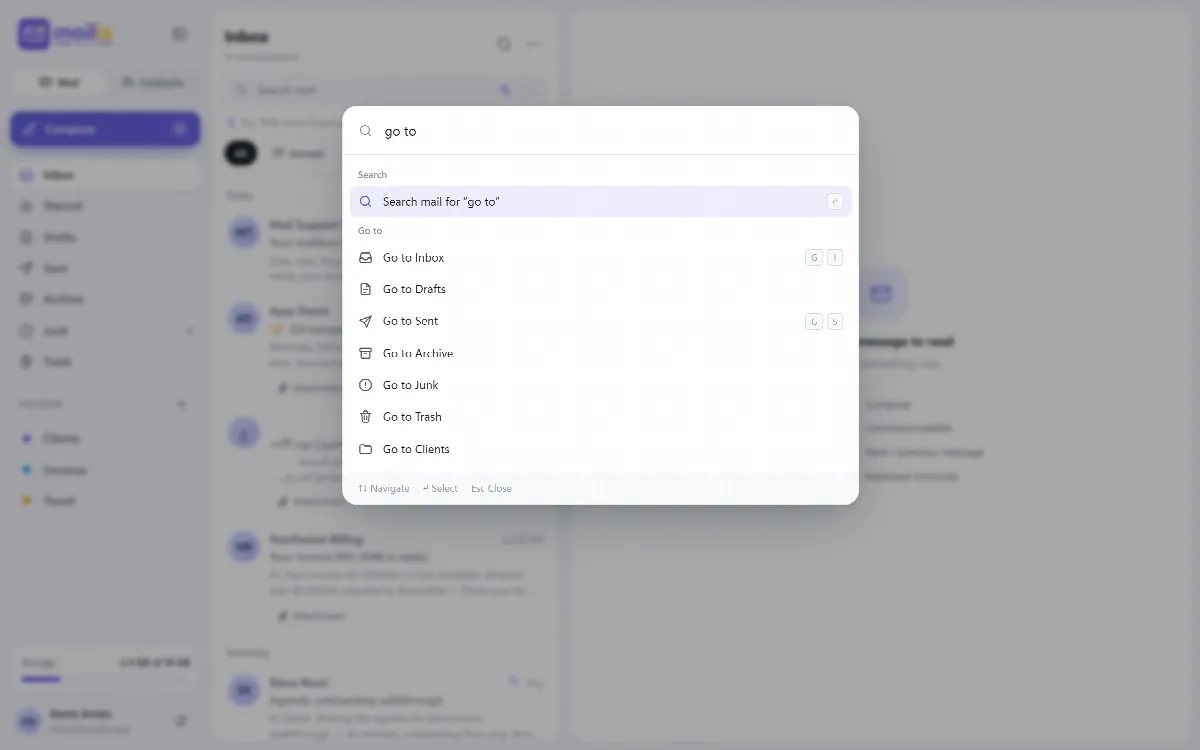
Press Ctrl+K to open the command palette. It has three sections:
- Actions: Compose and New contact; with a message open also Reply, Reply all, Forward, Archive and Delete.
- Go to: every folder and Contacts.
- Preferences: Switch theme, Change language, Filters & rules, Automatic reply, Settings and Keyboard shortcuts.
Type to filter the commands. The palette also offers to search mail for whatever you typed. Use the arrow keys and Enter to run a command, and Esc to close it.