
Mailix can copy the mail of another account into your mailbox once. It is a one-time move, not a continuous sync, and the mail goes to its own Imported folder, so it never mixes with your other folders.
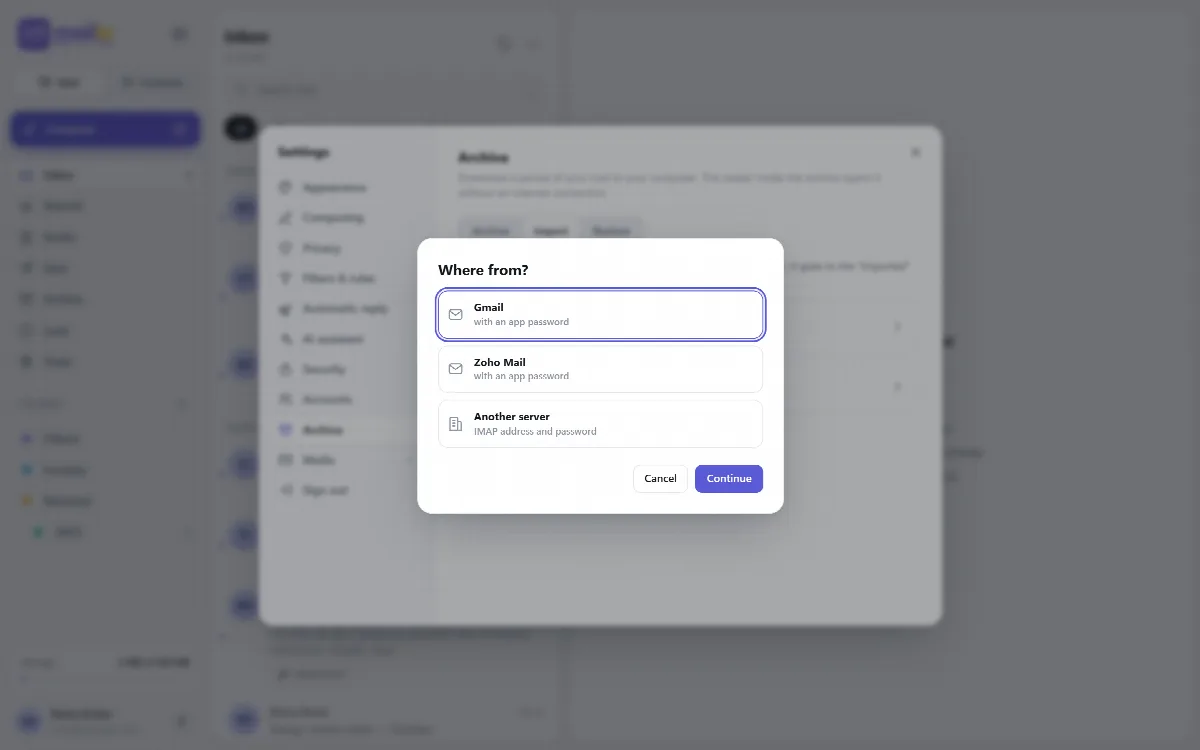
Where to find it: Settings → Archive, part Import, then From another account.
Before you start
- Turn on two-step verification in Mailix. Import is locked without it. See Turn on two-step verification.
- Get the details of the old account:
| Source | What you enter |
|---|---|
| Gmail | The email address and a 16-letter app password |
| Microsoft (Outlook.com, Hotmail, Microsoft 365) | Only the email address; you sign in on Microsoft's own page |
| Zoho Mail | The region of the account (zoho.com, zoho.eu, zoho.in or zoho.com.au), the address and the password, or a Zoho app password |
| Another server | The IMAP server, the connection (993 · SSL or 143 · STARTTLS), the user name and the password |
- Gmail: use an app password, not your Gmail password. Create it in your Google Account under Security → 2-Step Verification → App passwords. In company Google Workspace accounts, the administrator may have turned IMAP off.
- Microsoft: available when your server administrator has turned on importing from Microsoft; otherwise the choice is greyed out. Company Microsoft 365 accounts may need their IT administrator's approval.
- Zoho Mail: IMAP must be on in Zoho Mail → Settings → POP/IMAP Access. With two-factor authentication on the Zoho account, enter an app password from Zoho.
1. Connect to the old account
- Choose From another account, then Gmail, Microsoft, Zoho Mail or Another server, and click Continue.
- Enter the connection details.
- Click Test connection. Mailix signs in to the old account and lists its folders. Nothing is copied yet.
The password is only used for the import. It isn't saved unless you let the import continue after the page is closed; then it's kept encrypted on the server until the import ends.
Microsoft accounts
For Microsoft, enter only the email address and click Sign in with Microsoft. Mailix shows three steps: open Microsoft's sign-in page microsoft.com/devicelogin on this or another device, enter the code shown in large letters, and sign in as that account and allow Mailix access. Mailix waits for Microsoft and opens the folder step when the sign-in is done. Mailix never sees your Microsoft password; it only gets permission to read this mailbox over IMAP. If access was declined or the code expired, choose Start again.
2. Choose what comes over
Mailix lists the old account's folders with their message counts and sizes. All folders start selected; untick the ones you do not need.
- Gmail: Spam and Trash are not imported, and Important and Starred do not become folders. All Mail appears as Mail archived without a label: from it, only the messages that are in no other folder come over, into an Archived folder.
- Microsoft: Junk Email and Deleted Items are not imported, and neither are Calendar, Contacts, Tasks, Notes and Outbox.
- Other servers: Junk and Trash are not imported.
- The total size is shown next to your mailbox's free quota.
Mail lands under Imported › old address › folder. Gmail labels become folders, with nested labels as subfolders. The folders Mailix names itself, such as the old Inbox and Archived, use your interface language at the time of the import.
3. When the quota is not enough
If the old mail does not fit into your free quota, Mailix fills the space from the newest year backwards and offers two choices:
- Recent years into the mailbox, older years prepared straight as an archive. The older years never enter your mailbox. Mailix reads them from the old account and prepares a downloadable archive with an offline reader. It appears under Archive › Ready archives.
- Only the years that fit. The older years stay in the old account.
Messages without a readable date always come into the mailbox.
4. Start the import
Check the summary, enter the code from your phone and click Start the import. You can keep using Mailix meanwhile.
On a server-wide cPanel installation whose background jobs run, Continue even if I close this page lets the server go on with the import by itself; the old account's sign-in is kept encrypted on the server while the import runs, for a few days at most. Without that choice, keep the page open: if it closes, the import continues where it stopped when Mailix opens again.
Follow the import
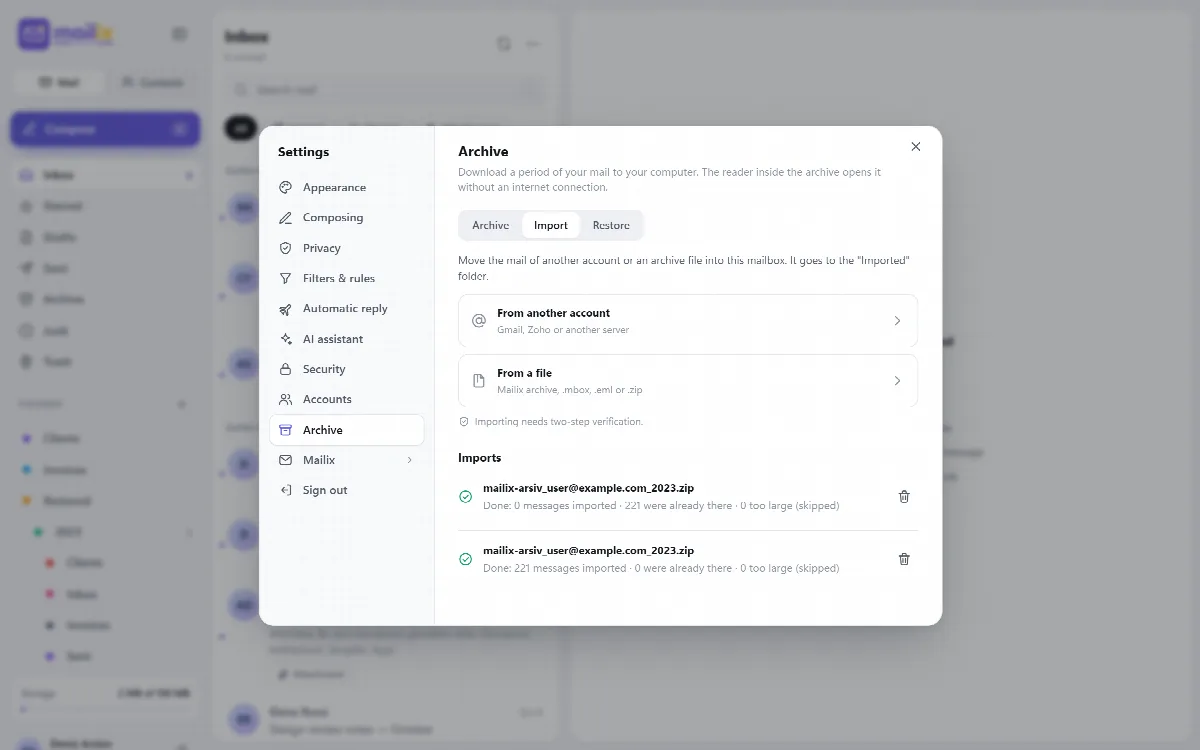
The Imports list shows each import:
| State | What to do |
|---|---|
| Moving | Wait; the progress bar shows how many messages are done |
| Password needed | Click Enter password; a new session asks for the old password again |
| Paused | The old server stopped answering, for example at Gmail's daily limit. Click Continue later |
| Stopped | Your mailbox is full. Free up space and click Continue |
| Done | Click Open folder to check the imported mail |
- Read, starred and answered marks and the original date of every message are kept.
- A message that already exists in the target folder is skipped. Running an import again, or continuing it, never adds the same message twice.
- If the page closes, the import continues where it stopped when Mailix opens again.
- Messages larger than 30 MB are skipped and counted.
- Gmail allows about 2.5 GB of IMAP downloads a day, so a larger Gmail account continues on another day with Continue.
Removing an import from the list does not remove the imported messages.
Protection for imports
- Only servers on the internet are allowed, on port 993 or 143 with a verified certificate. Local and private network addresses are refused.
- Test connection can be used 10 times an hour per mailbox.
- Starting, finishing and removing an import are recorded with the server name and counts, without addresses or passwords.
- Mailix changes and deletes nothing in the old account.