
Mailix is a progressive web app (PWA). You can install it from the browser, and it then opens in its own window with its own icon, like a native app. HTTPS is required.
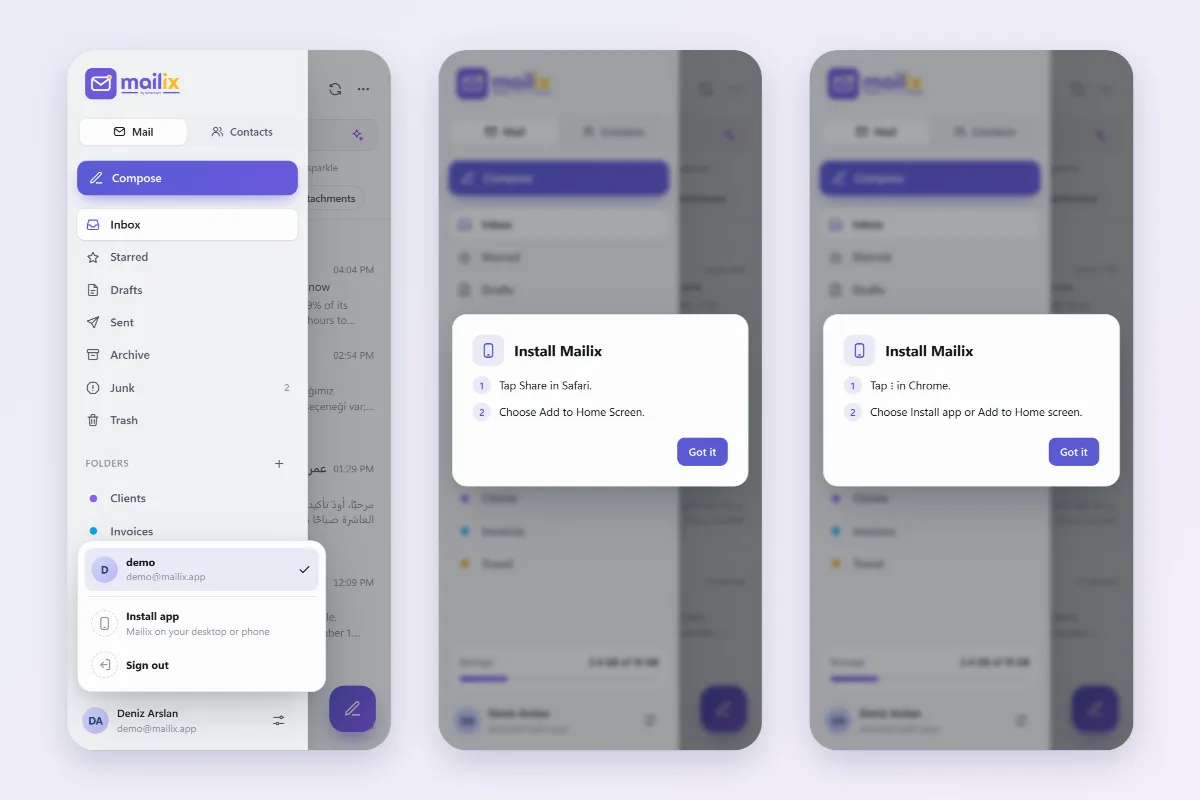
Install the app
- Open Mailix in your browser and sign in.
- Click your account card and choose Install app. On the sign-in screen, Install app appears when the browser allows it.
- If your browser offers its own install prompt, confirm it. Otherwise Mailix shows the steps for your device:
| Device | Steps |
|---|---|
| Android (Chrome) | Tap ⋮ in Chrome, then choose Install app or Add to Home screen |
| iPhone and iPad (Safari) | Tap Share in Safari, then choose Add to Home Screen |
| Computer | Use the install icon at the end of the address bar, or the browser menu |
Install app is hidden in the account menu when Mailix already runs as an installed app. On supporting devices, the app icon shows the number of unread messages.
The app in cPanel Webmail
Webmail addresses belong to one Webmail session, so the installed app starts on a small start page:
- While your cPanel Webmail session is still open, the app goes straight back to Mailix.
- When the session has ended, the Webmail sign-in opens. After you sign in, Mailix opens if it is your default webmail application (Open my inbox when I log in on the Webmail screen).
cPanel ends a session after a period of inactivity and, depending on the server's settings, when your device's IP address changes, which is common on phones. You then sign in again.
On standalone installations, the app also has an offline start screen and two shortcuts on its icon: a new message and the inbox.
New mail without reloading
While Mailix is open, it checks for new mail by itself:
- every 8 seconds for the Inbox while the tab is in front, and all folders once a minute;
- once a minute while the tab is in the background;
- at once when you return to the tab.
New mail appears in the list without a reload.
Turn on new mail notifications
- Open Settings → Privacy.
- Turn on New mail notifications and allow notifications when the browser asks.
While Mailix runs in the background, a system notification tells you how many new messages arrived. Clicking it opens the Inbox. If the browser blocks notifications, Mailix tells you so; allow them in the browser settings.
Note: Notifications arrive only while Mailix is open in the background; while its tab is in front, new mail simply appears in the list. The server does not push notifications to a closed app, and only new mail in the Inbox is announced.
Instant new mail. When your server administrator has turned it on, Settings → Privacy offers Instant new mail (off for each user). While the tab is in front, new mail, and mail read or deleted in another program, then shows up as soon as it arrives instead of within 8 seconds. Only a limited number of people can use it at once; otherwise Mailix checks every few seconds as usual and the setting says so.