
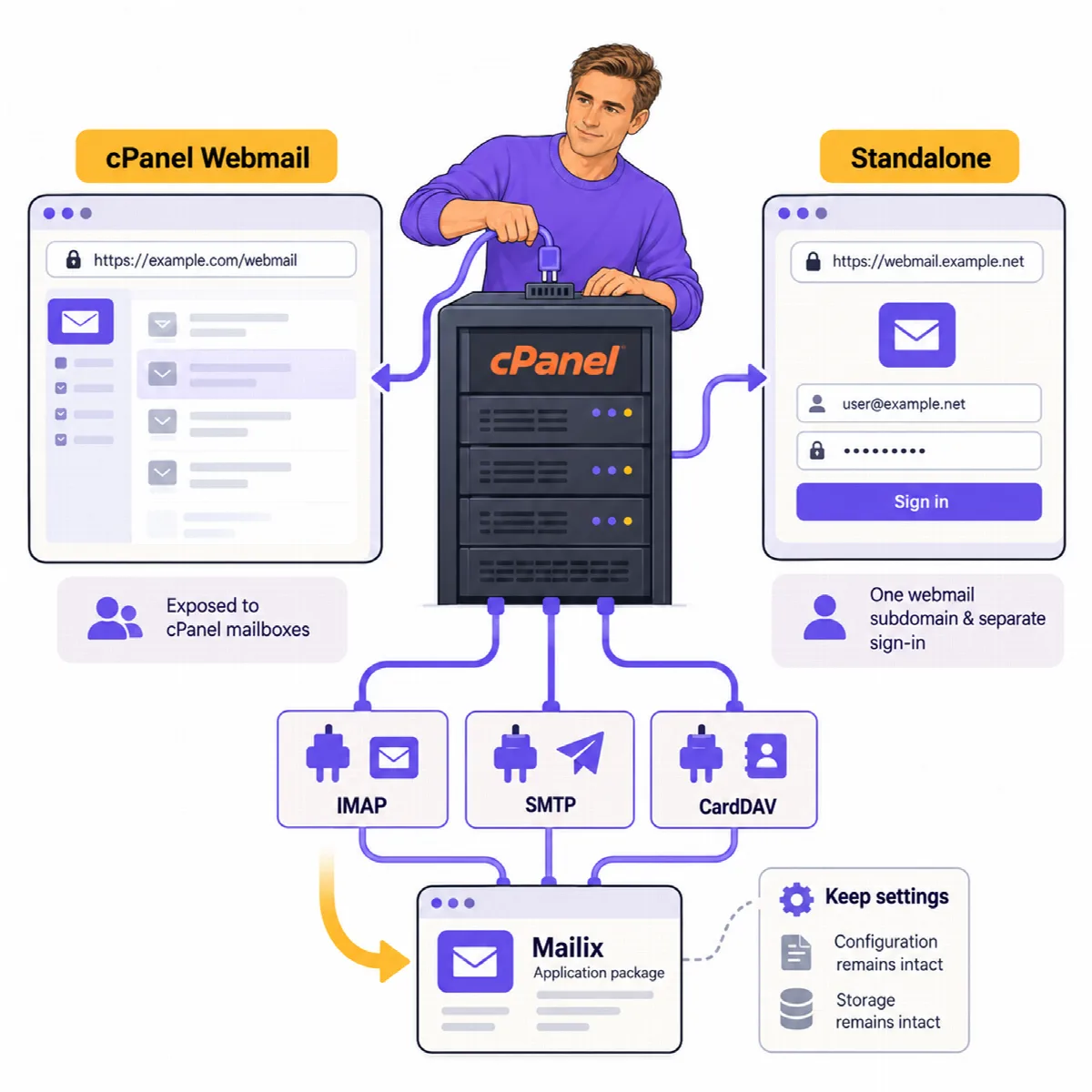
A server-wide installation adds Mailix to the cPanel Webmail screen of every mail account on the server. Users sign in to cPanel Webmail as usual, choose Mailix and are signed in automatically.
Before you start
- Check the server requirements.
- Have root SSH access to the server.
- Have the Mailix installation package (
mailix-install-<version>.zip, for examplemailix-install-1.2.9.zip) from ARN Smart. Its files are at the top level of the ZIP, without a surrounding folder. - Back up the server, as you would before any change to cPanel.
Install Mailix
Copy the ZIP file to the server, unpack it into a new, empty folder and run the installation script as root from that folder:
mkdir -p /root/mailix-1.2.9
unzip mailix-install-1.2.9.zip -d /root/mailix-1.2.9
cd /root/mailix-1.2.9
bash cpanel/install.sh
Run the script only from the folder you unpacked the package into. From Mailix 1.2.9 it stops without changing anything when that folder holds other files (for example when the package was unpacked straight into /root) or when it is started from the installed copy in /usr/local/cpanel/base/3rdparty/mailix, and it copies only Mailix's own files.
The script ends with Mailix is installed. and shows where the configuration file is: /usr/local/cpanel/base/3rdparty/mailix/config/config.php. Mail users can use Mailix right away.
The script stops with a message if it does not run as root or if cPanel is not found on the server.
What the script does
- Copies Mailix to
/usr/local/cpanel/base/3rdparty/mailix. Development files (tests,tools,storage) are not copied. - Creates
config/config.phpfrom the sample configuration, if it does not exist yet. - Registers Mailix in cPanel Webmail with
/var/cpanel/webmail/webmail_mailix.yaml. - Publishes the app manifest, the app icons and the app's start page in
/usr/local/cpanel/base/unprotected/mailix, the only folder cPanel serves without a Webmail session. Browsers need it to install Mailix as an app. - Adds the line
.mailix/users/*/archiveonce to cPanel's backup exclude list (/etc/cpbackup-exclude.conf), so prepared archives stay out of cPanel's account backups. - From Mailix 1.2.5: prepares the server licence (
/etc/mailix/licence.json), checks an activated licence and adds root's licence cron job/etc/cron.d/mailix-licence. Activate the licence afterwards; see Activate and check the Mailix server licence.
Note: Other backup tools keep their own exclude lists. In JetBackup, add
.mailix/users/*/archive/*to the backup job's exclude list, unless the job already excludes*.zip.
How mail users open Mailix
- The user signs in to cPanel Webmail with their email address and password.
- On the Webmail screen, they choose Mailix.
- Mailix opens the mailbox with the credentials cPanel passes to it, without its own sign-in screen. If the mailbox uses two-step verification, Mailix asks only for the code.
To open Mailix right after signing in to Webmail, a user makes it the mailbox's default webmail application with Open my inbox when I log in on the cPanel Webmail screen.
The cPanel account owner can also open their own mailbox by signing in to Webmail with the cPanel user name. Mailix then sends from the account's main domain and hides cPanel's internal folder entries.
Where data is stored
Each cPanel account keeps its Mailix data in its own home folder, ~/.mailix: settings, contacts kept in Mailix, two-step verification data, the company AI account and prepared archives. Files are readable only by that account. Prepared archives count toward the account's disk quota while they wait on the server.