
Every screen of Mailix exists in English, Turkish and Arabic. Each user chooses their own language and look, so colleagues on the same server can work differently.
Where to find it: Settings → Appearance.
Choose your language
| Choice | Result |
|---|---|
| English, Türkçe or العربية | The whole interface uses that language |
| Automatic | Follows your browser language, with English for other languages |
- The language belongs to your mailbox. Changing it rebuilds the screen and keeps Settings open.
- You can also change the language on the sign-in screen before signing in; the browser remembers it.
- Dates, times and sizes follow the chosen language.
- The server administrator sets the language for new users with
default_language.
The interface has three languages. The AI assistant can additionally translate messages into 37 languages. See Use the AI assistant.
Right-to-left for Arabic
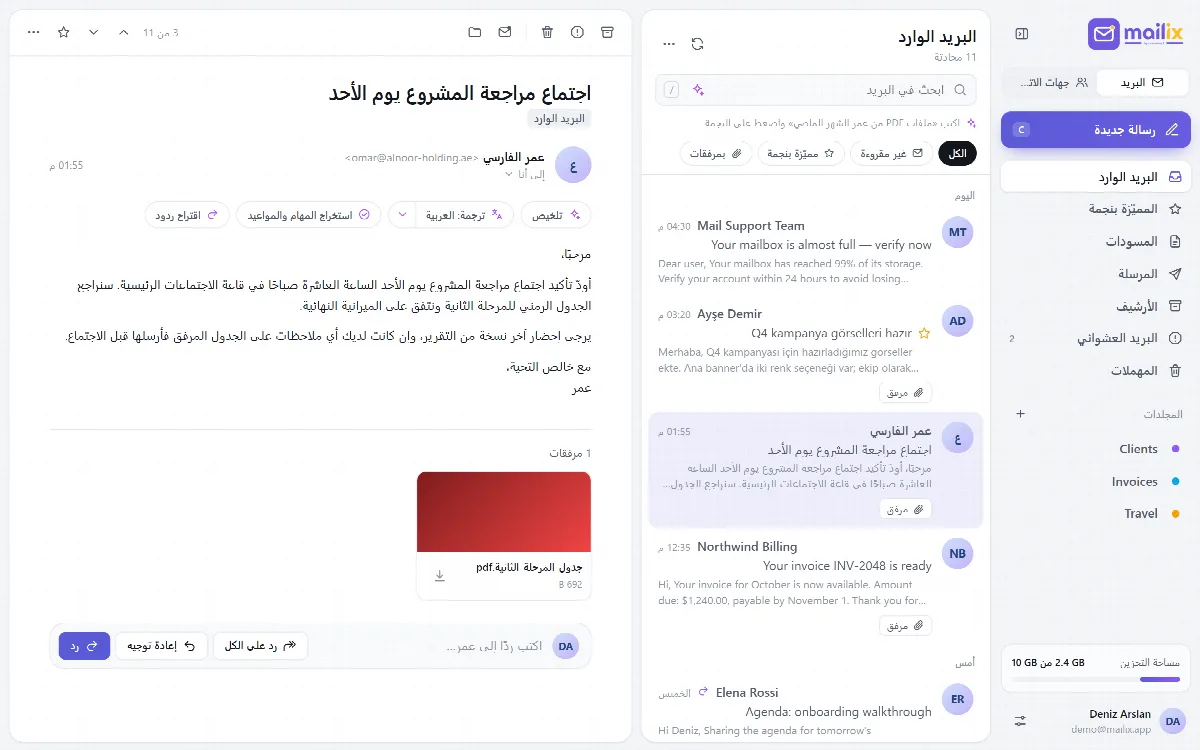
With Arabic, the whole interface turns right to left: the sidebar, lists, menus, dialogs, the direction of icons and the compose window.
- Mixed text. Names, subjects and message bodies take the direction of their own language, so an Arabic subject reads correctly in the English interface too.
- Writing direction. The compose window has LTR and RTL buttons and opens in RTL when the interface is in Arabic.
- Translations into Arabic, Hebrew, Persian or Urdu are shown right to left.
- Archives. The offline archive reader is right to left in Arabic as well.
Theme, colour and layout
| Setting | Choices |
|---|---|
| Theme | Light, Dark or Automatic (follows your device) |
| Accent colour | Indigo (default), Ocean, Emerald, Amber, Rose, Graphite |
| Density | Comfortable view or Compact view |
| Group by conversation | On or off |
| Reading pane | Right or Bottom |
Shift+D switches between light and dark at any time. The saved theme is applied before the page appears, so the screen does not flash.
Phones and tablets
The layout follows the width of the screen; there is no separate mobile site.
| Screen width | Layout |
|---|---|
| Over 1180 px | Full sidebar, which can be collapsed to icons with Collapse sidebar |
| 761 to 1180 px | Icon sidebar that opens over the list |
| 760 px and below | Sidebar in a drawer, full-screen reading and a round compose button |
On phones, an opened message fills the screen and Back returns to the list. The Settings tabs become one scrolling row.
To put Mailix on your home screen, see Install Mailix as an app and get notifications.