
This guide covers your daily work in the message list and the reading pane.
The message list
The list groups mail by date: Today, Yesterday, Earlier this week, Earlier this month and Older. Each row shows the sender, the time, the subject, a star, an attachment mark and the first line of the message. Unread messages are bold.
- Quick actions. Hover over a row for Archive, Delete, Mark as read and Star.
- Endless scrolling. The next page loads as you scroll. Choose 25, 50 or 100 messages per page in Settings → Composing → Messages per page (50 by default).
- Density. Choose Comfortable view or Compact view in Settings → Appearance or in the list's More menu. The More menu also has Select all and Mark all as read.
Conversations
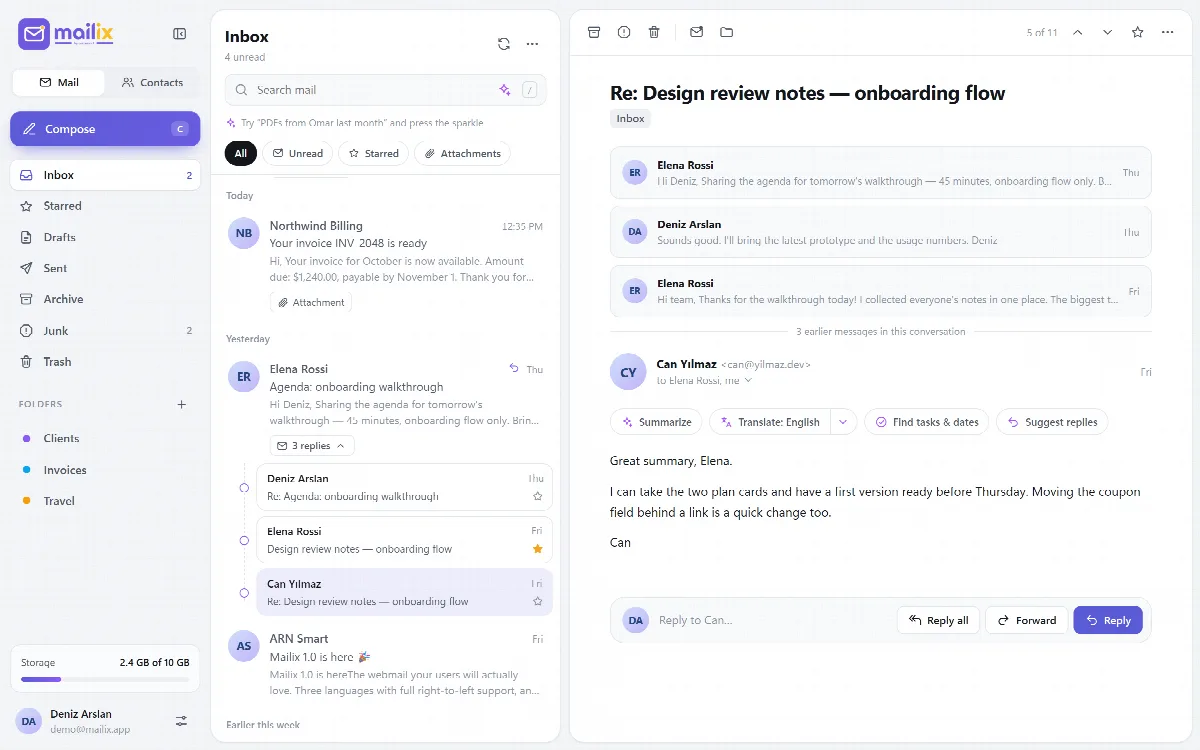
With Group by conversation on (the default), replies are grouped under the first message of a conversation.
- Click the "replies" button on a row to open the replies. A dot shows when a reply is unread.
- Your own replies from Sent appear in the conversation too.
- Conversations are sorted by their latest message.
- An opened message shows the earlier messages of its conversation as cards above it. Click a card to open that message.
- Archive, delete and mark actions on a conversation row apply to all of its messages in that folder.
To see a flat list, turn Group by conversation off in Settings → Appearance.
Read a message
The toolbar above an open message has Archive, Junk, Delete, Mark as unread, Move to, the previous and next buttons, Star and More.
The More menu offers:
- Reply, Reply all and Forward;
- Print, which prints only the message;
- Download original (.eml), the raw message as a file;
- Unsubscribe, when the sender provides an unsubscribe link. It opens that link in a new tab.
Click the recipient summary under the sender to see From, To, Cc, Reply-To and the full date. A quick reply box sits under the message.
- Attachments. PNG, JPEG, GIF and WebP images and PDF files open in the browser; every other file downloads. Each attachment card has Download.
- Older character sets. Turkish, Arabic and other older encodings are decoded.
- Large messages. Messages larger than 30 MB cannot be opened in webmail. HTML bodies over 3 MB are shown as plain text.
HTML mail is shown in a locked frame and external images stay hidden until you allow them. See Safe reading, external images and phishing warnings.
Select several messages
Click the picture on a row, or click with Shift or Ctrl, to select messages. A bulk bar then replaces the filters, with Archive, Delete, Mark as read, Mark as unread, Star, Move to and Clear selection.
Search and filters
Type in Search mail (shortcut /). Mailix searches shortly after you stop typing; Esc clears the search.
- Search looks up your words in the sender, the To recipients, the subject and the message text of the open folder. Results are sorted by date, newest first.
- The filters narrow the list further:
| Filter | Shows |
|---|---|
| All | Every message in the folder |
| Unread | Messages not yet read |
| Starred | Messages marked with a star |
| Attachments | Messages that carry files |
With the AI assistant on, you can also type a sentence such as "PDFs from Omar last month" and press the sparkle in the search box. See Use the AI assistant.
New mail
While Mailix is open, new mail appears in the list without a reload. See Install Mailix as an app and get notifications.
Invitations and encrypted messages
A message with a calendar invitation shows a card with Accept, Maybe and Decline; see The calendar and invitations. An encrypted message shows Decrypt; see Encrypt and sign messages with OpenPGP.