
Filters & rules run on the mail server through cPanel, before any device sees the mail. They work on every device and while Mailix is closed.
Where to find it: Settings → Filters & rules.
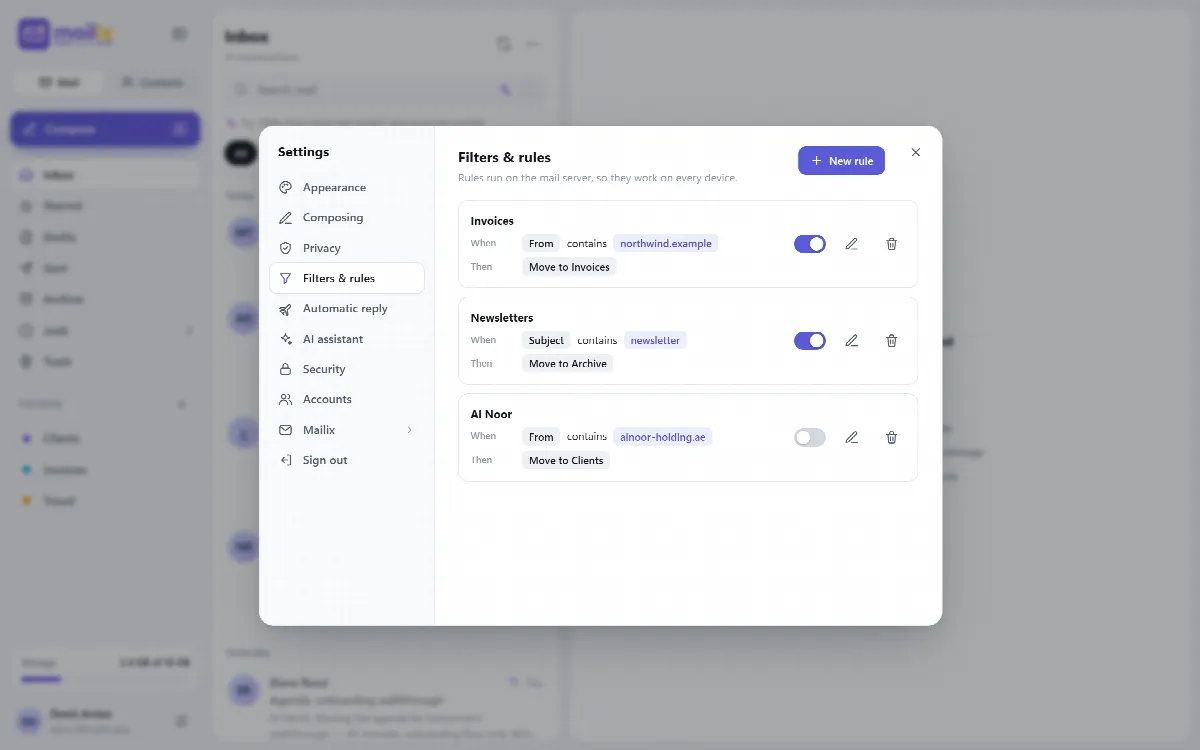
Create a rule
- Click New rule and give the rule a name.
- Choose All conditions match or Any condition matches.
- Add one or more conditions, each with a field, a comparison and a value.
- Add one or more actions.
- Save the rule.
| Condition part | Choices |
|---|---|
| Field | From, To, Subject, Body or Any header |
| Comparison | contains, does not contain, is, begins with, ends with |
| Action | What it does |
|---|---|
| Move to folder | Delivers the message to that folder instead of the Inbox |
| Copy to folder | Puts a copy in that folder; the message also arrives in the Inbox |
| Forward to | Forwards the message to a valid email address |
| Delete | The message is never delivered |
Manage rules
- Each rule card shows its conditions and actions in readable form.
- Switch a rule on or off with Enabled, or edit or delete it.
- Rules created on cPanel's own screen are shown too. They can contain actions and comparisons that Mailix's editor does not offer, such as rejecting a message or regular expressions; Mailix shows them on the rule card. From Mailix 1.2.9 such a rule is shown approximately with a note: you can switch it on or off or delete it in Mailix, and edit it in cPanel's Email Filters. Mailix does not edit it, so the parts it does not know are never lost.
Note: Filters need the cPanel mail service. Without it, the section shows Not available on this server.
Related articles
Still stuck?
Ask the community