
If you look after more than one mailbox on the same server, you can keep them open side by side in one Mailix window.
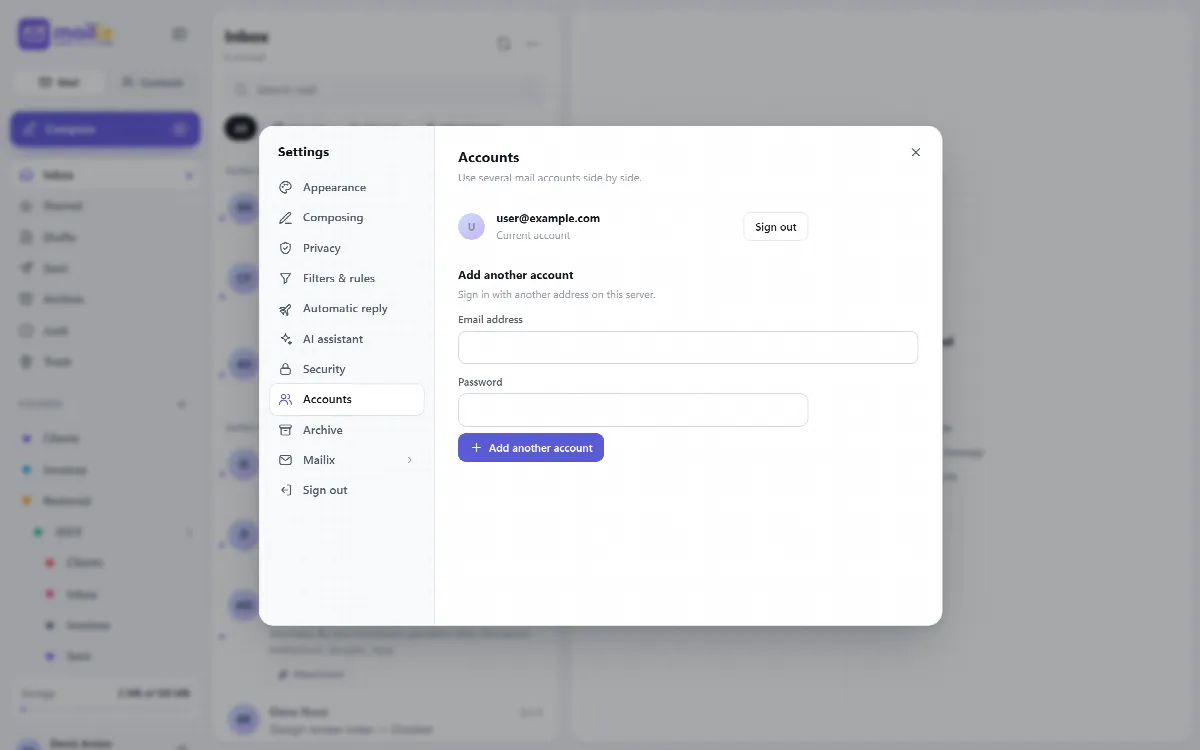
Add another account
- Open Settings → Accounts, or the account menu, and choose Add another account.
- Enter the email address and password of the other mailbox. It must be on the same server.
- If that mailbox uses two-step verification, enter its code too.
The accounts that are already open stay open. Each account keeps its own settings and folders.
If the company requires two-step verification and the mailbox has not set it up yet, it cannot be added. Sign in with that mailbox on its own first and set it up.
Switch between accounts
Click your account card in the sidebar and choose another account in the account menu.
All inboxes
With several accounts open, All inboxes appears at the top of the sidebar and in the account menu. It merges the inboxes of all open accounts by date into one list. Opening a message of another account switches to that account and opens the message.
All inboxes is always a flat list, without conversation grouping. Search and the filters in All inboxes look through the inboxes of all open accounts; in any other folder, search runs in that folder of the current account.
Sign out of one account
In Settings → Accounts, each account has Sign out. Only that account signs out; the others stay open.
Note: Adding accounts is not available in the demo.