
This guide shows how to open your mailbox in Mailix and where everything is.
Sign in
From cPanel Webmail (server-wide installation). Sign in to cPanel Webmail with your email address and password and choose Mailix. Mailix opens your mailbox without asking for the password again. If your mailbox uses two-step verification, Mailix asks only for the code: your password was already checked by Webmail.
If you opened the mailbox in another way, for example from cPanel's Check Email, cPanel does not pass the password, and Mailix asks for it once. The address is already filled in.
On Mailix's own sign-in screen (standalone installation). Enter your full email address and password and click Sign in.
- Keep me signed in is ticked by default. Your session then lasts 14 days. Without it, the session ends when the browser closes or after 120 minutes without activity. Your server administrator can change both times.
- Above the form you can change the language, switch between light and dark, and use Install app when your browser allows it.
- After too many failed sign-ins from one network, sign-in pauses for a few minutes. The screen says how long to wait.
The workspace
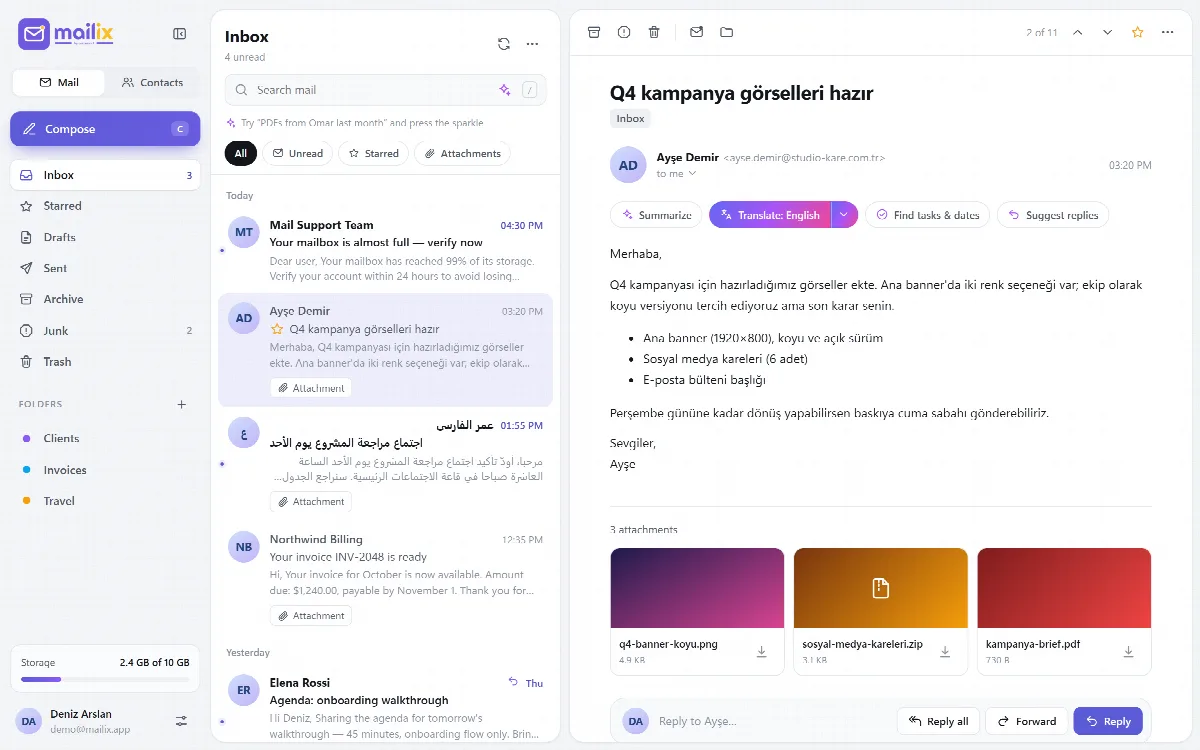
Mailix shows three panes: the sidebar on the left, the message list in the middle and the reading pane on the right. In Settings → Appearance you can move the reading pane below the list.
The sidebar holds:
- the Mail, Contacts and Calendar tabs and the Compose button;
- your folders, with unread counts;
- the storage meter, when your mailbox has a quota. It shows how much is used and turns to a warning colour at 90%;
- Send feedback;
- Back to cPanel Webmail (cPanel Webmail only);
- your account card. Click it to open the account menu; the gear next to it opens Settings.
On narrower screens the sidebar shrinks to icons, and on phones it opens as a drawer. See Languages, right-to-left and appearance.
The account menu
Click your account card to:
- open All inboxes when several accounts are open;
- switch between accounts or use Add another account;
- use Install app (hidden when Mailix already runs as an installed app);
- Sign out.
Settings
Open Settings with the gear on the account card, the , key or the command palette.
| Tab | What you set there |
|---|---|
| Appearance | Theme, Accent colour, Density, Group by conversation, Reading pane, Language |
| Composing | Your name, Signature, Undo send, Messages per page |
| Privacy | External images, Trusted senders, New mail notifications |
| Filters & rules | Server filters |
| Automatic reply | Out-of-office and scheduled replies |
| AI assistant | The company AI account (managers only) and your AI features |
| Security | Two-step verification, signed-in devices, company policy |
| Accounts | Open accounts and Add another account |
| Archive | Archive, Import and Restore |
| Mailix | About, Terms of use, Privacy policy, AI notice, Third-party software |
The AI assistant tab appears only when AI can be used or connected. The Archive tab is missing when your administrator turned archives off, and in the demo.
Send feedback
Send feedback in the sidebar lets you report a problem or share an idea.
- Choose the type: Problem, Idea or Other.
- Write your message (up to 5000 characters).
- Leave Include technical details ticked to add the Mailix version, your browser and system, the interface language, your domain and the installation mode. Nothing from your mailbox is added.
- Click Send.
The message is sent from your own address, so the team can reply. Where it goes is set by your server administrator; by default it goes to the Mailix team at ARN Smart. A mailbox can send five feedback messages an hour. The button is hidden when the administrator turned it off, and in the demo.
Sign out
Choose Sign out in the account menu or at the end of the Settings menu. In cPanel Webmail, signing out also ends the Webmail session and returns to cPanel's own sign-in page, so nobody can reopen your mailbox on a shared computer. With several accounts open, Sign out next to one account in Settings → Accounts signs out only that account.