
Two-step verification (2FA) adds a second check to the Mailix sign-in. After your password, Mailix asks for a six-digit code that an authenticator app on your phone creates every 30 seconds. Someone who learns your password still cannot open your mail in Mailix.
It works with Google Authenticator, Microsoft Authenticator, 1Password, Authy and similar apps. Setting it up takes about a minute.
Before you start
- Install an authenticator app on your phone.
- Make sure your phone sets its time automatically.
Set up two-step verification
- Open Security. Go to Settings → Security. After your first sign-in, Mailix also suggests it with Protect your account: click Set up now.
- Scan the QR code. In the authenticator app, add an account and scan the code on the screen. If you cannot scan, use Can't scan? Enter this key in the app and type the key.
- Enter the code. Enter the code the app shows to confirm the setup.
- Save the recovery codes. Mailix shows 10 single-use recovery codes only this once. Save them with Copy, Download or Print, tick I've saved these codes somewhere safe and click Finish and turn on.
The QR code is drawn inside Mailix; the key is never sent to an outside service. Finish the setup within 30 minutes. In the app, the entry appears under the name of your Mailix installation.
Not now on the suggestion postpones it for 14 days.
Sign in with a code
After your password, enter the code from your app. When Mailix opens from cPanel Webmail, it asks only for the code, because Webmail has already checked your password.
- Remember this device for 30 days: this browser is not asked for a code for 30 days. Don't tick it on a shared computer.
- Use a recovery code: sign in without your phone. Each recovery code works once.
- After the password is checked, Mailix waits at most 5 minutes for the code.
Attempt limits. Five wrong codes from one network pause code entry for 15 minutes, and 30 wrong codes from all networks pause the mailbox for 15 minutes. These counters start only after a correct password, so strangers cannot lock your mailbox.
Manage two-step verification
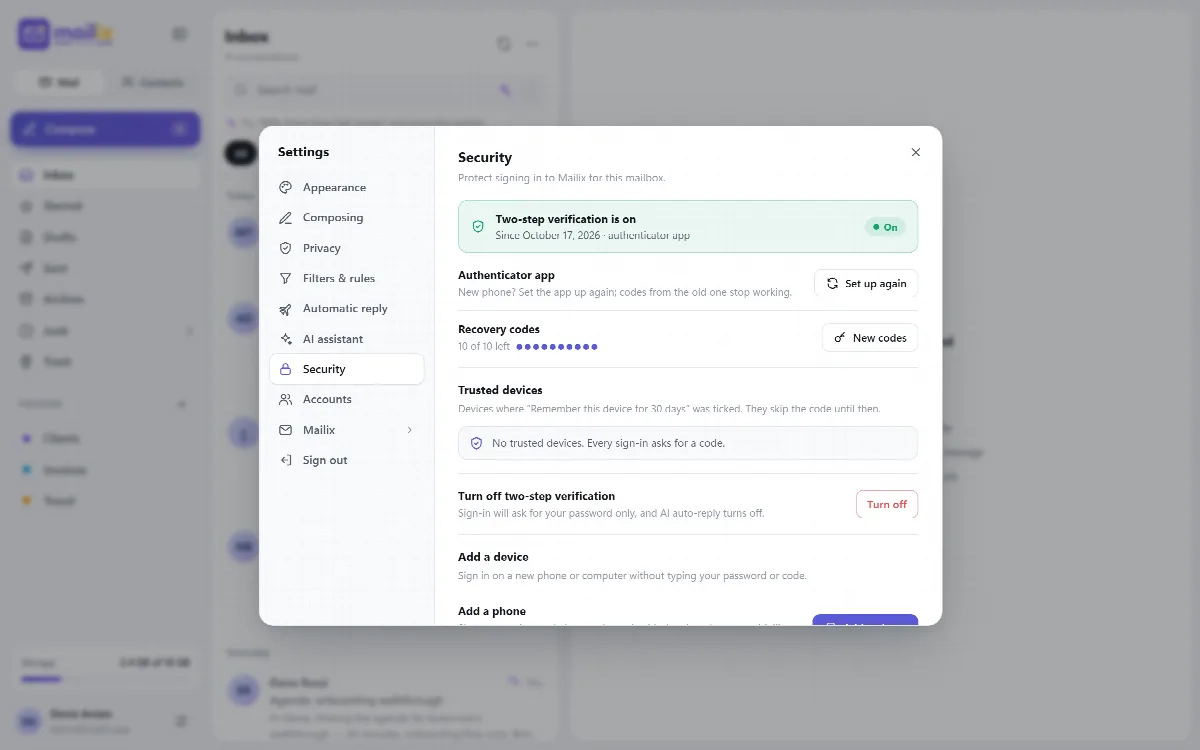
In Settings → Security:
- Authenticator app → Set up again: move to a new phone. After setup, the old app's codes stop working.
- Recovery codes: see how many are left and create New codes. The remaining old codes then stop working.
- Trusted devices: devices where you ticked Remember this device for 30 days, with last use and IP address. Remove them one by one, or Remove all.
- Turn off two-step verification: asks for a code first.
Archives, imports and AI automatic replies need two-step verification. Archive and import also ask for the current code when they start, even on a remembered device.
If you lose your phone
Sign in with one of your recovery codes, then use Set up again with your new phone. If your recovery codes are lost too, ask your company's cPanel account owner or a company manager to reset two-step verification for your mailbox.
For companies: require two-step verification
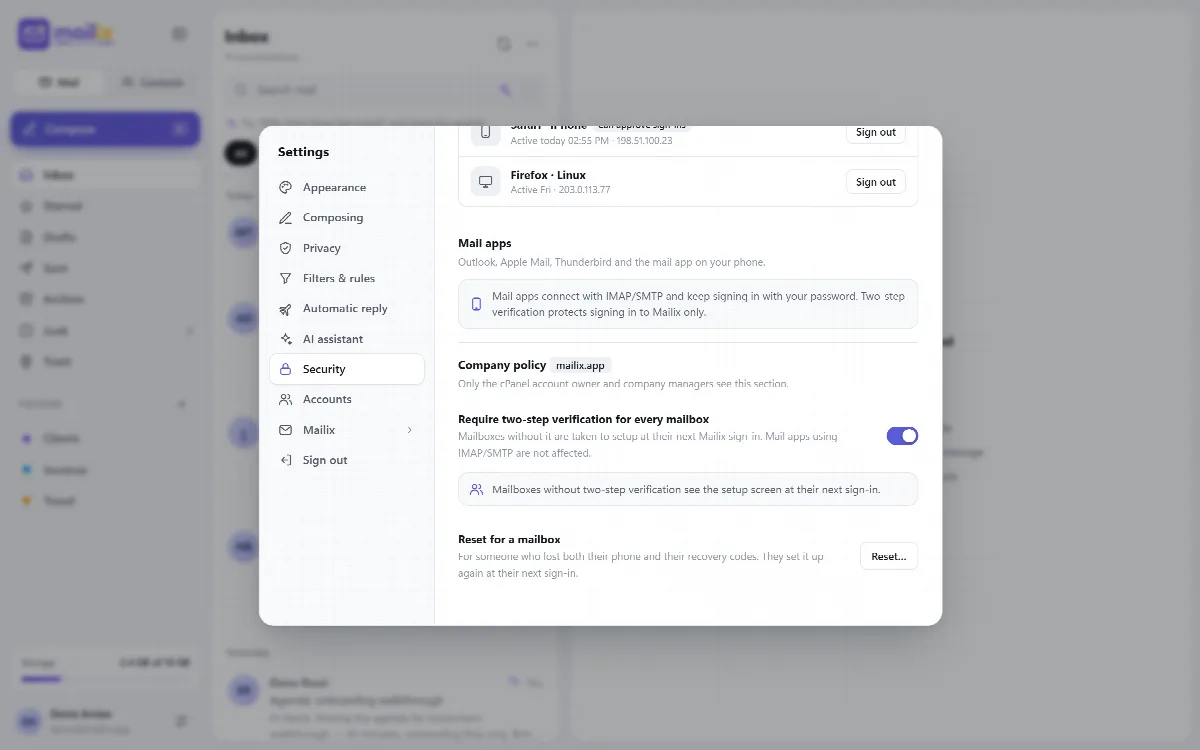
The cPanel account owner and the company's managers see a Company policy section in Settings → Security. On standalone installations, the managers are the addresses in the ai.managers list of the configuration and the managers they add.
- Require two-step verification for every mailbox. Off by default; it is the company's choice. When on, mailboxes without 2FA are taken to setup at their next Mailix sign-in, without a Not now option, and cannot turn it off.
- Reset for a mailbox. For someone who lost both their phone and their recovery codes. Enter the email address: the mailbox's authenticator app, recovery codes and trusted devices are removed, and the mailbox sets 2FA up again at its next sign-in.
What two-step verification does not cover
Mail apps such as Outlook, Apple Mail, Thunderbird and the phone's mail app connect with IMAP and SMTP and keep signing in with the password. Two-step verification protects the Mailix sign-in.